
Table of Contents
- What is a Consignment
- Consignment List View (Consignments page)
- Configuring the Consignments list view
- Allocate Consignments
- Exporting Consignments
- Deleting a Consignment
- Approving Consignment
What is a Consignment
Consignments in CartonCloud are Transport Jobs. There are a number of different types of Consignments you can create in CartonCloud. The type of Consignments you create and how you choose to manage your Consignments will depend upon your operational requirements and setup.
Consignments List View (Consignments page)
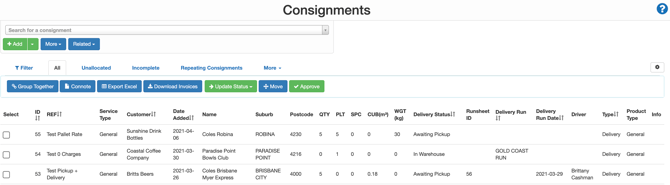
On the Consignments page, you are able to view, add, filter, sort, allocate, export, delete, group, approve, and update the status of Consignments.
To navigate to the Consignments page:
-
Type Consignments into the Search for anything bar OR from the Transport drop-down menu select Consignments.
-
Once on the Consignments page, you will see the Consignments list view. This table view provides you with access to all Consignments that have been created in CartonCloud.
Configuring the Consignments list view
You have the flexibility to configure the Consignment list view using the filter and sort functions to best meet your operational needs.
Filter
The Consignment list view contains a set of pre-defined filters. By selecting the appropriate filter tab you will find Consignments filtered to that specification.
You can select the More tab to find additional filter options.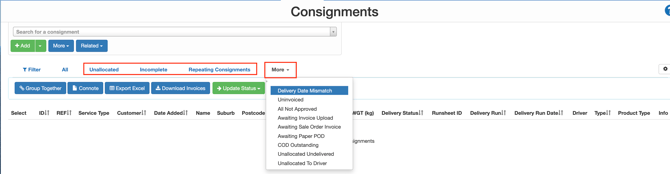
You can also use the Filter tab and configure your own filters. Use the below definitions to choose what filters to apply to your Consignment list.
| Filter | Definition |
| Repeating Consignments |
No : not show repeating Consignments Yes: show repeating Consignments See Repeating Consignments for more information. |
| Customer | The Customer of the Consignment. Select if you wish to show only Consignments for a particular Customer. |
| Delivery Status |
The delivery status of the Consignments. Show Consignments for a particular delivery status. See Consignment Statuses for definitions on each delivery status. |
| Approval | Approval status of the Consignment's POD. Show Consignments for a particular approval status. See Approving Consignment Deliveries for more information. |
| Date Added | The date the Consignment was added. Filter Consignments by the date they were added to CartonCloud. |
|
Delivery Run Date |
Filter Consignments by the Delivery Run date. |
| Delivery Run | Filter Consignments by the name of the Delivery Run the Consignment are allocated to. |
| Type | Filter Consignments by the Consignment type. See Consignment Types for more information. |
| Driver | Filter Consignments by the driver they are allocated to. |
| Completed |
Refers to if the Consignment's paper POD has been uploaded or not.
|
| Sale Order Ship Date | Filter Consignments by the associated Sale Order's ship date. |
From the Filter tab, you can set your own filters based on a range of different Consignment variables. Select the parameters you wish to filter your Consignments and then click GO. Your filter will continue to apply even when you go to other screens in the application.
Adding and removing columns
To customise the columns on the Consignment list:
-
Select the cog icon in the top right corner of the page.
-
A new pop-out window will appear where you can select and/or deselect the columns you wish to view.
Please note that there are 3 different addresses. Pick up, Delivery, and Dynamic. The Dynamic address fields dynamically change on certain consignment types to reflect the status of the consignment and consignment type. For a Pick up Consignment, it will show the pickup address. For a Point to Point consignment, it will show the pickup address until it has been picked up then it will show the delivery address.
Sorting Columns
To sort columns select the arrow icon next to the applicable column heading. By clicking it once the data will sort A-Z, twice it will sort Z-A and three times will reset the data to the default sort for that page.
Allocate Consignments
For more information on allocating Consignments please see Which way should I allocate my Consignments?
- Use the filter function to find the relevant Consignments.
- Select the Consignments you wish to allocate by selecting the tick box.
- Once all relevant Consignments are selected, click Move.
- From here you will be able to allocate Consignments to the appropriate Delivery Run.
For more information on allocating Consignment see Which way should I allocate my Consignments?
Exporting Consignments
-
Use the filter function to find the relevant Consignments.
-
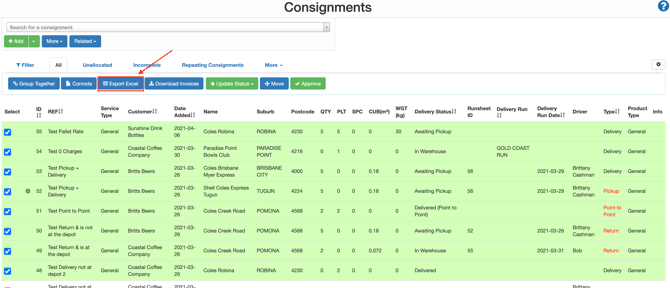
Select the Consignments you wish to allocate by selecting the tick box.
-
Once all relevant Consignments are selected, click Export Excel.
Deleting a Consignment
-
Click on the individual Consignment you wish to delete.
-
From the View Consignment page select Delete.
When you can't delete a Consignment:
- Once it has left the warehouse. To delete a Consignment with a status post 'In Warehouse' you will need to revert the status back to 'In Warehouse' by using the Reset Status button.
- If the Consignment contains manual charges. To remove the manual charges to be able to delete the Consignment, select Automatically Calculate Income Charges and under existing charges select the ones you wish to remove. Press Save.
Approving Consignments
If your customer has created a Consignment through their login you will need to approve the Consignment to proceed with the job.
-
Select the More tab.
-
Select All Not Approved from the drop-down menu.
-
Use the tick boxes to select the Consignments you wish to approve.
-
Select the green Approve button at the top of the screen.