
Table of Contents
Purpose
To manually add a Consignment to CartonCloud.
How to add a Consignment manually
- Navigate to the Consignments page, Transport>Consignments.
- Click the green +Add button.

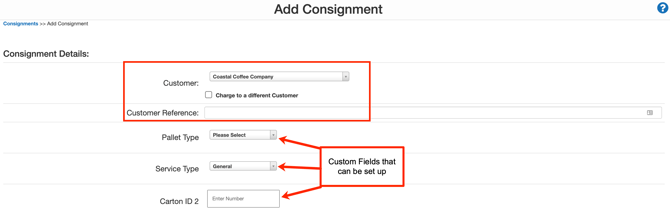
- Select the Customer from the drop-down menu.
If you wish to charge a different Customer, tick the Charge to a different customer box and select the Customer you want to charge the job to.
- Enter the Customer Reference. This is how you will identify the Consignment.
- The Custom Fields you have set up for Consignments will appear here. Fill in the appropriate fields. Click here for more information on setting up Custom Fields.
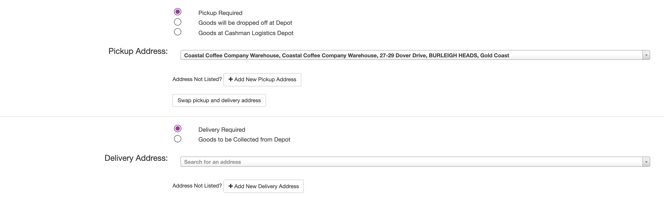
- Select if the Consignment requires to be picked up or not. Next, search for the pickup address and select the correct address. If the address is not listed, select +Add New Pickup Address.
- Search for and select the Delivery Address. If the address is not listed, select +Add New Delivery Address.
- Enter the Invoice Value if required.
- Select if you wish to add the Consignment to an existing Manifest, create a new Manifest or have no Manifest.
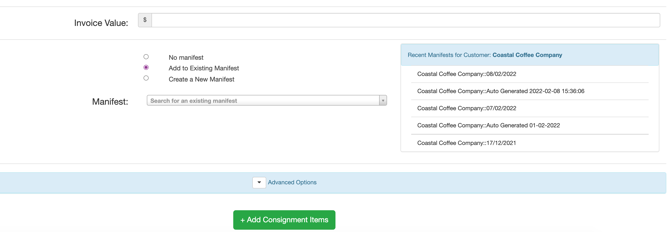
- Select the Advanced Options drop-down arrow.
- Select the Consignment Type from the drop-down menu. See Consignment Types for more information.
- If an Onforwarder is being used, search and select the Onforwarder Address. If the address is not listed, click Add New Onforwarder Address.
- The Delivery Run will automatically be determined; however, you can select a Delivery Run from the drop-down menu if you wish to override this.
- Select a Delivery Date.
- Select a Product Type. Click here for more information on Product Types.
- The Income From and To Rate Zone will be automatically determined; however, you can select a Rate Zone from the drop-down menus if you wish to override this.
- Enter Special Instructions if required.
- Click +Add Consignment Items.
- Enter the Consignment Items by selecting the item from the code drop-down menu.
- Enter the quantity.
- Select Save.
- Select the blue plus icon if you wish to add another Consignment Item.
- Select the Details tab, and you will see all relevant information for the Consignment.