
Table of Contents
Purpose
Please note that if your CartonCloud account was created prior to 1 July 2019 the below functionality may not be available at this stage. If you would like to discuss migrating to the newer version of the CartonCloud TMS, please use CartonCloud Help and lodge a case with our Service Desk.
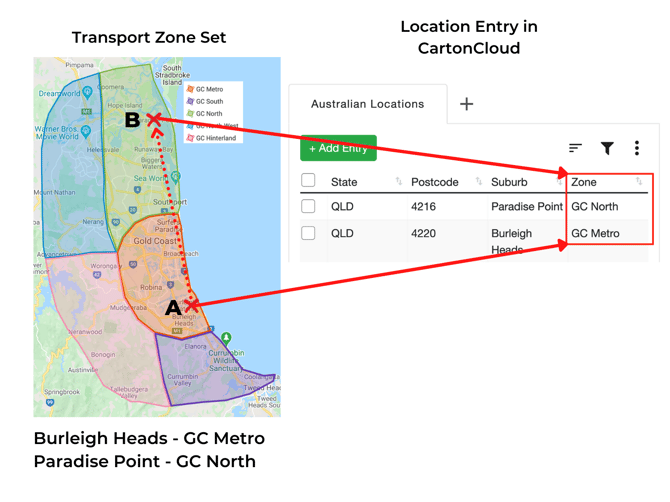
Once all zones and location entries have been created you can then begin to associate location entries with their appropriate zone. By associating location entries with zones, you are defining in CartonCloud which postcodes/suburbs fall within each of the geographic zones your operations services for either income or allocation purposes.
Please note, location entries should be associated with the most specific child zone they belong to.
Before assigning locations to zones, it is important to first understand how to use the filter and sort functionality. This functionality simplifies the assign locations to zones process. Please read filtering and sorting zones in this article before beginning to assign locations to zones.
Example
For the ABC Transport example using the Transport Lane Zone Sets, Burleigh Heads would be associated with the GC Metro zone and Paradise Point would be assigned to the GC North zone.
How To Steps
1. Assign a location to a zone
To assign a location to a zone you can either (a) assign a single entry, (b) assign multiple entries in bulk, or (c) assign multiple entries to multiple zones through the export/import function.
(a) Assigning a single entry
- To assign a single entry, select the checkbox next to the entry so it is ticked.
- Select Assign 1 Entry to a Zone.
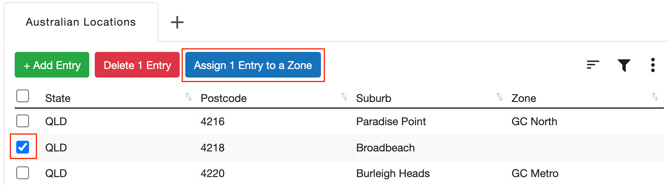
- A new window will appear, from here select the zone from the dropdown menu that you wish to assign the location to.
- Click, Assign.
(b) Assigning multiple entries in bulk
When you need to assign a large number of entries to a zone it is best to do so in bulk. Before completing the below steps, please read the advanced sorting and filtering article(you need to use the filter function to complete the below steps).
To assign multiple entries in bulk;
- Apply filters to your location entries so that only the location that you wish to assign appears.
- Click the checkbox to the left of State to select all entries.
- This will select all location entry records on the current page. To select all entries within the filter parameters, select the text which appears as displayed on the next step.
- To assign all entries that you have selected to a zone, select Assign x Entries to a Zone
c) Assigning multiple entries to multiple zones in bulk
If you wish to assign a large number of entries to multiple zones it is best to do so through the export/import function.
To assign location entries through the export/import function:
- To export location entries, select the 3 vertical dot icon in the top right corner of the location entries window, then Export xlsx.
- The red bell at the top right of the page will then notify you when the export file is ready.
- Select the bell icon then Download here.
- Open the file in Excel or your chosen spreadsheet editing software.
- To assign location entries to zones simply fill in the zone column for the applicable location entries (ensure you are using a zone that has already been created in CartonCloud otherwise, the reimport will fail).
- When updating location entries do not change the id column.
- Once the file is saved and ready to be imported, select the 3 vertical dot icon, then Import and select the file.
- You will be notified once it is complete through the red bell at the top right of the page.
- Review the import results to check if all location entries were assigned successfully, or review any errors that may have occurred.
Filtering and sorting zones
Within the location entry window, you have the ability to use the advanced sort and filter function. For information on how to utilise these functions, please find the advanced sorting and filtering article.
Deleting a location entry
To delete a single Location Entry (you can also follow these steps if you need to delete more than one):
- Select the Location Entry you would like to delete by clicking the tick box on the left-hand side.
- Select Delete 1 Entry.
To delete multiple Location Entries at once:
- Select the filter icon in the top right corner.
- Filter for the locations that you wish to delete (refer to the above filter instructions for more details).
- Select the tick box on the top line.
- Select Delete 5 Entries.
Next Step - Setting up Transport Lanes