
Table of Contents
Purpose
When creating Delivery Runs, you can either create them manually or create them in bulk using the Export/Import option.
Adding a single Delivery Run
To add a single Delivery Run:
-
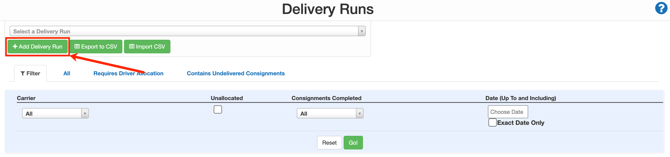
Navigate to the Delivery Runs page, Transport>Delivery Runs.
-
Select +Add Delivery Run.
- Using the below field description, fill in each field as required.
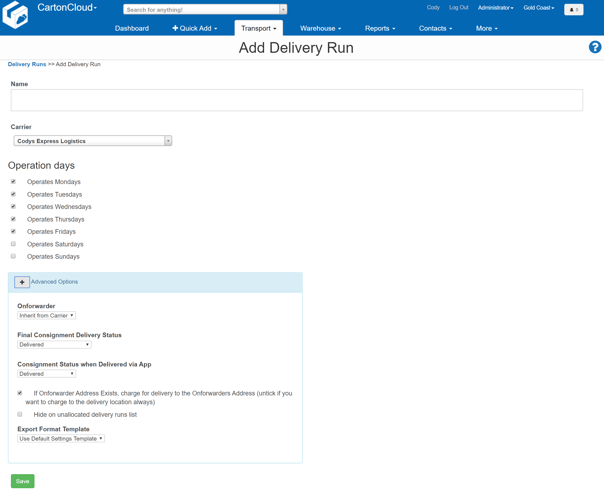
Field Descriptions
|
Field |
Description |
|
Name |
The name given to the Delivery Run |
|
Carrier |
The Carrier delivering the run (set as your own company unless using multicarriers). |
| Operation Days | The days of the week the run operates on |
Field Descriptions - Advanced Options
|
Onforwarder |
Select whether an onforwarder operates the Delivery Run. For example, if you have a Delivery Run named TOLL for all the consignments you give to the freight company Toll for delivery, the run would be an Onforwarder Run. Selecting this option causes two minor differences in Consignments allocated to the run.
For additional information about Onforwarder functionality, see Onforwarder Addresses. |
|
Final Consignment Delivery Status |
When a consignment is "completed" within the Mobile App or from the web interface, the Final Consignment Delivery Status will be used. This is useful for Delivery Runs which are "Pickup from Warehouse", as rather than showing they were "Delivered", they were actually "Collected". |
| Consignment Status when Delivered via App |
Suppose an onforwarder operates the Delivery Run, but your drivers must deliver the stock to the Onforwarder. In that case, you may want to modify the "Consignment Status when Delivered via App" to be "With On Forwarder". The "With On Forwarder" status is used to keep track of which deliveries have been given to the Onforwarder but have not yet had a signed POD come back for - once the signed POD is returned, scanned and uploaded to CartonCloud, the job closes and is marked "Delivered". |
|
If Onforwarder Address Exists, charge for delivery to the Onforwarders Address (untick if you want to charge to the delivery location always) |
This is a very powerful option when working with Onforwarder Addresses. Checking this box enables you to charge only to the Onforwarder rather than the delivery address. For more information on how/when to use this, check out: Onforwarder Use Cases |
|
Hide on unallocated delivery runs list. |
This is useful for runs such as Pickup Runs, which you don't want to see on the "Unallocated Delivery Runs" list, especially if you're automatically allocating the run to a device using: Automatically allocate Consignments to Drivers from Delivery Runs. |
|
Export Format Template |
The format of the default run sheet created against the Delivery Run when exported. |
- Select Save.
You will now view the new Delivery Run on the All tab of the Delivery Runs page.
Export/Import Delivery Runs (create Delivery Runs in bulk)
You will need to create one Delivery Run manually first before following this process, as you will need to export the Delivery Runs first.
- Navigate to the Delivery Runs page, Transport>Delivery Runs.
- Click the Export to CSV button.
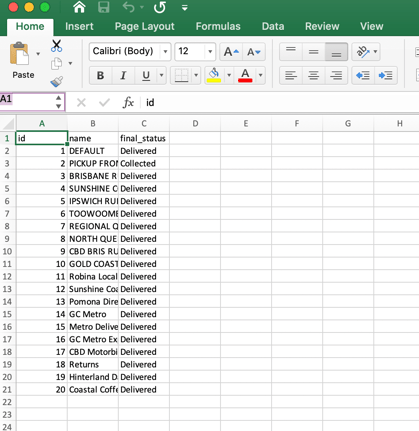
- Open the exported file.
- Enter the name of the Delivery Runs you wish to add in the name column and the final status in the final status column.
Ensure you leave the id column blank for the new Delivery Runs you are adding.
- Save the file.
- Navigate back to the Delivery Runs page in CartonCloud.
- Select the Import CSV button.
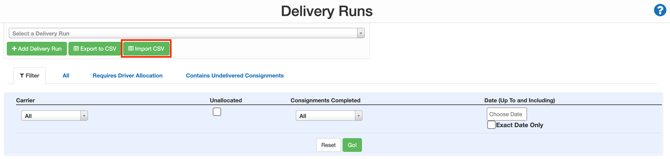
- Select the file and click Upload File.
- The new Delivery Runs will be created.
If you wish to adjust the advanced options against the Delivery Run, you must do so at the individual Delivery Run level.