
Table of Contents
Purpose
The Maximum Charge function allows you to apply a maximum value to certain charges within a Transport Rate to ensure the charge never exceeds a defined value. If the charge exceeds the defined value then the maximum charge will be applied. On the other hand, if the charge is less than the maximum value, then the charge calculation will remain as is.
Note, if the Transport Rate has a surcharge, this will not be included in the calculation when determining if the maximum charge will be applied.
Use Cases
The Maximum Charge functionality ensures that a charge never exceeds an unreasonable dollar amount. This is extremely useful if you charge by a value percentage, such as the invoice value of a Consignment. Depending on the value of the product, the charge can fluctuate significantly between different Consignments, creating the need for a cap to be applied to the charge.
For example, if you have two Consignments for a customer and one has an invoice value of $50, and the other is $3000, there will be a significant charge discrepancy between the two products.
Percentage Invoice Value Charge = 20% of the Invoice Value
Consignment 1: Invoice Value = $50
Consignment 2: Invoice Value = $3000
Consignment 1 Invoice Value Charge = 50 x 0.20 = $10
Consignment 2 Invoice Value Charge = 3000 x 0.20 = $600
If a Maximum Charge of $100 is utilised for the above example:
Consignment 1 Invoice Value Charge = 50 x 0.20 = $10
Consignment 2 Invoice Value Charge = $100 (Charge is greater than $100, so the Maximum Charge is applied)
How To Steps
- Navigate to the Rate Card page by typing Rate Cards into the Search for anything bar.
- Select the relevant Rate Card.
- Select the Transport Rates tab.
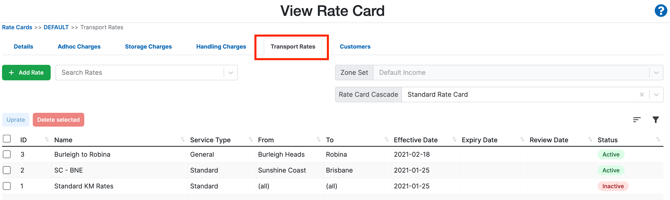
- Either select an existing Transport Rate or select +Add Rate.
- Select the three vertical dot icon in the second panel.
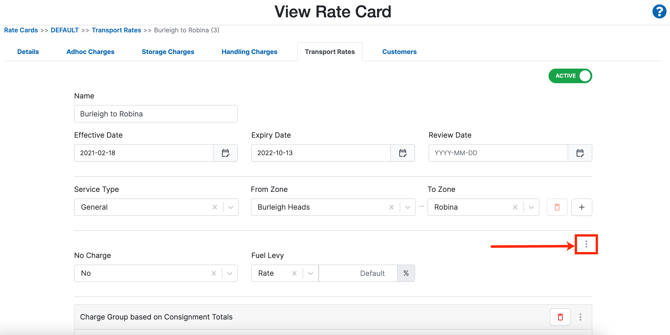
- Enable Maximum Charge by selecting the slide toggle. It will turn green once it is enabled.
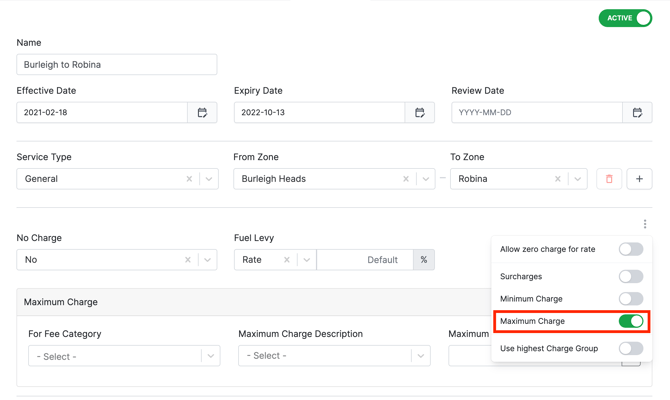
- The Maximum Charge box will appear, and you will be able to configure the charge.

- Select the Fee Category's from the drop-down menu that you wish to apply the Maximum Charge to.
- Select a Maximum Charge Description from the drop-down menu.
You can customise the Fee Category and Maximum Charge Description by creating a Fee Category. See the Fee Category article for more information.
- Insert the Maximum Charge value and apply the fuel levy by clicking the fuel icon.
