Table of Contents
- Purpose
- Benefits
- Scope
- Use case example - consignment income charge ('quote' fee category)
- How to create a Fee Category
- How to merge a Fee Category
- How to apply the Fee Category
Purpose
Fee Categories provide a way to create customised labels for Income and Adhoc Charges. The Fee Category is the name that will appear against the charge on the Customer's invoice.
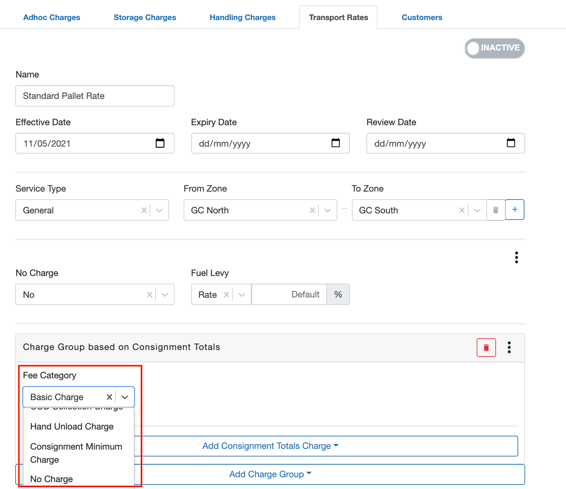
Consignment Fee Categories are an exception to the above as in addition to Income and Adhoc Charges, Consignment Fee Categories can also be utilised when creating Transport Rates. The Consignment Fee Category will appear under the Fee Category drop-down menu. For more information see the Consignment Fee Category section of the article.
Benefits
-
Visibility and transparency on the Customer's invoice for what the charge pertains to.
-
Flexibility when creating charges.
Scope (what you can create a Fee Category for):
-
Consignment
-
Manifest
-
Sale Order
-
Purchase Order
-
Storage Period
- Run Sheet
Use case Example - Consignment Income Charge ('Quote' Fee Category)
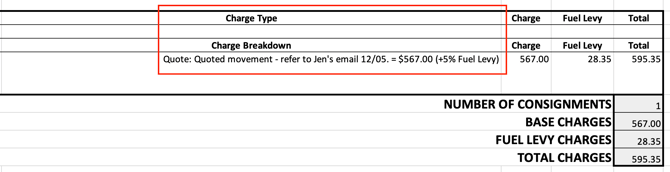
If you have quoted a movement for a customer, that is either a one-off movement or you are yet to sell them a contracted set of rates, you can add an Income Charge with a Fee Category called 'Quote' (you will first need to create a Fee Category called 'Quote').
This will allow you to apply the quoted price to the individual Consignment without having to set up a Rate Card that will later change or not be applicable.
In addition, it will be evident on the Customer's invoice that the quoted price was used for the movement.
How to create a Fee Category
-
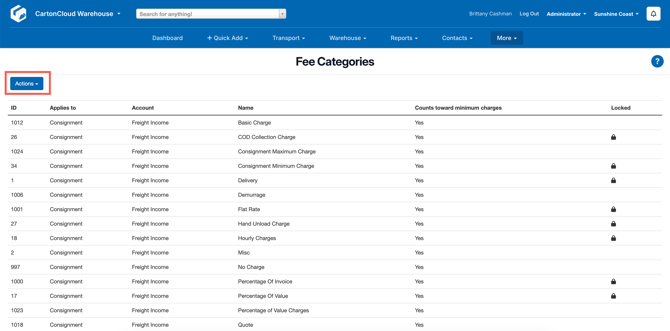
Navigate to the Fee Category page by typing in Fee Category into the Search for anything bar at the top of the application.
-
Click the Actions button in the top left corner.
-
Select Add Fee Category from the drop-down menu.
-
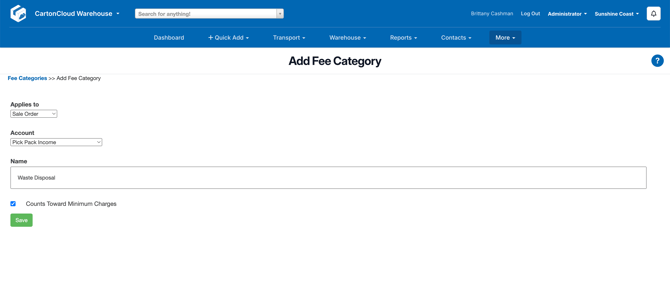
Select the Applies to you wish to create the Fee Category for from the drop-down menu (refer to the Scope at the top of the article for a list of possible Applies to options).
-
Type the name you wish to give the Fee Category. This is the name that will appear on the drop-down menu selection when you are creating an Income or Adhoc Charge. It is also the name that will appear on the Customer's invoice against the charge.
-
Tick the box if you wish the charge to count towards the minimum charge.
How to merge a Fee Category
The Merge Fee Category feature allows you to combine two Fee Categories that apply to the same entity. This is useful when duplicate Fee Categories have been created — for example, if two Fee Categories exist with the same name and purpose. Merging ensures system-wide consistency while maintaining historical charge data.
Prerequisites
- You must be an Admin User to access the merge feature.
- Only non-system-generated Fee Categories can be merged into others.
- Both the source and target Fee Categories must be associated with the same Applies To entity (e.g. both must be for Consignments or Purchase Orders).
- Target Fee Category must be editable (not system-generated).
Benefits
- Prevent confusion and clutter from duplicate Fee Categories.
- Maintain clean charge and account mappings.
- Streamline transport rate and manual charge configurations.
- Ensure consistency in reporting and billing setup.
Use Cases
- You’ve created a Fee Category called Handling Fee twice and want to consolidate them.
- You want to simplify and merge all legacy Fee Categories into a current standard set.
- You’re cleaning up an account prior to automating Adhoc Charges or updating Transport Rates.
How-To Steps
- Navigate to the Fee Category list by typing Fee Categories into the Search for anything bar.
- Locate the Fee Category you want to merge and click Edit.
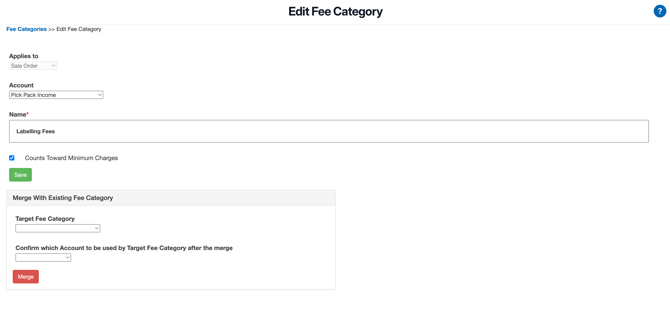
- Scroll to the Merge Fee Category panel located below the Save button.
-
- If the Fee Category is system-generated, the panel will show a message:
"System generated Fee Categories cannot be merged".
- If the Fee Category is system-generated, the panel will show a message:
- Select the Target Fee Category you wish to merge into.
- Only categories with the same Applies To will be listed.
- If applicable, select the Account to be used after merging.
- This dropdown only appears if multiple accounts are used and the tenant has Custom General Ledger Mapping enabled.
- If not visible, the Account from the Target Fee Category will remain unchanged.
- Confirm both selections are made. The Merge button becomes clickable only when both fields are populated.
- Click Merge.
- Review the warning modal carefully, then click Confirm to proceed.
- You will receive a success notification once complete.
What happens after merging?
- The source Fee Category is deactivated and hidden across the system, including:
- Fee Category list
- Transport Rate configurations
- Adhoc Charge setup and manual charge forms
- Invoice Consignments tab
- Bolt Processors (e.g., AddManualCharge)
- The target Fee Category is used going forward in all applicable configurations:
- Default Adhoc Charge settings
- Bolt configuration processors
- Transport Rates and Surcharges
- Historical charges remain linked to the original (now deactivated) Fee Category.
⚠️ Note: This action is permanent. Once merged, Fee Categories cannot be unmerged.
How to apply the Fee Category
To an Income Charge:
See Applying Manual Charges with 'Add Income Charge' for instructions on how to add an Income Charge.
The Fee Category you created will now be an option in the Fee Category drop-down menu when adding an Income Charge for that particular item.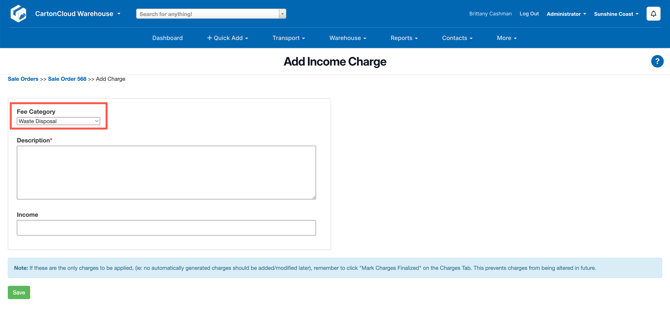
The Sale Order Fee Category, 'Waste Disposal', created above, will now be a drop-down option when adding an Income Charge to a Sale Order.
To an Adhoc Charge:
See Adhoc Charge Setup for instructions on how to configure an Adhoc Charge.
The Fee Category you created will now be an option in the Fee Category drop-down menu when configuring an Adhoc Charge. 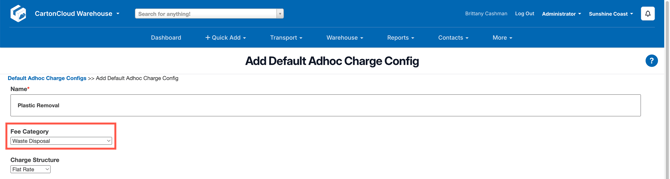
The Sale Order Fee Category, 'Waste Disposal', created above, will now be a drop-down option when configuring an Adhoc Charge.
If you create an Adhoc Charge with no Fee Category you can select the 'Create a new one with the same name' option from the Fee Category drop-down menu. This will create a new Fee Category with the name you have given the Adhoc Charge.
Consignment Charge Fee Categories
In addition to Income and Adhoc Charges, Consignment Charge Fee Categories can also be utilised when creating Transport Rates. The Consignment Charge Fee Category will appear under the Fee Category drop-down menu.
To use a Consignment Charge Fee Category for a Transport Rate:
-
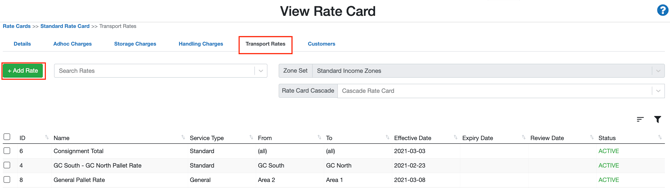
Navigate to the Rate Card by typing Rate Card in the Search for anything bar.
-
Select the relevant Rate Card.
-
Select the Transport Rates tab.
-
Click the +Add Rate button in the top left corner.
-
Whilst configuring your Transport Rates, you will have to select a Fee Category. The Consignment Charge Fee Category you created will appear here in the Fee Category drop-down menu.