
Table of Contents
What is Wave Picking?
Wave Picking is a way of picking multiple Sale Orders simultaneously. Wave Picking helps increase picking efficiency and enables several different workflows.
How to create a Wave Pick
There are three ways in which you can create a Wave Pick:
When creating a Wave PIck you must select a Wave Pick Process Type.
How to complete a Wave Pick
Wave picking can be completed using the web app, the web app and paper or the mobile app.
It is recommended that you create the Wave Picks using the web app and then complete the picks using the CartonCloud mobile app (see Scan Wave Picking for instructions on how to run a Wave Pick on the mobile application).
Wave Pick Templates
Wave Pick Templates allow you to more easily create Wave Picks with pre-defined (saved) search filters and settings. This enables a seamless and optimised Wave Pick creation process. See Wave Pick Templates for more information.
Wave Pick Settings
You can configure several Wave Picking settings at both the Organisation and Customer levels.
Organisation Settings
How to access Wave Pick Organisation Settings:
-
In the Main menu of CartonCloud, select More > Organisation Settings > Features and Options tab.
-
Scroll down to the Picking Configuration section
-
All Organisation level Wave Pick settings can be found and updated here
-
Don't forget to select Save at the bottom of the page if you make changes.
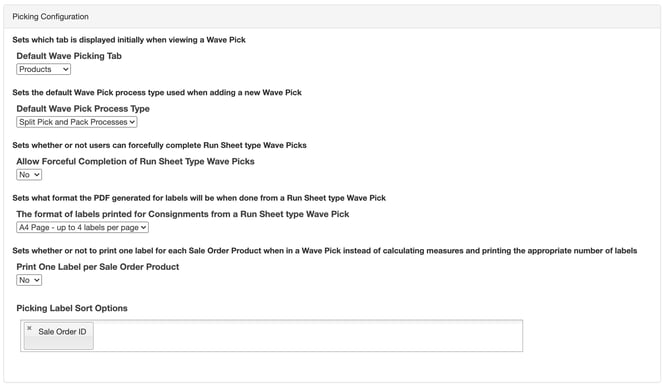
The settings that can be configured at the Organisation Settings
|
Setting |
Explanation |
|
Allow Forceful Completion of Run Sheet or Multiple Customer Type Wave Picks |
Sets whether or not users can forcefully complete Run Sheet or multiple customer type Wave Picks. This is only controlled at the Organisation Settings level as Run Sheets can contain multiple Customers. |
|
Default Wave Pick Process Type |
Sets the default Wave Pick process type used when adding a new Wave Pick. The default value for the Customer Setting is to "Use Organisation Setting". Therefore, if you wish to set the default process type for all of your customers, you can change this Organisation Setting, and it will be applied to all Customers. However, if you have specific customer requirements, you will need to change the Wave Pick Process Type at the Customer Settings. Note, if running a Wave Pick for multiple Customers the Organisation Settings will be applied. |
|
Default Wave Picking Tab |
Sets which tab is displayed initially when viewing a Wave Pick. This can either be the Products or Sale Orders tab. Regardless of your selection, you will be able to switch between the two views. |
|
Print One Label per Sale Order Product |
Sets whether or not to print one label for each Sale Order Product when in a Wave Pick instead of calculating measures and printing the appropriate number of labels. |
|
The format of labels printed for Consignments from a Run Sheet type Wave Pick |
Sets what format the PDF generated for labels will be done from a Run Sheet type Wave Pick. |
Customer Settings
How to access Wave Pick Customer Settings
-
In the main menu of CartonCloud, select Contacts > Customers
-
On the View, Customer page, select the Edit bottom towards the bottom left of the page
-
Navigate to the Warehouse Management tab > then Wave Picks subtab.
-
All Customer level Wave Pick settings can be found and updated here
-
Don't forget to select Save at the bottom of the page if you make changes.

|
Setting |
Explanation |
|---|---|
|
Allow Wave Pick Sale Orders and Sale Order Products to be forcefully completed |
This setting will allow Sale Orders, Sale Order Products, and the Wave Picks they are a part of to be completed without individually checking off the products. |
|
Default Wave Pick Process Type |
This setting determines the default Wave Pick Type for the Customer. If you have configured a default Pick Type at the Organisation Settings, this will automatically apply to every Customer unless you change this setting. |
|
Disable Quantity Confirmation On Pick Sheet |
This setting will allow Products in the Product Pick Screen of a Wave Pick to be completed without entering a quantity. Enabling this option removes the quantity input on the Pick Screen. |
How to forcefully mark orders picked and packed
Once the above forcefully mark orders as picked and pack setting has been enabled (for either a run sheet or customer, depending on your requirement), a new button will appear on the View Wave Pick page.
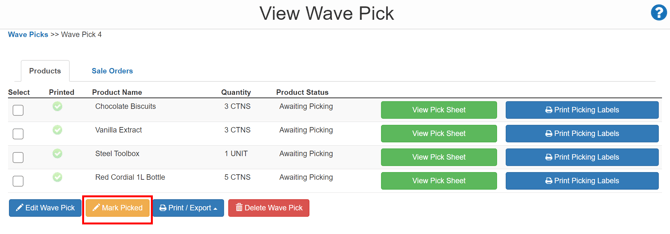

- Select the Mark Picked button.
- To confirm those products as picked, select the option Selected Sale Order Products, then click Mark Selected as Picked.
- Otherwise, mark the entire Wave Pick as picked by selecting Whole Wave Pick.
- Once all Products are marked as Picking Completed, it is possible to move on to the Packing process (provided the Wave pick is a split pick and process type).
- The packing process can either be forcefully completed as well by following the steps below or completed by marking off products either on the web app or mobile app.
- Forcefully completing the packing process of a Sale order is much the same as forcefully completing picking.
- To do this, select the Sale Order you wish to mark as packed, and then select Mark Packed for a new box to appear.
- A new box will appear, allowing you to either mark the select Sale Orders as packed, or mark the entire Wave pick as packed.
- Select Mark Selected as Packed to confirm.
Quantity Confirmation Options
With the option disabled:

With the option enabled:
