
Table of Contents
Resolving printing issues
If you are experiencing printing issues, there are four different applications you can utilise to identify and resolve the issue. These applications include; the CartonCloud Connect application, PrintNode, CartonCloud, and the device you are using (your computer and printer).
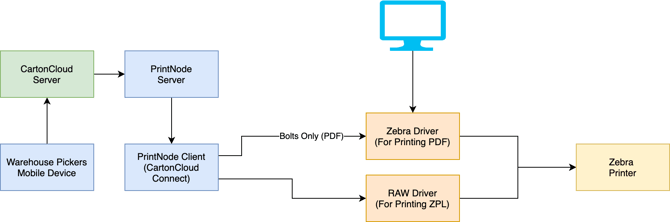
PrintNode is a hosted printing service that runs CartonCloud Connect and enables remote printing from within CartonCloud (refer to the diagram at the bottom of the article for more detailed information). Accessing the PrintNode website whilst troubleshooting is extremely helpful as it stores information relating to all your devices connected to CartonCloud Connect.
Follow the below checks to identify and resolve the printing issue.
Check 1
The printer is turned on and that your computer shows the printer is connected.
Check 2
The correct computer and printer are connected to CartonCloud Connect. You can check this from within CartonCloud or the CartonCloud Connect application.
CartonCloud Application
-
Navigate to the Print Log (More > Print Log).
-
From the Print Log screen you will be able to see the printer and computer being utilised by CartonCloud to print the jobs. You will also be able to see if the printer and computer are connected.

Printer:
- Offline: this means the printer is not online and will not be able to print. You will need to check the printer is connected to your computer and is turned on.
- Online: this means the printer is online, connected to your computer and should be working as expected. If it is still not printing when it reads as online there must be another issue, please read the other checks.
Computer:
- Offline: the computer is not connected to CartonCloud Connect, you will need to connect it in order to be able to print. Please see Printing from CartonCloud (Printer Setup) for more information.
- Connected: the computer is connected to CartonCloud Connect and should be working as expected. If it is still not printing when it reads as Connected there must be another issue, please read the other checks.
-
Navigate to the CartonCloud Connect application (see step 3 in setup instructions).
-
Under Account, check the name of the computer you are using.
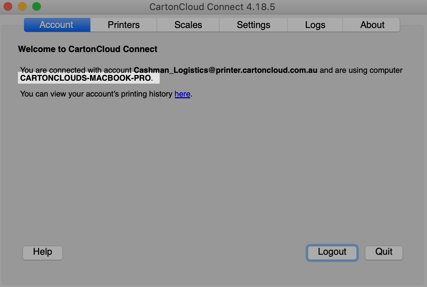
-
In Printers, the name of the connected printer.
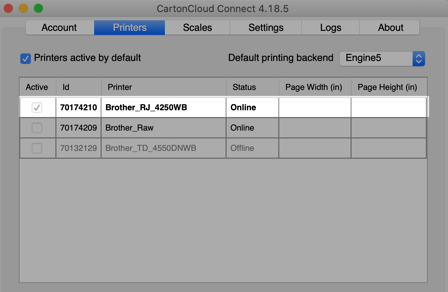
-
Check: computer and printer on CartonCloud Connect are the same as the CartonCloud application.
-
You can confirm that the correct printer is selected by comparing the name in the Print Log (within the CartonCloud application) to the printer in CartonCloud Connect.
Logging into PrintNode directly will also give you further information when troubleshooting printing issues.
-
Navigate to PrintNode website - https://app.printnode.com/app/login. Use the same login details you use to access CartonCloud Connect.
-
View Devices.
-
A list of the connected devices will be displayed. Make the computer and printer you are attempting to use are connected.
-
Use this view to resolve the connection and duplicate printing issues (where more than one device has a session of CartonCloud connect running).
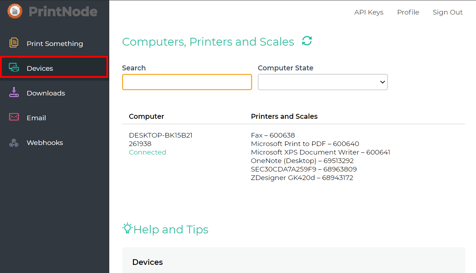
-
In Print Something you can view the Print History and ensure the correct devices are being utilised.
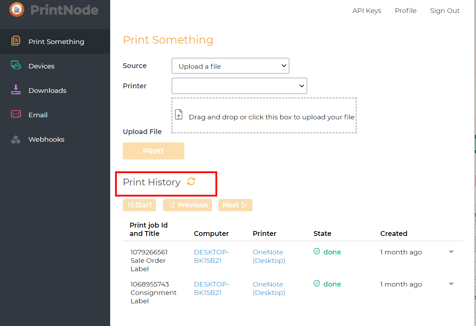
Check 3
Check that your network/server is stable and you are connected to it.
CartonCloud Connect
-
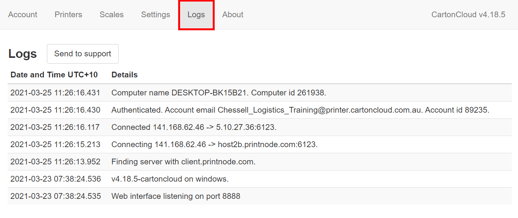
Select Logs From the menu options in the CartonCloud Connect application.
-
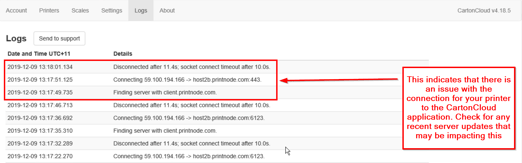
Confirm connection for your printer and device.
-
If you see that there has been a disconnection:
-
Check the printer and computer are connected to the same network.
-
Check with your IT team if there have been any recent server updates or internal network changes that would have caused the disconnection.
-
Check 4
Check the error messages in CartonCloud or PrintNode.
CartonCloud
- Navigate to More>Print Log.
- Check the State column against the relevant print job to check it has been completed or not.

- You can also check the Title, Entity and Warehouse to better understand what jobs are not printing and troubleshoot from there.
PrintNode
-
In the PrintNode website, view Print Something.
-
Check the print history for errors.
-
If there is an error you will see it in the State column.
-
Using the arrow next to the created date to expand the print job further details will be shown detailing the error.
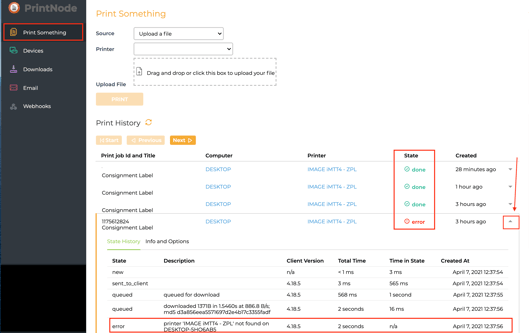
Error examples:
"[WinError13StartDocPrinter()]The data is invalid" - This is a Windows error and restarting the Print Spooler Windows Service or restarting the computer should be able to fix the issue.
"[WinError 1801 OpenPrinter()] The printer name is invalid." - This is a Windows error and likely relating to the Firewall / Anti Virus settings on your computer or an issue with the printer drivers that have been installed.
Check 5
If using a Mac, check that a RAW printer driver is being used to run PrintNode (see Setting up RAW printing for Macs).
Test Print Job
During troubleshooting, it can be useful to test print jobs through PrintNode.
-
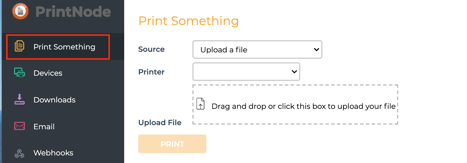
Select Print Something within PrintNode.
-
From the Source drop-down source menu, select either Upload a file (if you have a file you wish to test) or PrintNode Test Page (to use one of the supplied test print pages).
-
Select the printer.
-
Or use the drag and drop option and place the file in the Upload File field.
Label Size Issues
In some cases, Zebra printers may print CartonCloud labels in a different size, to avoid this, the printer should be installed as a Raw printer.
RAW printing is sending a string of commands to a printer directly in its native language. Many printers that are popular with PrintNode users support this. RAW printing bypasses the printer's drivers, making it very fast and reliable. It is perfect for printing receipts, barcodes, and text-based labels.
Install your RAW printer on the same computer that is running the CartonCloud Connect application
Windows Instructions: https://qz.io/wiki/setting-up-a-raw-printer-in-windows
Mac OSX Instructions: https://www.printnode.com/en/docs/raw-printing-for-osx
Printing Workflow
Other possible issues
It's printing more than 1 copy of labels
This can happen if CartonCloud Connect is running multiple times on the one machine or is installed on multiple machines.
The most common cause is the application is running underneath multiple users simultaneously on one machine. For example, it's running on a server in the background under the Administrator login, then a user logs in and re-runs the application under their own account. Now, the application is running twice on the system and therefore will collect and print the labels within each open application.
To resolve, close the program under one or more of the users until the issue disappears.
This can also occur if you are running CartonCloud Connect on a server and it is not running as a Windows Service (runs for every user).
In this case, uninstall the CartonCloud Connect app off the server entirely and reinstall it as a Windows Service (this will stop the system from running multiple times).
Labels Misaligned
Almost always this is due to local printer settings refer to the guide that came with your printer "re-calibrate your printer"
How do I use multiple printers?
CartonCloud enables you to use multiple Zebra printers and define when printers are used (by user or process or a combination of both) Refer Configuring Multiple printers
Can I change my Labels?
At present only PDF labels can be customised. Refer Document Templates; this means that for custom labels that you have designed yourself you must download then print (direct Zebra printing will be coming in the future)
For additional fields such as Batch Numbers, refer to the above and Document Template Placeholders