
Table of Contents
- Purpose
- Prerequisites
- Steps on how to configure multiple printers with CartonCloud
- Configure printers to multiple warehouses
- Printer match conditions
Purpose
If you need to use multiple label printers, you will need to add the printer to your printer setup with CartonCloud.
You can have a different printer for each warehouse in CartonCloud.
Prerequisites
-
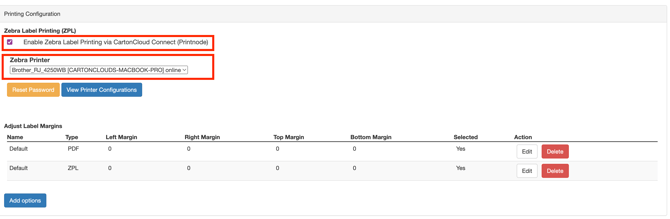
Ensure the default printer is enabled. To do this, follow the below steps:
- Navigate to Organisation Settings (More>Organisation Settings).
- Select the Features & Options tab.
- Check Enable Zebra Label Printing via CartonCloud Connect (Printnode).
- Select a default printer from the Remote Printer drop-down.
Steps on how to configure multiple printers with CartonCloud
-
Navigate to Print Log (More>Print Log)
- Click Configure Printers.

- Click Add Printer Configuration.

- Fill in the fields.
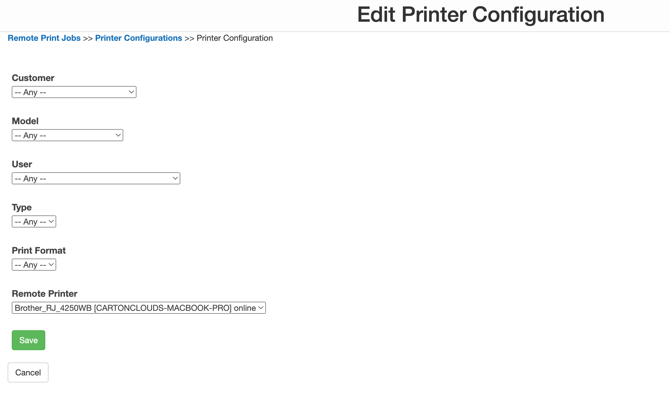
- Click Save.
Configure printers to multiple warehouses
The default printer set at the Organisation Settings will be applied to all of your warehouses (if you have more than one). If you would like to set a different default printer for each warehouse you need to ensure you set up a different printer in each warehouse with printer match conditions (printer match conditions are explained in greater detail below) that allow that printer to be selected instead of the default one. To do this, you need to set the printer to the specific warehouse:
- Navigate to the relevant warehouse.

- Select More>Print Log.
- Click Configure Printers.
- Click Add Printer Configuration.
- Ensure all fields are left as Any.
- Select the printer you wish to make the default for this warehouse.
- Because all fields are left as Any, the printer for this warehouse will now be the Remote Printer you have configured.
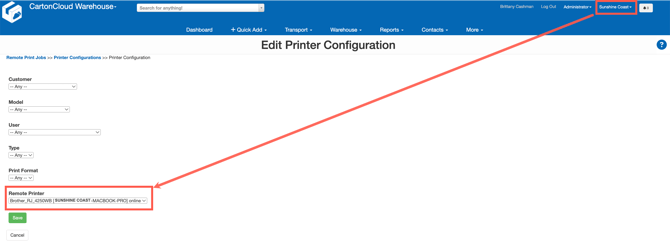
Each printer configuration is warehouse specific, meaning you need to be in the applicable warehouse when setting up your printer configurations. The warehouse you are in when setting up the printer configuration will only be available in that warehouse, therefore, if you wish to make a printer available in each warehouse you will need to configure the printer in each warehouse.
Printer match conditions
When determining what printer to use, CartonCloud will look for matches between the printer configuration and the order (that the label is being printed for). CartonCloud will use the order of priority and scoring system (below) to determine which match/s persists if there is more than one match.
Order of priority in which a printer is selected:
| Match | Points |
|---|---|
| Customer | 16 |
| Modal | 8 |
| User | 4 |
| Type | 2 |
| Print Format | 1 |
Examples:
| Match | Printer A | Printer B | Printer C |
| Customer | Sunshine Drink Bottles | Coastal Coffee Company | Any |
| Modal | Sale Order | Consignment | Consignment |
| User | Sam | John | Sam |
| Type | Label | Any | Any |
| Print Format | zpl | Any | Any |
Example 1: Sam is printing a zpl label for a Sale Order for Coastal Coffee Company = Printer B
Printer A = Model (8), User (4), Type (2), Print Format (1) match = 15 points
Printer B = Customer (16) = 16 points
Printer C = User (4) = 4 points
Example 2: Sam is printing a Consignment zpl label for Sunshine Drink Bottles = Printer A
Printer A= Customer (16), User (4), Print Format (1) = 21 points
Printer B = Model (8) = 8 points
Printer C= Model (8), User (4)= 12 points
Example 3: John is printing a Consignment zpl label for any other customer = Printer B
Printer A= Type (2), Print Format (1) = 3 points
Printer B = Model (8), User (4) = 12 points
Printer C = Model (8) = 24 points
Example 4: Any user is printing a Purchase Order label for any other customer
Fallback to the default printer in Organisation Settings.
Making the most of your ZPL printer with Tony's Tips: