
Table of Contents
Overview
CartonCloud’s Self-Managed Shopify Integration creates a Sale Order when Shopify notifies CartonCloud about a new fulfilment order. Once a Sale Order exists in CartonCloud, changes made later in Shopify (for example adding items, changing variants, or removing products) are not automatically applied to that Sale Order.
If you use a Shopify order editing or post-purchase upsell app (for example Order Editing for Shopify | Self-Service Order Editing App , Upsell.com | The Best Shopify Upsell App | Try For Free , or similar), you typically need a short editing window after checkout before the order should enter the warehouse. CartonCloud supports this by delaying Sale Order creation until the order is ready, based on either:
- Payment status - wait until the Shopify order is paid, or
- Hold status - wait until the Shopify fulfilment order is released from hold.
CartonCloud provides the delay mechanism via integration config toggles. Your Shopify store (and any editing/upsell app) must be set up so orders stay unpaid or on hold for the duration of the editing window. After that window ends, the order should become paid and/or released from hold so CartonCloud can create the Sale Order with the final line items & details.
Important limitations
- CartonCloud does not live-sync edits into an existing Sale Order. Delay creation until edits are finished.
- If an order is created in CartonCloud before the editing window ends, later Shopify edits will generally not update that Sale Order.
- Hold-based delay applies to Shopify fulfilment orders in ON HOLD status (merchant-managed locations). Confirm your editing/upsell app places fulfilment orders on hold for the editing window.
- Always test your chosen Shopify app and CartonCloud toggles together before going live.
CartonCloud Configuration Options
These settings are on the Order Creation step when you configure or reconfigure the Self-Managed Shopify Integration.
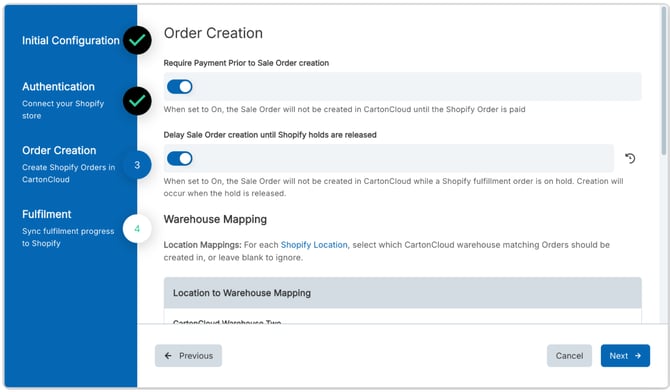
How to enable or change these settings
- Navigate to Integrations (Search for Anything → Integrations, or More → Self-Managed Integrations).
- Select the relevant Customer, then Shopify.
- Open the instance and choose Reconfigure (or configure a new instance).
- On the Order Creation page, turn the relevant toggle(s) On.
- Complete the remaining steps and save.
Existing instances keep their previous behaviour until you reconfigure and turn a toggle On.
You can use either approach, or both together if your Shopify setup requires it (for example payment required and hold delay). Choose the option that matches how your Shopify editing/upsell app delays fulfilment.
Option 1: Delay by hold status (recommended for most editing/upsell apps)
How it works
- Customer completes checkout in Shopify.
- Your editing/upsell app (or Shopify Flow) places the fulfilment order ON HOLD.
- During the grace/editing period, the customer can edit the order or accept upsells.
- CartonCloud does not create a Sale Order while the fulfilment order is on hold (when the holds toggle is On).
- The editing window ends (timeout, accept, or decline).
- The hold is released and the fulfilment order becomes open/released.
- CartonCloud creates the Sale Order with the final line items.
CartonCloud Settings
- Require Payment Prior to Sale Order creation → optional; as needed for your store.
- Delay Sale Order creation until Shopify holds are released → On
Shopify setup
Configure your editing or upsell app so that:
- Fulfilment orders are placed on hold for the full editing/upsell window.
- The hold is released when the window ends (or when the customer finishes editing).
- The editing deadline in the app matches the hold duration you expect.
Exact steps differ by app. Follow your app’s documentation for a “fulfilment hold” or “hold until editing ends” flow.
Some apps provide .flow files to be used with the Shopify flow app to enable this hold/release flow. For example OrderEditing.com suggest using the following > flow file.
Option 2: Delay by paid status
How it works
- Customer completes checkout; payment is often authorised but not yet captured as paid (depending on your Shopify payment settings and app).
- During the grace/editing period, the customer can edit the order.
- CartonCloud does not create a Sale Order while the order is not fully paid (when payment required is On).
- The editing window ends.
- Payment is captured and the Shopify order becomes paid.
- CartonCloud creates the Sale Order with the final line items.
CartonCloud settings
- Require Payment Prior to Sale Order creation → On
- Delay Sale Order creation until Shopify holds are released → optional; turn On only if your app also uses holds
Shopify setup
Configure payment and your editing app so that:
- Orders are not treated as fully paid until the editing window ends.
- Common pattern: set Payment capture to capture after fulfilment (or otherwise delay capture) so the order stays unpaid/authorised during editing, then becomes paid when ready.
- Your editing/upsell app’s “delayed payment” or equivalent flow is active, with the delay matching your editing deadline
Testing
Before going live, run these checks with a test Shopify store (or a controlled production test order).
- Place a test order.
- Check CartonCloud (typically it takes 1-2 minutes for the order to flow through) → the Sale Order should not appear yet (while held or unpaid, depending on your option).
- Make edits during the editing window (add/remove items, change variants, accept/decline upsells).
- Wait for the editing period to expire (or complete the app’s release/capture step).
- Check CartonCloud → the Sale Order should now appear with the final line items.
- Confirm quantities, SKUs, and warehouse mapping are correct.
If an order appears in CartonCloud too early, re-check the CartonCloud toggles and whether Shopify actually kept the order on hold or unpaid for the full window.