
Table of Contents
- Overview
- Prerequisites
- Limitations
- Cost
- Available Workflow
- How to create a Self-Managed Shopify Integration
- Testing
- Disconnecting a Self-Managed Shopify Integration
- Editing an existing Self-Managed Shopify Integration
- Managing Self-Managed Integrations
- Troubleshooting Steps
Overview
Self-Managed Integrations allow you to create integrations from within your CartonCloud account. With the Self-Managed Shopify Integration, orders from your Shopify account can create Sale Orders in CartonCloud and once packed, can mark the order in Shopify as fulfilled along with carrier tracking numbers (if configured).
You can set up multiple instances of the Self-Managed Shopify Integration for a Customer. Each instance creates a separate Shopify connection, which allows you to connect multiple Shopify stores or configure multiple integrations for the same customer where required. Each active instance is billed as a separate integration.
You can configure the integration yourself or you can have your customer set the integration up from their CartonCloud login. See How to enable Customers to create their own Self-Managed Integrations.
Prerequisites
-
This is a paid integration, please ensure you read the included costs below.
-
Your customer must have a Shopify account.
-
You will need your customer’s Shopify store url and Shopify Store login credentials (which have the permission 'Manage and install apps and channels' enabled). Alternatively, you can enable the permission for your Customer to create their own Shopify Integration.
-
The product SKU in Shopify must match the product codes in CartonCloud.
-
The following Custom Fields are optional, but should you wish to use them, they must be set up before building the integration and only Custom Fields with the "Field Type" Text are accepted:
- Shopify Order Shipment Method Field: Sale Order Custom Field
- The following fields are automatically populated and created by the integration:
- Carrier Name Field
- Carrier Tracking Number Field
- Carrier Tracking URL Field
-
The Customer in CartonCloud must have access to the Warehouse the orders are being mapped to from Shopify.
- If you are a Customer user, you must ensure your CartonCloud account owner has given you permission in your account to create your own Self-Managed Integrations. Please reach out to your account owner for this access.
- The integration automatically identifies the whether the order is a Pick-up or Delivery. The Shopify store owner will need to ensure they have enabled "Pick-up" for the Shopify location.
Limitations
- Once an order has been imported into CartonCloud from Shopify, it is generally not automatically updated if changes are made in Shopify. In cases where fulfilment groups or fulfilment IDs change, Shopify may treat the order differently, which can result in CartonCloud creating a new order rather than updating the existing one.
- If an order is originally from a location in Shopify that is not a CartonCloud mapped location, and it then changes to a CartonCloud mapped location, CartonCloud will not be notified of this order.
Cost
We offer volume-based discounts—reach out to our support team here to discuss pricing options.
Available Workflow
- A Shopify order creates a Sale Order in CartonCloud.
-
When marked “Packed”, the Sale Order in CartonCloud marks the order as fulfilled in Shopify (with carrier tracking details if setup).
How to create a Self-Managed Shopify Integration
-
Navigate to the Integrations page by typing in Integrations in the Search for Anything bar or More>Self-Managed Integrations.
-
If an Admin user, select the customer you wish to create the integration for.
- Select Shopify from the Self-Managed Integrations menu selection.
-
Click Configure.
-
The configuration box will now appear, follow the below steps to configure the integration.
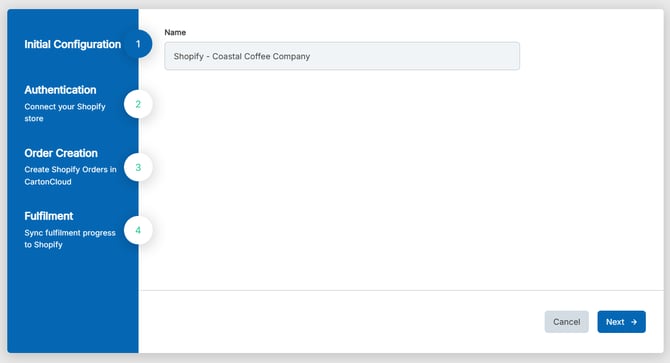
(1) Initial Configuration
- Fill in the Name field. Ensure the name includes the name of the customer. If you are creating a Shopify integration for multiple customers you will need to be able to easily identify the different integrations.
- Click Next.
(2) Authentication
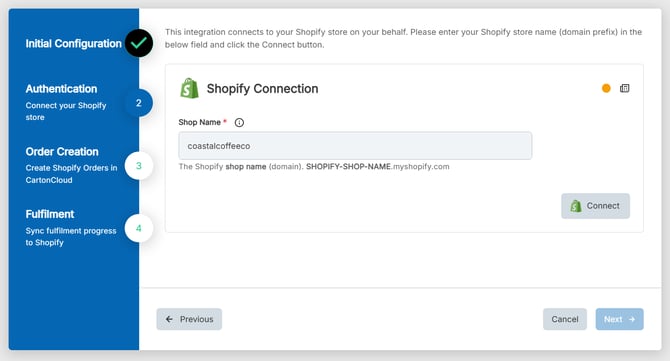
- You will now need to connect CartonCloud to the correct Shopify account.
- To connect Shopify, you'll need your customer's Shopify store name. You can find this in the Shopify account URL—the store name is the part that appears before .myshopify.com. Only the store name is required.
-
Click Connect.
-
You will be prompted to log into the Customer’s Shopify account. You will require the Customer’s Shopify login credentials.
-
Once the status dot icon has turned green the connection has been successful.
-
Click Next.
(3) Order Creation
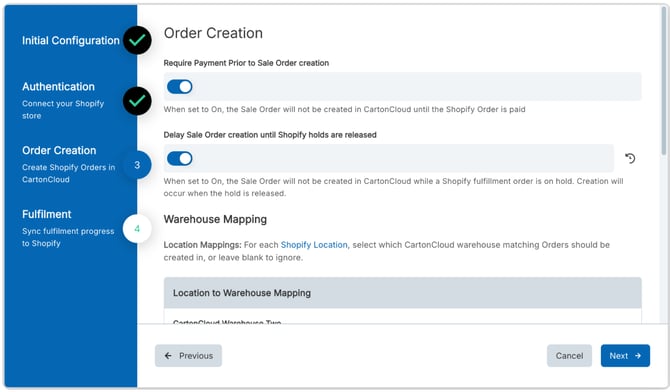
- Here you will need to set up configurations to enable order creation from Shopify to CartonCloud. In addition you will be able to map the Custom Fields set up in your CartonCloud account to the necessary fields in Shopify. This is an important step and if not done correctly the integration will not work. Ensure you have read the pre-requisites and have the required Custom Fields set up.
- Require Payment Prior to Sale Order Creation: with this enabled only orders that are paid in Shopify will be created in CartonCloud.
- Delay Sale Order creation until Shopify holds are released: with this enabled, the Sale Order will not be created in CartonCloud while a Shopify fulfillment order is on hold. Creation will occur when the hold is released. Please see this guide for instructions > Shopify Order Editing.
- Location to Warehouse Mapping: select the correct Shopify Location against each CartonCloud Warehouse. A Shopify Location is any physical place or app where you either sell products, shop or fulfil orders or stock inventory. By mapping the locations to your Warehouse Locations, Shopify will know what orders to send to which CartonCloud warehouses.
- Shopify Order Shipment Method Field: select the correct Sale Order Custom Field that holds the shipment method information. This field is optional.
- Shopify Order ID Field: select the correct Sale Order Custom Field from the drop down menu. This is the Sale Order Custom Field in CartonCloud that holds the Shopify Order ID. This field is mandatory.
- Click Next.
(4) Fulfilment
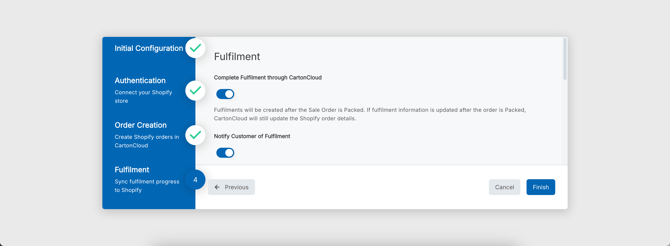
- Complete Fulfilment through CartonCloud: enabled this will create Fulfilments in Shopify once the Sale Order is packed in CartonCloud.
- Notify Customer of Fulfilment: with this enabled the order recipient will be notified by Shopify when the order has been fulfilled
- Carrier Name Field: select the correct Sale Order Custom Field that holds the carrier information. This field is optional.
- Carrier Tracking Number Field: select the correct Sale Order Custom Field that holds the carrier tracking number information. This field is optional.
- Carrier Tracking URL Field: Outbound Order custom field to retrieve the Carrier Tracking URL.
(5) Inventory
Inventory Syncing is optional and is turned off by default. To turn this on for an integration you have already created, use Reconfigure and complete the Inventory step below.
When Inventory Sync is on, CartonCloud sends the warehouse’s free OK stock (sellable quantity that is not already allocated to an order) to Shopify as the available quantity. This uses the Location to Warehouse Mapping you set on the Order Creation step.
For example, if you have mapped “Shopify Location A” orders to go the CartonCloud 3PL “Sydney Warehouse” then stock quantities for Sydney will be used for Products in “Shopify Location A”.
At least one Shopify Location must be mapped to a CartonCloud Warehouse for inventory syncing. The product SKU in Shopify must match the product code in CartonCloud exactly (case-sensitive). The product must already be stocked at the mapped Shopify location CartonCloud will not add it for you.
-
Enable Inventory Sync: with this enabled, CartonCloud will update the available quantity in Shopify whenever sellable stock changes in CartonCloud. When you first turn this on, CartonCloud will update all matching products with their available quantity. A check is also run once a day to correct any differences using the same logic. Shopify will still reduce stock availability when a customer places an order on the store.
-
Inventory Optional Scope Approval: Shopify does not grant inventory permissions when you first connect the store. Copy the Approval URL, paste it into a new browser tab, and approve the inventory permissions in Shopify. Then return to this page and finish the configuration. You must complete this before turning Enable Inventory Sync on.
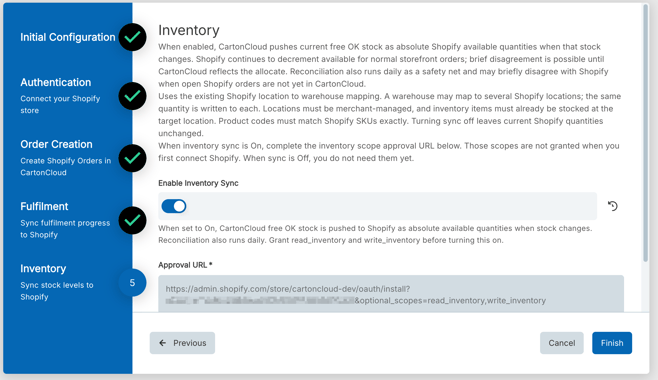
Note: After you have approved the optional scopes, subsequent attempts will redirect you back to CartonCloud. If needed, you can check scopes currently granted to the integration by clicking on the CartonCloud app within the Apps section of Shopify.
Warning: Using this feature in combination with the Shopify hold status to delay orders can cause temporary inventory inaccuracies as held orders will not reduce CartonCloud stock quantities until they reach the system. Therefore, if products on those held orders are synced CartonCloud can send back a higher available quantity, as it is unaware of the held quantities until they arrive.
Testing
Once you have created the Self-Managed Shopify Integration it is suggested that you test the integration with a test order.
If you have any questions or issues please contact support via CartonCloud Help.
Disconnecting a Self-Managed Shopify Integration
If you need to cancel and disconnect the integration you will need to:
-
Navigate to the Integrations page.
-
Select the relevant Customer.
-
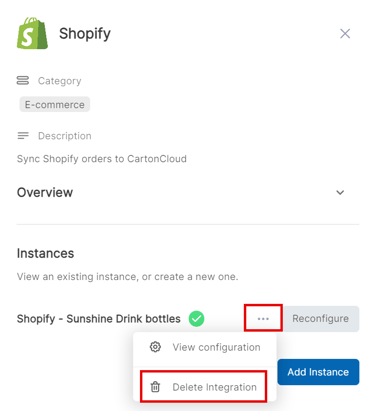
Click Shopify.
-
Select the three-dot configuration icon and select Delete Integration.
-
This will remove the integration and stop the billing of the integration to your account.
Editing an existing Self-Managed Shopify Integration
To edit an existing Self-Managed Xero Integration:
-
Navigate to the Integrations page.
-
Select the relevant Customer.
-
Click Shopify Orders.
-
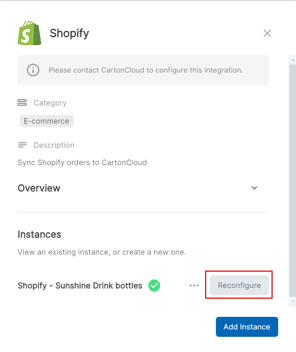
Scroll down to Instances.
-
Select Reconfigure.
Managing Self-Managed Integrations
Because Self-Managed Integrations are a paid feature, it is important you are able to manage and keep track of the number of active integrations your customer's have. This is useful if you wish to pass on the cost to your customer and reconcile your invoices.
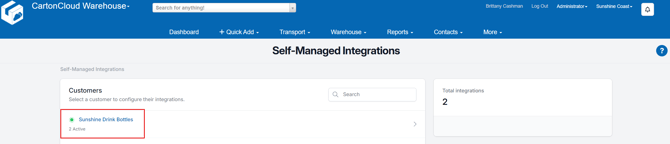
If a Customer has a live integration they will have a green dot icon against their name. It will also display the number of active integrations for that customer below their name.
Troubleshooting Steps
If you are experiencing issues with your Self-Managed Integration and orders are not coming through to CartonCloud then you will need to check the Import Log for why the orders are failing. See Import Log for information on how to read the Import Log and diagnose the issue.
Other things to check include:
- Is the Warehouse to Shopify Location Mapping you have set up match the Location set up in Shopify? Is there a new Shopify Location that is not yet configured in your mapping?
For Shopify specific troubleshooting steps please see Self-Managed Shopify Troubleshooting
If you require further assistance with your Self-Managed Xero Integration please reach out to the team for assistance via CartonCloud Help.