
Table of Contents
- Purpose
- Where to find the settings view
- App version
- Organisation
- Warehouse
- Push notifications
- Additional address information
- Rapid sale order packing
- Enable hardware keyboard (android only)
- Default map (iOS only)
- Support - send diagnostics
Purpose
Within the CartonCloud mobile apps, the Settings View allows the user to customise the default settings to better suit their preferences on what to display and how to display it in the app. Also, for drivers allocated to several organisations, the Settings View allows them to switch organisation to be shown the corresponding consignment list.
Where to find the settings view
Please ensure you have selected the correct mode for the settings you wish to access before clicking Settings.
The Settings View can be accessed by first selecting the menu button in the top left corner of the navigation bar and then choosing the "Settings" option in the slide-in menu.
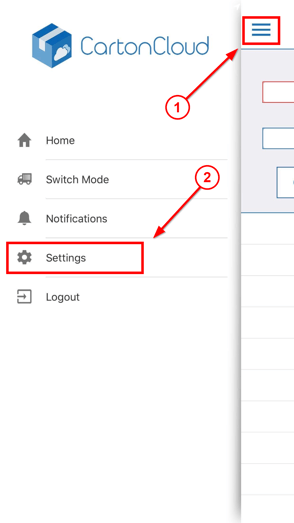
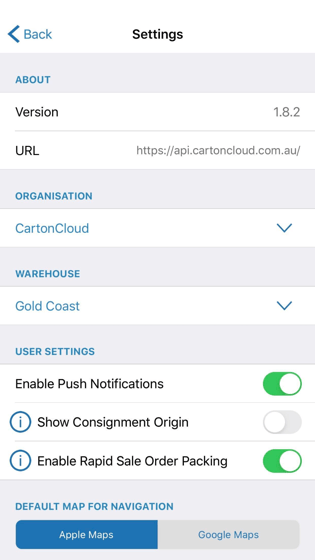
A number of adjustments can be made within the Settings View. Further information on each setting is provided below.
App version
This shows the user the version of the CartonCloud app they are currently using.
Organisation
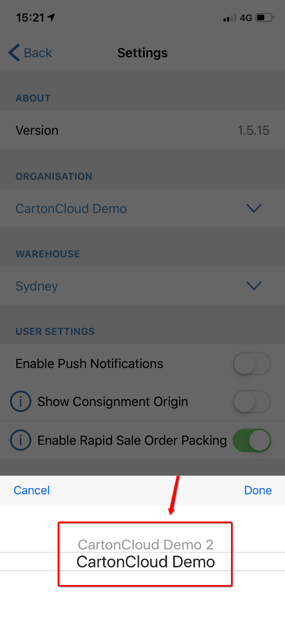
A user can be associated with multiple organisations and on tapping the currently selected organisation's name will be presented with a window showing all organisation options. If a user is only associated with one organisation, tapping the organisation name will not bring up any options.
On choosing a new organisation and saving the settings via the tick button in the top right corner of the view, other pages such as the consignment list will be switched over to the jobs corresponding to the newly selected organisation.
Warehouse
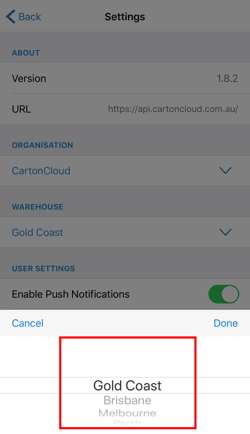
As part of the "Picking" user mode available to users with a Packer role, users are able to select which warehouse they want to see Sale Orders for. For this option to be displayed, the user is required to have a Packer role for the currently selected Organisation and be in "Picking" user mode. If you are in "Driving" mode but choose to change your Organisation to one where you only have a Packer role, the warehouse details will be displayed and upon saving the adjusted settings the user mode will be automatically changed to "Picking".
Push notifications
You may not want to receive Push Notifications from the CartonCloud app, so the Settings View allows you to enable or disable this feature. On selecting this setting, you will be taken to the App Settings on your device where you may adjust your preferences.
For more information on Push Notifications please check out this article: Push Notifications
Additional address information
A driver can choose to be shown additional address information or decide to hide it. The default is to hide additional address information as it may not be relevant to all users. On changing this preference, remember to save your settings by selecting the tick button in the top right corner of the Settings View.
For more information on Additional Address Info please check out this article: Showing Additional Pickup And Delivery Info
Rapid sale order packing
For more information on Rapid Sale Order Packing please check out this article: Rapid Sale Order Packing
Enable hardware keyboard (android only)
If you are using an Android device with a physical keyboard this option allows you to toggle between input types (physical or touch keyboard) on the quantity confirmation and verification view during the scan picking process.
Default map (iOS only)
As you can navigate to an address from within the CartonCloud apps, you may want to select which map app should be opened to continue your navigation - Apple Maps or Google Maps (if installed on the device). For Android devices, this options is not available. Simply highlight your chosen map option by tapping on it and save your settings by selecting the tick button in the top right corner of the Settings View.
Warehouse (iOS only)
As part of the "Picking" user mode available to users with a Packer role, users are able to select which warehouse they want to see Sale Orders for. For this option to be displayed, the user is required to have a Packer role for the currently selected Organisation and be in "Picking" user mode. If you are in "Driving" mode but choose to change your Organisation to one where you only have a Packer role, the warehouse details will be displayed and upon saving the adjusted settings the user mode will be automatically changed to "Picking".
For more information on Scan Picking please check out this article: Scan Picking
For more information on User Modes please check out this article: User Modes
Support - send diagnostics
Selecting this button will upload diagnostic data to the server. This is to allow the CartonCloud team to identify any issues that a mobile app user might experience while using the app.
If you are experiencing problems with the mobile app. Please contact our support team for assistance.
Settings not appearing?
Some settings will only appear based on the User Mode that is currently selected. For example when in delivery mode, settings related to Sale Orders will not appear (like Rapid Sale Order packing).
To make the setting appear so it can be changed, first change the user mode to the most appropriate option related to that setting (e.g. packing for a Sale Order setting).