Table of Contents
- Overview
- Prerequisites
- Key Considerations
- Cost
- How to create a Self-Managed TikTok Shop Integration
- Disconnecting a Self-Managed TikTok Shop Integration
- Editing a Self-Managed TikTok Shop Integration
- Managing a Self-Managed TikTok Shop Integration
Overview
Please note the Self-Managed TikTok Shop Integration is currently in Beta. If you have any issues or questions, please reach out to the team here.
Self-Managed Integrations allow you to create and manage integrations directly within your CartonCloud account.
With the Self-Managed TikTok Shop Integration:
- TikTok Shop orders will automatically create Sale Orders in CartonCloud when the order is ready to fulfil in TikTok Shop.
- Once the CartonCloud Sale Order is Dispatched, the TikTok Shop order will be updated to reflect completion when Complete Fulfilment through CartonCloud is enabled.
- When fulfilment sync is enabled, CartonCloud sends shipment tracking information back to TikTok Shop once a tracking number is available on the consignment.
You can configure the integration yourself, or you can have your customer set the integration up from their CartonCloud login. See How to enable Customers to create their own Self-Managed Integrations.
Prerequisites
- This is a paid integration; please ensure you read the included costs below.
- Your customer must have a TikTok Shop seller account.
- The Product SKU in TikTok Shop must match the product codes in CartonCloud.
- The Customer in CartonCloud must have access to the Warehouse that TikTok Shop orders are mapped to.
- If you are a Customer user, your CartonCloud account owner must have given you permission to create your own Self-Managed Integrations. Please reach out to your account owner for this access.
Key Considerations
- Changes to TikTok Shop orders (for example, item quantity changes) will not be made in CartonCloud. Once CartonCloud has the order from TikTok Shop, the order will not be updated if it is changed within TikTok Shop.
- Deleting an order in TikTok Shop does not notify CartonCloud.
- Dates and datetimes are not converted between time zones.
- Mapping of requested batch numbers is not supported.
- Pickup orders are not currently supported. If this is important to your workflow, please reach out to the Service Desk team here to discuss a possible workaround.
- TikTok Shop orders are checked periodically and may take up to 30 minutes to appear as Sale Orders in CartonCloud after the order becomes eligible for import.
- When the integration is first connected, TikTok Shop orders from up to the previous 24 hours may be imported. After that, only new orders moving forward are synced.
- Tracking information is only sent to TikTok Shop once a tracking number is available on the consignment. Tracking updates before a tracking number is assigned are not supported.
- Sale order splitting is not supported for TikTok Shop orders.
- Only one TikTok Shop integration can be configured per CartonCloud customer.
- If you start configuring an integration but do not complete the setup, the incomplete configuration may be automatically removed after 24 hours.
- Orders fulfilled by TikTok Shipping (where TikTok manages the shipping label and carrier) are imported into CartonCloud, but fulfilment updates are not sent back to TikTok Shop because shipping is handled by TikTok.
- The carrier name sent to TikTok Shop must match one of TikTok Shop's supported shipping providers. An unsupported carrier name will cause the fulfilment sync to fail. Please see below the supported carrier list:
A. Duie Pyle
AAA Cooper Transportation
ABF Freight
Amazon Shipping + Amazon MCF
Asendia US
Averitt Express
Better Trucks
Cainiao US
CDL
Central Transport
Ceva Logistics
Cirro
Collections by TikTok
CrossCountry Freight Solutions
Day & Ross Freight
Dayton Freight Lines
Daylight Transport
Deliver-it
DeliverDirect
DHL eCommerce
DHL Express
DHL Heavyweight
DoorDash
Easy Express
Estes Express Lines
Fastfrate Group
FedEx
Forwardair
Freightquote by C.H. Robinson
GLS US
GLS USA
GOFO
GPS
JD Worldwide
Jitsu
JP Express
LaserShip
Lone Star Overnight
Maersk
Mainfreight
Metropolitan
Oak Harbor Freight Lines
Old Dominion Freight Line USA
OnTrac
OSM Worldwide
Pilot Freight Services
Pitt Ohio
PS Logistics
R+L Carriers
Roadie
Roadrunner Freight
Saia Inc.
ShipX
Southeastern Freight Lines
Spee-Dee Delivery
Speedx
SwiftX
Tax-Air
Tazmanian Freight Systems
TForce
Tusk Logistics
UniUni
United Delivery Service
UPS
UPS Heavyweight
USPS
Veho
Weee
Western Post
Xmiles
XPO
Yanwen
Cost
We offer volume-based discounts—reach out to our support team here to discuss pricing options.
How to create a Self-Managed TikTok Shop Integration
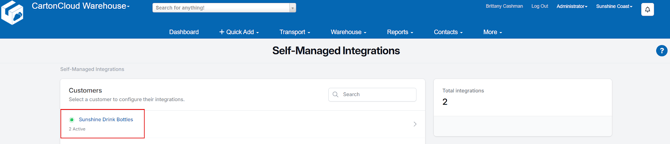
- Navigate to the Integrations page by typing Integrations in the Search for Anything bar or More > Self-Managed Integrations.
- If an Admin user, select the customer you wish to create the integration for.
- Select TikTok Shop from the Self-Managed Integrations menu selection.
- Click Configure.
- The configuration box will now appear. Follow the steps below to configure the integration.
(1) Authentication
-
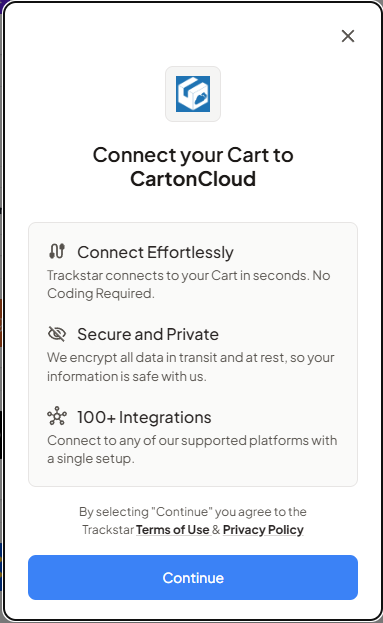
Connect to your TikTok Shop following the prompts:
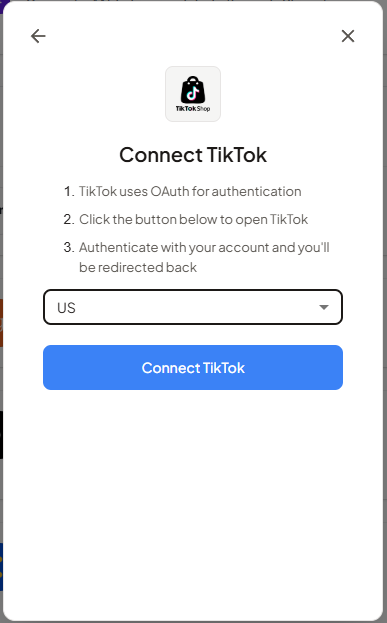
- Click Connect TikTok.
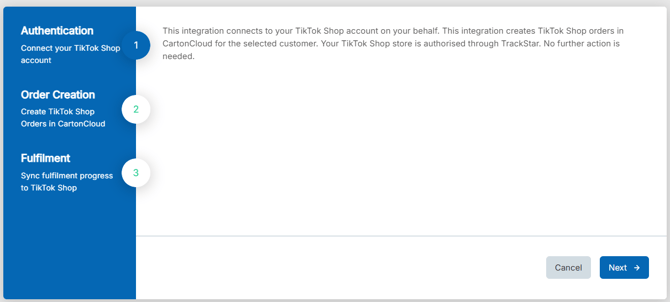
- Click Next.
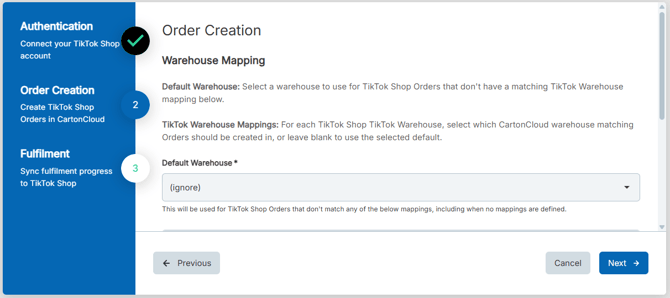
(2) Order Creation
Here you will need to map which TikTok Shop orders will go to which CartonCloud warehouse.
-
Default Warehouse: Select a CartonCloud warehouse to use for TikTok Shop orders that do not have a matching TikTok Warehouse Mappping.
If you choose to set a default warehouse, all orders will go to this warehouse unless you the TikTok Warehouse Mapping is defined.
-
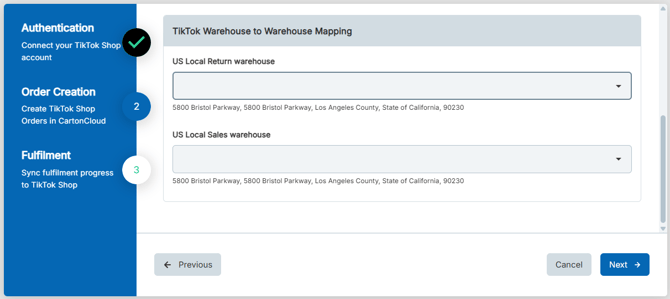
TikTok Shop Warehouse to Warehouse Mapping: Configure mappings to control where orders should be routed.
For each TikTok Shop Warehouse, select which CartonCloud warehouse Sale Orders should be created in, or leave blank to use the selected default.
- Click Next.
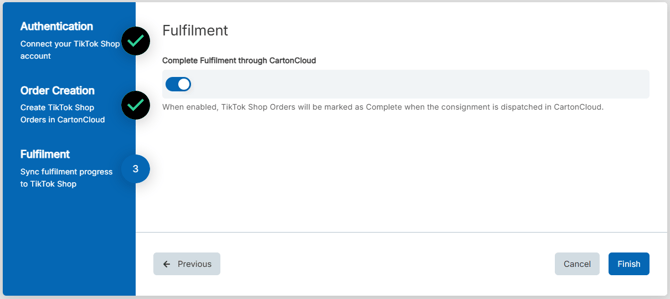
(4) Fulfilment
- Complete Fulfilment through CartonCloud: When enabled, TikTok Shop orders will be marked as fulfilled when the Sale Order is dispatched in CartonCloud and tracking details are available.
- Tracking Information: Tracking information will be sent to Tiktok Shop when the order is dispatched, and will be updated if tracking details change.
- Click Finish.
Disconnecting an existing Self-Managed TikTok Shop Integration
If you need to cancel and disconnect the integration you will need to:
- Navigate to the Integrations page.
- Select the relevant Customer.
- Click TikTok Shop.
- Select the three-dot configuration icon and select Delete Integration.
- This will remove the integration and stop the billing of the integration to your account.
Editing an existing Self-Managed TikTok Shop Integration
To edit an existing TikTok Shop Integration:
- Navigate to the Integrations page.
- Select the relevant Customer.
- Click TikTok Shop.
- Select Reconfigure.
Managing Self-Managed Integrations
Because Self-Managed Integrations are a paid feature, it is important you are able to manage and keep track of the number of active integrations your customers have. This is useful if you wish to pass on the cost to your customer and reconcile your invoices.
If a Customer has a live integration they will have a green dot icon against their name. It will also display the number of active integrations for that customer below their name.