
Table of Contents
- Purpose
- Considerations
- How to enable every Customer to create their own Self-Managed Integrations (Organisation Settings)
- How to enable certain Customers to create their own Self-Managed Integrations (Customer Settings)
Purpose
Self-Managed Integrations allow you to create integrations from within your own CartonCloud account. Within the Self-Managed Integrations, you can choose the platform you wish to integrate with.
You can configure the integration yourself or you can have your customer set the integration up from their CartonCloud login. This allows for greater security as your customer doesn’t have to share their integration system login details with you. For your Customer to create their own Self-Managed Integration you must first give them the permission to do so from within your CartonCloud account. You can choose to enable all Customers to create their own Self-Managed Integrations or only particular Customers.
Considerations
- Self-Managed Integrations are a paid integration and by allowing your Customer access to create their own Self-Managed Integrations, if they do create an Integration it will be billable to your account.
How to enable every Customer to create their own Self-Managed Integrations (Organisation Settings)
To enable every Customer to create their own Self-Managed Integrations you must do so from the Organisation Settings.
- Navigate to the Organisation Settings, More>Organisation Settings.
- Select the Features & Options tab.
- Scroll down to the setting heading Self-Managed Integrations.
- Against the setting Allow Customer to access Self-Managed Integrations select Yes from the drop down menu.
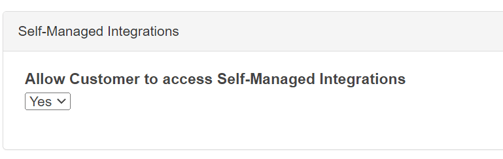
- Scroll down and select Save.
- This will allow every Customer within your CartonCloud account to create their own Self-Managed Integrations, unless you disable the setting from the Customer Settings for a particular Customer.
How to enable certain Customers to create their own Self-Managed Integrations (Customer Settings)
To enable only particular Customers access to create their own Self-Managed Integrations you must do so from the Customer Settings.
- Navigate to the Customer page, Contacts>Customers.
- Select the relevant Customer and click Edit.
- Select the Integrations tab.
- Against the setting Allow access to configure Self-Managed Integrations, select Yes from the drop-down menu.
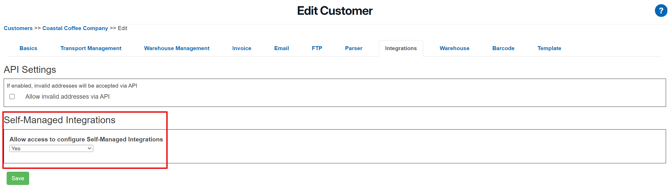
- Scroll down and select Save.
- This will allow only that particular Customer to create their own Self-Managed Integrations (unless you have it enabled it for other customers as well).