
Table of Contents
- Purpose
- How to enable verify when picking
- Limitations
- How to scan verify when picking a Sale Order
- Mobile app workflow
Purpose
When you are picking an order on the CartonCloud mobile app, you have the ability to scan a custom field, such as a batch number, to verify that the product is being picked correctly. This ensures greater accuracy when picking items and that the correct product with the correct custom field, for example batch or serial number is being picked for the Sale Order.
How to enable verify when picking
- You will need to create a Purchase Order Product Custom Field for the relevant field you wish to scan verify on picking. See here for steps on how to create a Purchase Order Product Custom Field.
- When creating the Custom Field you need to ensure the Verify when Picking option is selected.
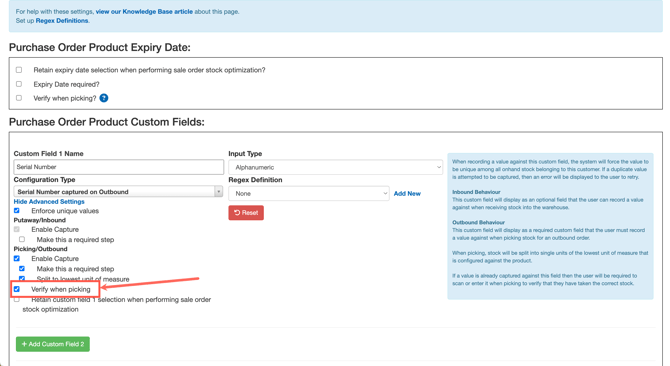
If you are wishing to scan a barcode that contains more than one custom field data in it, for example a GS1 barcode, you will need to set up custom format barcode scanning using Regex Definitions. Please see Scanning Custom Format Barcodes.
Limitations
- Multi capture unique reference scanning is not possible when picking. Unique references must be scanned individually.
- If you do not enforce unique values against the Purchase Order Product Custom Field, it will not split to the lowest unit of measure. See Setting up Custom Fields for Purchase Order Products for more information.
How to scan verify when picking a Sale Order
- From the Task list view, select the Task you need to action (The sale Order you wish to pack).
- Start the Task by clicking Start Task.
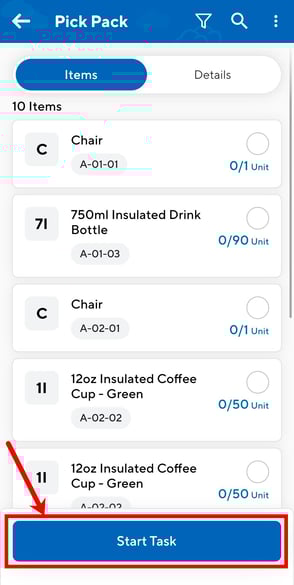
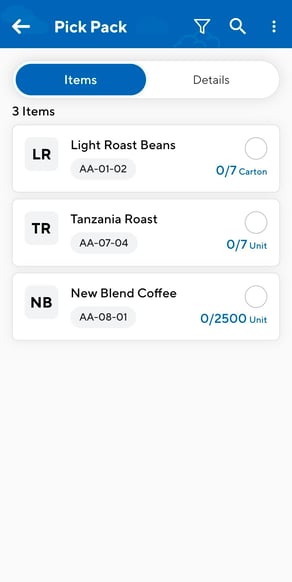
- Click on the Product you wish to start packing first.
- You will then reach the verification page. For Custom Fields you have set to 'Verify when picking' you will need to verify the field here.
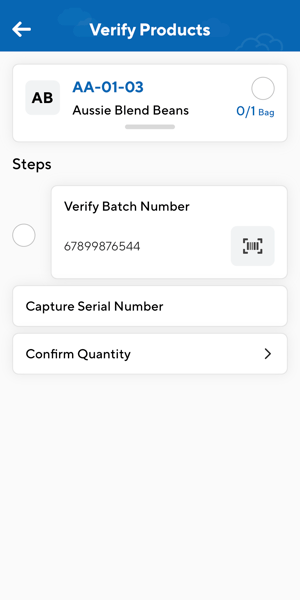
- Click on the first step to verify the field. You can either verify by scanning or manually typing the field in. To scan, click the scan icon in the bottom right.
Scan to verify or verify using the keyboard: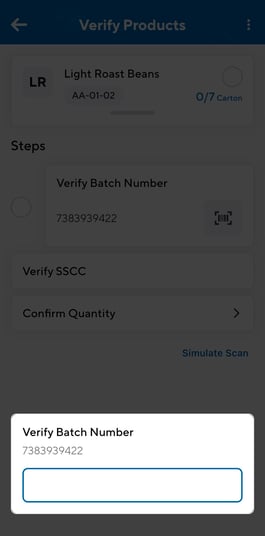
- Continue the same process for each verification step.
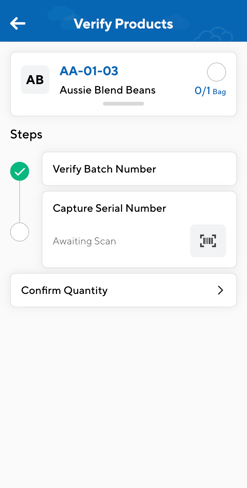
Note: if the Purchase Order Product Custom Field is marked as required, you will not be able to skip the verification step.
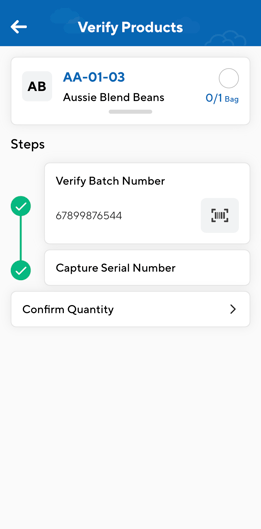
Mobile app workflow
The mobile app workflow is as follows

- The Picker selects the sales order they want to pick
- The Picker will identify the location of the first item on the list and then go to that location and scan the location barcode. This will filter the item list to only show items in that location (as there may be more than one)
- The Picker can then scan the barcode containing the Is Verifiable value (i.e. Batch Number) and the Mobile app will confirm that the correct product is being selected by opening the quantity calculator screen where the picker can enter the confirmed quantity picked or scan product unit of measure barcodes to capture the quantity being picked by carton or unit. If the picker scans a barcode that does not contain any values that match the product on the sales order for that location, the item list will become empty. In this case, the picker should clear the filters, scan the location barcode and then search for the correct product in that location.