
Table of Contents
Purpose
The CartonCloud mobile app can scan standard format product barcodes by default, however, if you wish to scan a custom format barcode, for example a GS-1 label then you require additional set up steps. These steps include defining Regular Expressions which enable the extraction of certain infromation from the product barcode, for example, the expiry date.
Use cases for custom format barcodes
There are two ways in which you can use Regular Expression for custom barcodes.
(1) To extract information from the barcode - if you have GS1 or SSCC barcodes which you wish to scan and extract certain information from, such as batch number or expiry date.
(2) To define the length of the barcode - to ensure that only barcodes with a certain length, for example 44 digits long are scanned. If the barcode isn't 44 digits long it will error.
How to set up custom format barcodes
- Set up the field you wish to capture with the barcode as a Purchase Order Product Custom Field. Follow the steps here.
- Once you have set up the Purchase Order Product Custom Field you will need to create the Regular Expression (Regex). You will need the barcode you will be using to help define the Regex.
- Navigate to the Regex Definitions page by typing Regex Definitions into the Search for anything.
- Click +Add Regex Definition.
- Enter a Name for the Regex and then add the Regex. The Regex will define where in the barcode the information needs to be pulled from. There are some example Regex below, however to learn more about about Regular Expressions, use
https://regex101.com/ which allows you to create and test your own Regular Expressions against real data.
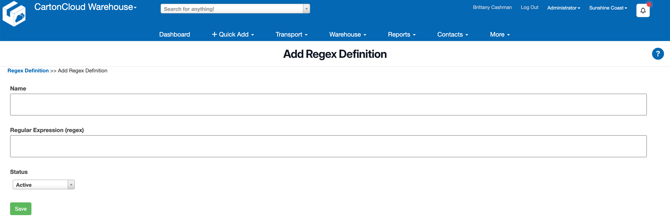
Example Regex Definitions:
| Name | Regex | Use case |
| Best Before Date | "15(\d{6})" | To obtain the best before date from the GS1 barcode. |
| Net Weight | /^3102(.{6})$/ | To obtain the net weight from the GS1 barcode. |
| GS1 44 digits | "(^\d{44})$" | To only accept barcodes that are 44 digits long |
If you require assistance setting up your Regex definitions please reach out to the CartonCloud team via CartonCloud Help.
- Once you have created your Regex, navigate back to the relevant Purchase Order Product Custom Field.
- Against the relevant Custom Field, select the relevant Regex Definition from the drop down menu.
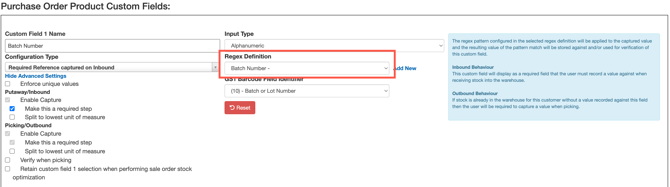
- Scroll down and click Save.
- Repeat this process for the number of different Custom Fields you wish to use custom barcodes for. Note, you can have multiple Custom Fields for one barcode, however, you will need to scan the barcode for each custom field. You can't scan the barcode once and all custom fields related to that barcode are filled in at once. You will have to scan it each time for each custom field.