
Table of Contents
- Overview
- Key Benefits
- Prerequisites
- Scan Unload
- Scan Load
- Consignment Errors and Scan History
- Searching, Filtering, and Scan Alerts
Overview
Scan Load and Unload lets warehouse staff and drivers use the CartonCloud mobile app to scan consignment barcodes when they are received at the depot via a Manifest (Unloading), and when they are departing the depot via a Run Sheet (Loading). It replaces manual, paper-based checking of what is on a vehicle with a fast, real-time scanning process.
There are two parts to this feature:
- Scan Unload – scanning consignments when they are received at the depot against a Manifest.
- Scan Load – scanning consignments onto a vehicle against a Run Sheet, at the start of a delivery run.
Both workflows use the same scanning interface in the mobile app, so once your team is familiar with one, the other works the same way.
Beta access: Scan Load and Unload is currently a Beta feature and is being switched on for users gradually. If you cannot see the Loading or Unloading options in your mobile app, contact CartonCloud Service Desk to check whether Beta access has been enabled for your account.
Key Benefits
- Removes the need for manual, paper-based vehicle checks when loading and unloading.
- Confirms items either by scanning a barcode or by manually tapping to confirm, so drivers without a scanned label can still be recorded.
- Reduces loading errors by validating every scan in real time.
- Gives instant visibility into what has been received at the depot, and what has been loaded onto a vehicle, including a running count as items are confirmed.
- Updates Run Sheet and Manifest statuses automatically, cutting down on manual admin.
- Keeps a record of scan events, viewable in the same place as existing Proof of Delivery (POD) scan history.
- Optionally raises consignment errors automatically when manifest items are not fully confirmed during unloading.
Prerequisites
Scan Load and Unload builds on consignment item-level scanning. Before your team can use it:
- Your account needs Item Level Scanning enabled. If this is not yet set up, see Consignment Item-Level Scanning.
- Your team needs the latest version of the CartonCloud mobile app installed (version 6.51.0 or later).
- Users need the Packer or Driver role assigned to their CartonCloud user account.
Scan Unload
Use Scan Unload when a vehicle returns from a run and you need to confirm what has come back — for example, failed deliveries, returns, or a pickup collected from a customer. Scanning ties these items back to the originating Manifest and updates their status automatically, without manual data entry.
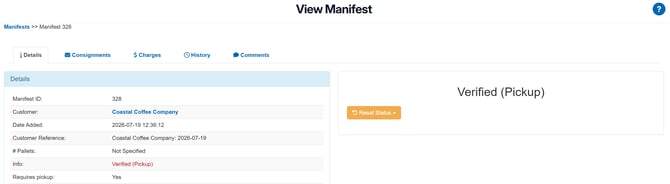
Scanning on the mobile app is available while a Manifest is in the In Warehouse status. Once every consignment on a Manifest has been unloaded and confirmed, the Manifest can be completed, which updates it to a new Verified status.
Verified Manifests: Manifests in the Verified status are not shown in the mobile app's Unloading list by default, but they can still be found using search. Manifests created From Sale Order are not shown in the Unloading list.
How to scan consignments off a vehicle
- Open the CartonCloud mobile app on your device and log in.
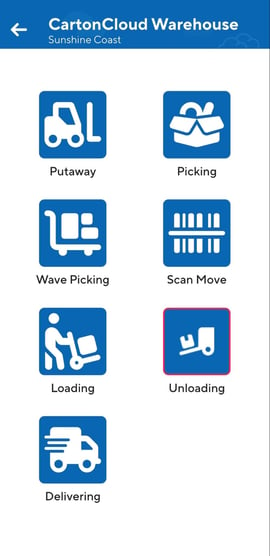
- Switch to Unloading mode. This shows the Manifests that still need to be unloaded, labelled as Pickup or Dropoff so you can tell them apart.
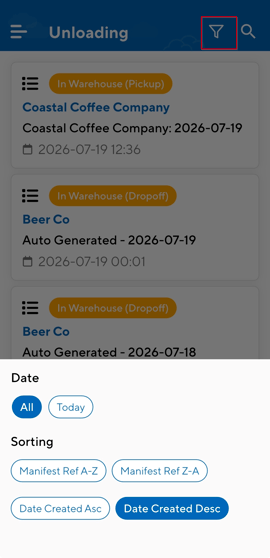
- Use the search and date filters to find the relevant Manifest. You can search by Manifest ID, Manifest reference, or customer name. Manifests are listed with the most recently created first.
- Select the Manifest you want to unload.
- Start unloading the Manifest. This updates the Manifest, and every consignment on it, to In Warehouse.
- Confirm each consignment as it comes off the vehicle, either by tapping the item to confirm it manually, or by scanning its barcode using your device's camera or a connected barcode scanner. A running count updates as items are confirmed.
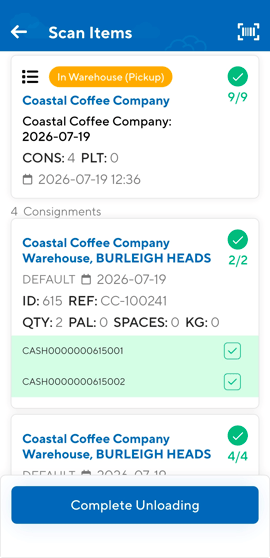
- Once every consignment has been confirmed, complete the Manifest. This updates it to the Verified status.
Access to Manifests in the mobile app is limited to users with the Packer role.
Scan Load
Use Scan Load when a vehicle is being loaded for a delivery run and you want to confirm that every consignment on the Run Sheet has been physically placed on the correct vehicle before it departs.
A Run Sheet moves through the following statuses. You don't need a Run Sheet to already be in Loading status to begin. Tapping Start Loading moves it there from any earlier status, and scanning becomes available once it does:
- Draft
- Ready to Build
- Building
- Built
- Loading
- Ready for Delivery
- Completed
Run Sheets can also be set to a Cancelled status. Empty Run Sheets left inactive for more than a week are automatically moved to Cancelled to keep the system tidy, and a Run Sheet automatically moves to Completed once every consignment on it has been finalised.
Run Sheet Statuses need to be turned on to be visible. Please refer to this guide: Run Sheet Statuses & Pallet Building
How to scan consignments onto a vehicle
- Open the CartonCloud mobile app on your device and log in.
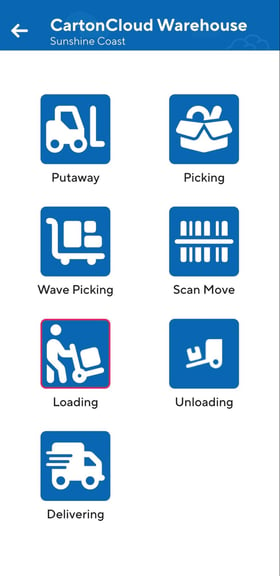
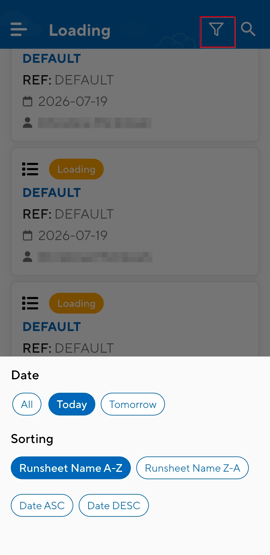
- Switch to Loading mode. This is filtered to today's Run Sheets by default, and displays Run Sheets in any status prior to Ready for Delivery.
- Use the search and date filters to find the relevant Run Sheet. You can search by Delivery Run name, Run Sheet name, Run Sheet ID, date, driver, or vehicle.
- Select the Run Sheet you want to load.
- Tap Start Loading. This moves the Run Sheet to Loading status, regardless of which status it was in before (Draft, Ready to Build, Building, or Built), and unlocks confirmation.
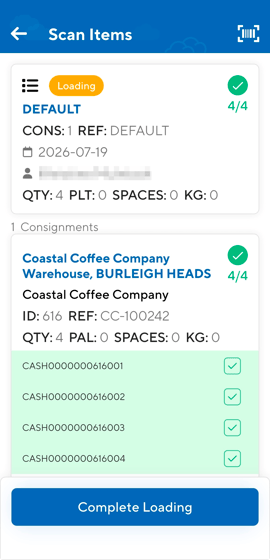
- Confirm each consignment as it is placed on the vehicle, either by tapping the item to confirm it manually, or by scanning its barcode using your device's camera or a connected barcode scanner. A running count updates as items are confirmed, and each confirmation is checked against the Run Sheet immediately.
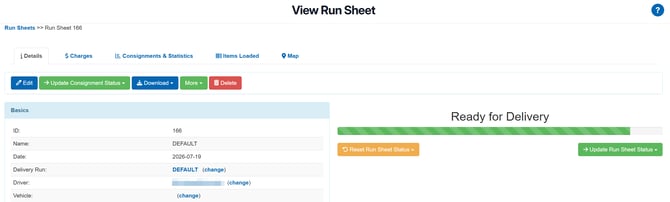
- Once every consignment has been confirmed, tap Complete Loading. This updates the Run Sheet status to Ready for Delivery.
Drivers only see and load Run Sheets assigned to them. Users with both the Driver and Packer roles can see and load their own Run Sheets as well as those assigned to other drivers.
Once a Run Sheet is completed, an Items Loaded tab appears on it, showing a line-by-line record of how each consignment was confirmed (scanned or manually confirmed).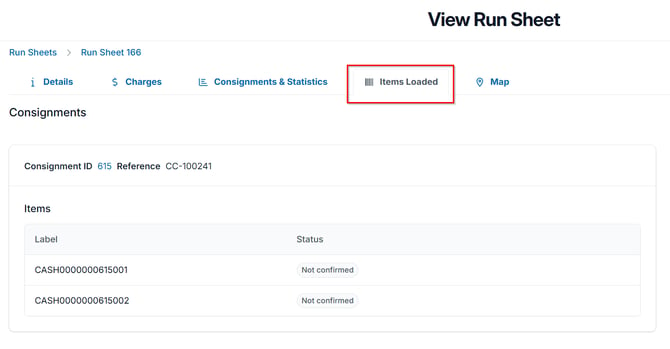
If a Run Sheet is reverted: If a Run Sheet's status is moved back to below Loading (for example, back to Built), any confirmations already recorded against it are cleared, so the Run Sheet behaves as if nothing has been confirmed yet.
Consignment Errors and Scan History
Raising errors for unconfirmed items
You can optionally have CartonCloud automatically raise a consignment error when a Manifest is completed with items that were never confirmed during unloading. This is controlled by a setting called Create consignment errors for unconfirmed manifest items, available at both the customer level and the organisation level.
This setting is switched off by default.
When enabled, two new error types can be raised on a consignment:
- Nothing received – none of the consignment's items were confirmed during unloading.
- Short received – only some of the consignment's items were confirmed during unloading.
Loading vs Unloading: Consignment errors are only raised during the Unloading flow. Items that are not confirmed during the Load flow do not generate consignment errors.
Scan History
Every confirmation event during loading and unloading is recorded on the consignment's history, in the same way scan events captured during Proof of Delivery (POD) are recorded. This includes cases where a confirmation is toggled off again, so the history reflects a full audit trail. Events are recorded in real time, which allows more than one person to load or unload the same vehicle at the same time.
Searching, Filtering, and Scan Alerts
- Your team needs the latest version of the CartonCloud mobile app installed (version 6.54.0 or later) to use this feature.
Searching and filtering work the same way across the Manifest list (Unloading) and Run Sheet list (Loading).
- Type a search term and submit it using your device's keyboard. A small label appears showing your active search term, with an ✕ next to it.
- While a search is active, other filters are disabled. A message on screen explains that filters are unavailable while searching.
- Tap the ✕ on the search label to clear your search and re-enable filters.
- Pulling down to refresh the list keeps your current search and filters in place.
Scan alerts
- Scanning a valid, expected barcode shows a success alert.
- Scanning the same barcode twice shows an already-scanned alert.
- Applying a filter does not trigger a scan alert.