Table of Contents
- iOS
- Android
- Product information
- Filter product list
- Allocate product to location
- Show / hide allocated products
For information on how to connect a Bluetooth barcode scanner to your iOS device please check out this article: Connect a Bluetooth Barcode Scanner
iOS
Android
Product Information
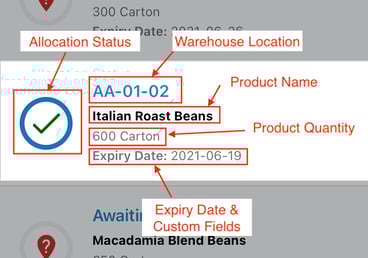
The information displayed includes:
-
Allocation Status: If the product has not yet been allocated to a location, a red marker featuring a question mark will be displayed here, otherwise a green tick to confirm the product has been allocated to a location.
-
Warehouse Location: Location of the product within the warehouse (if available, "Unallocated" otherwise).
-
Product Name
-
Product Quantity
-
Expiry Date & Custom Fields: Based on the tenant settings, plus expiry date for the product. More information on setting up Custom Fields: Enabling Custom Product Fields (Batch, Serial etc)
Filter Product List
Please see Purchase Order Product Verify List - Filter Product List for more information on filtering the product list.
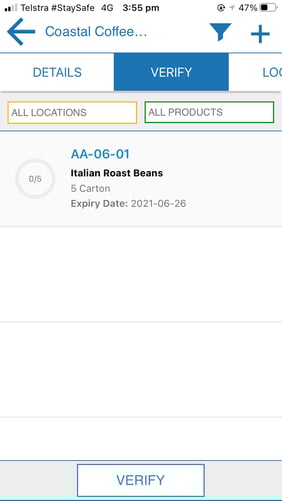
The product list can be filtered by either warehouse location or product barcode. By default, the filter labels on top of the product list will display All Locations and All Products.
If the Purchase Order is Received or Verified and filters are applied that lead to only one product fitting the filter criteria, the Location Allocation view will be automatically displayed (see "Allocate Product To Location" below for more information).
Allocate Product To Location
Scanning a location barcode will automatically filter the Allocate list for products matching the code. In the case where only the product matches the filter, the Location Allocation will be automatically displayed.
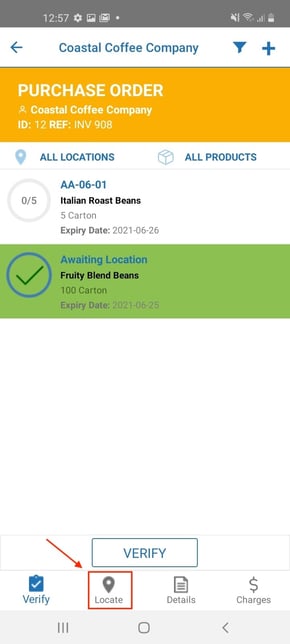
Alternatively, selecting any product from the Allocate list will open the Location Allocation view and allow you to allocate the product to a location.
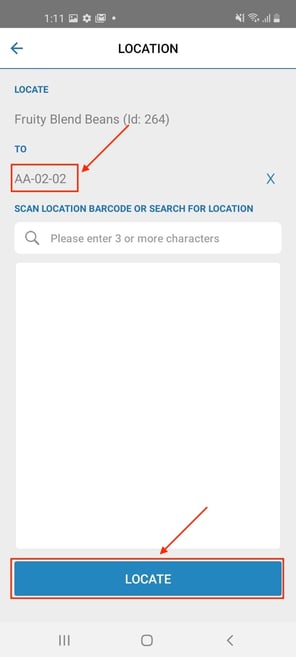
Within the Location Allocation view, you can either search for a location by typing into the search field or scan a location barcode. After selecting a location from the search results choose "Locate". If you scanned a location barcode, the view will automatically dismiss and allocate the product to this location. The product list will be updated accordingly and display the new location value for the product.
Searching for location in Location Allocation View (iOS)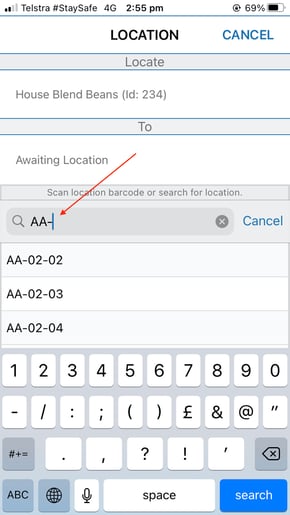
Selected Search Result (iOS)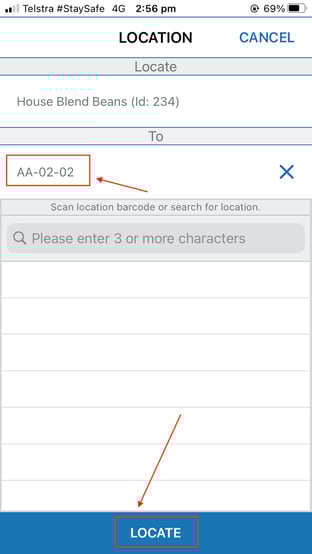
Searching for location in Location Allocation View (Android)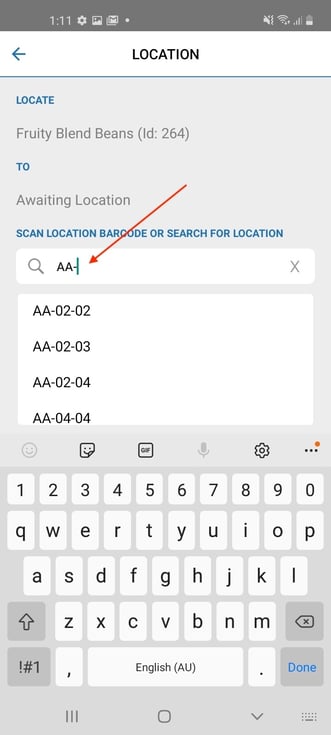
Selected search result (Android)
Show / Hide Allocated Products
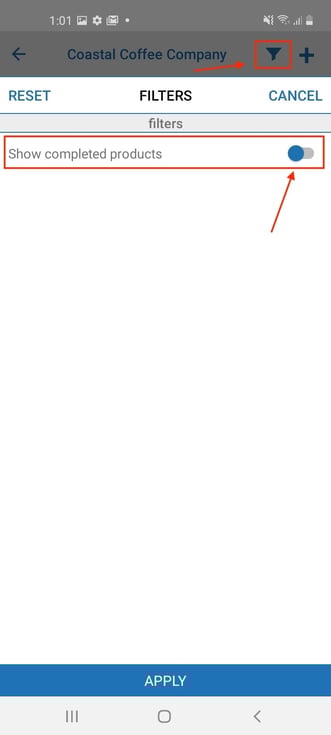
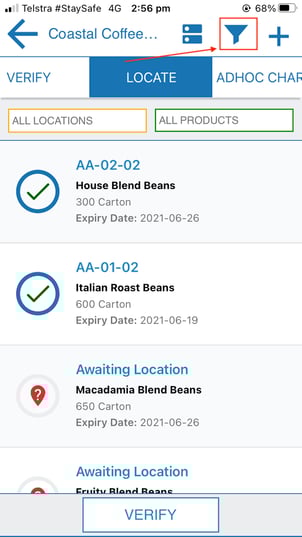
By default allocated products are being displayed in the product list. You may prefer to hide them from the list. To do so, select the filter button (filter icon) from the top navigation bar and de-select 'Show completed products' so that the sliding scale is no longer green.
Showing Allocated Products (iOS)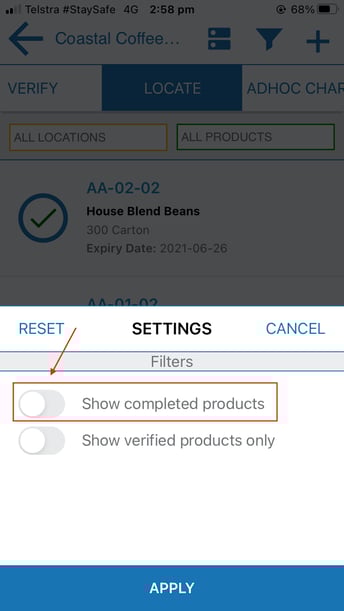
How to Hide Allocated Products (iOS)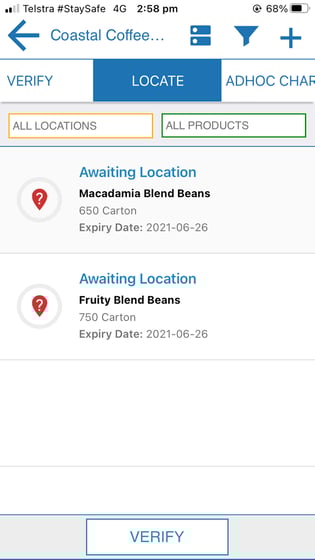
Hiding Allocated Products (iOS) 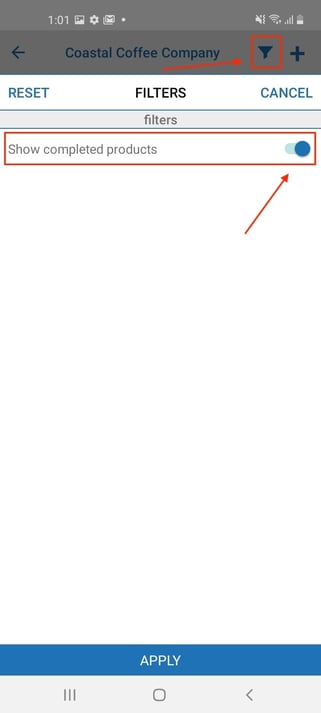
Showing Allocated Products (Android)