
Table of Contents
- Product information
- Confirmed product and unconfirmed product quantities
- Filter product list
- Scan-add product quantities
- Confirm unsaved product quantities
- Show / hide completed products
- Showing completed products
- Hiding completed products
For information on how to connect a Bluetooth barcode scanner to your iOS device please check out this article: Connect a Bluetooth Barcode Scanner
Product information
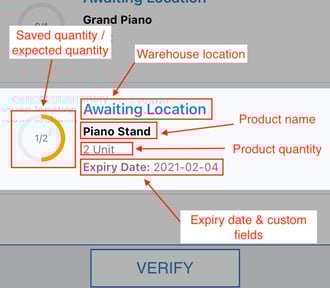
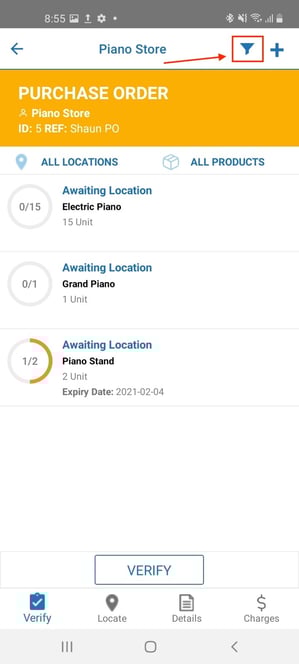
The information displayed includes:
-
Saved Quantity / Expected Quantity: The number of currently saved products and the number of total expected products are displayed here. Once the expected quantity has been reached for a product, a green tick will be displayed.
- Warehouse Location: Location of the product within the warehouse (if available, "Unallocated" otherwise)
- Product Name
Confirmed Product and Unconfirmed Product Quantities
|
Confirmed Product |
Unconfirmed Product Quantities |
|
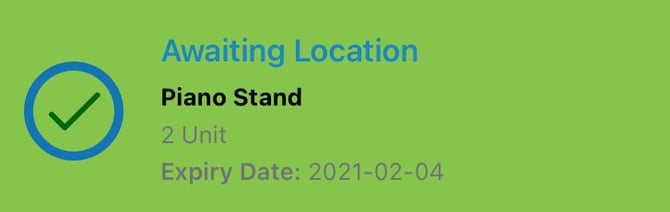
Once a product has been confirmed it will be highlighted in green (see "Confirm Unsaved Product Quantities" below, and "Confirmation View" in Receiving on the mobile app (scan putaway) for more information on how to confirm a product). Additionally, as the quantity has been confirmed and therefore now equals the expected quantity, a green tick will be displayed instead of the saved/expected progress circle.
|
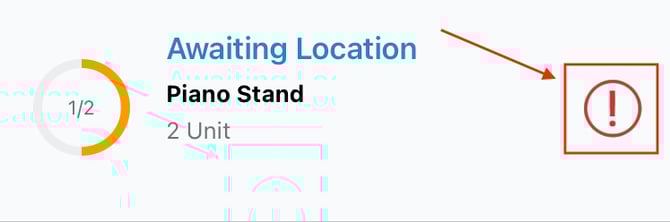
In the case where product quantities have been added via Scan Adding (see "Scan-Add Product Quantities" below for more information), a red exclamation mark will be displayed for the affected product. Tapping this will offer the option to confirm the product (see "Confirm Unsaved Product Quantities" below for more information).
|
Filter Product List
The product list can be filtered by either warehouse location or product barcode. By default, the filter labels on top of the product list will display All Locations and All Products.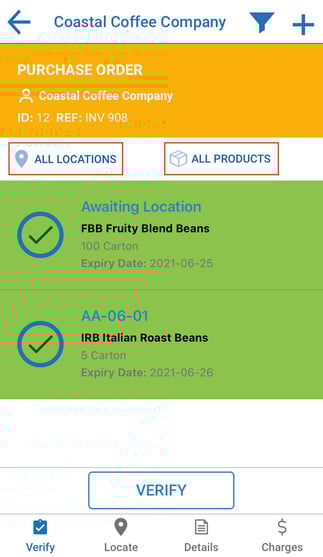
To start filtering, either scan a product or location barcode using a Bluetooth barcode scanner connected to the iOS device you're running the CartonCloud mobile app on or add a barcode manually, by tapping either the "All Locations" or "All Products" field. The app will then automatically search for matching products and warehouse locations and filter the list accordingly.
Manual Barcode Entry
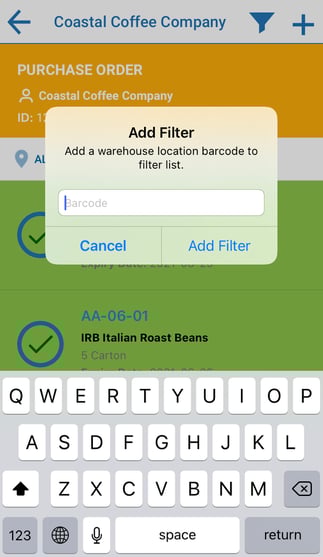
List Filtered by Warehouse Locations (iOS)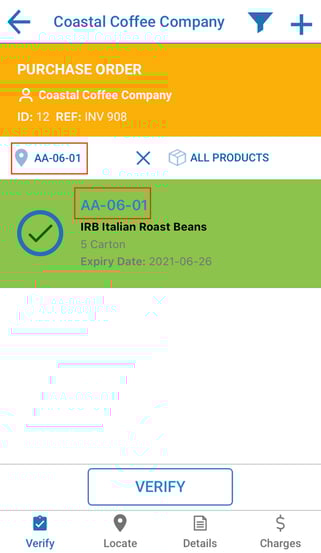
If the Purchase Order is already Received and filters are applied that lead to only one product fitting the filter criteria, Scan-Adding will be automatically applied (see "Scan-Add Product Quantities" below for more information).
Scan-Add Product Quantities
Scanning a Product Unit Of Measure barcode will automatically filter the Verify list for products matching the code. In the case where only product matches the filter, the scanned Unit Of Measure will be automatically added to the product quantity. As this quantity will not automatically be confirmed, a red exclamation mark is displayed until the quantity is confirmed (see "Confirm Unsaved Product Quantities" below for more information).
If there are multiple products matching the scanned barcode, an information bar will be displayed below the filters, giving more details about what Unit Of Measure has been scanned. This Unit Of Measure can then be added to any of the filtered products by tapping that product in the list.
Only 1 matching product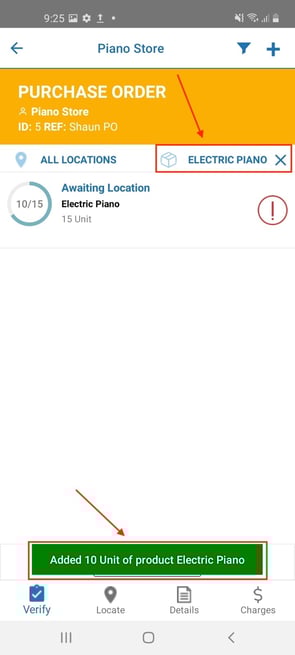
Multiple matching products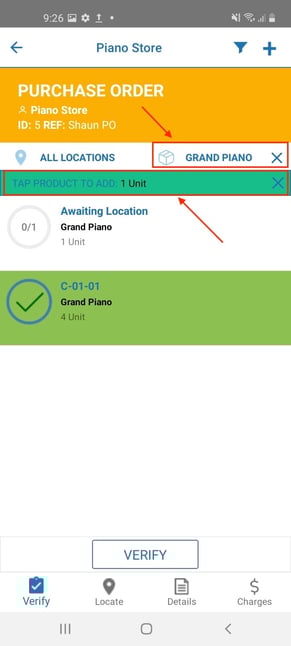
Product quantity added after tapping a product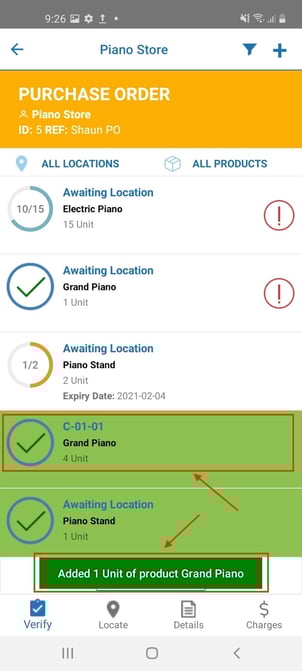
Confirm Unsaved Product Quantities
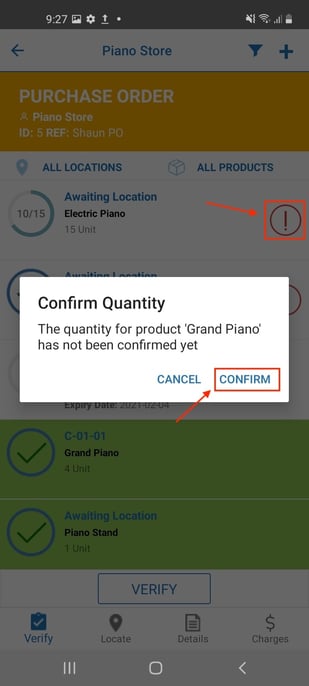
Unsaved product quantities, highlighted in the list with a red exclamation mark for the affected product, can be confirmed by tapping the exclamation mark and selecting "Confirm" in the displayed alert. Consequently, the exclamation mark will no longer be shown and the product will be highlighted green as it has now been confirmed.
Show / Hide Completed Products
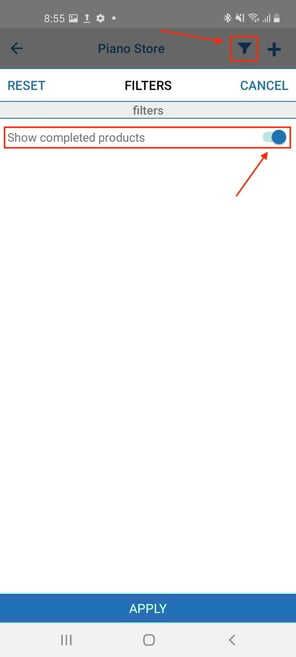
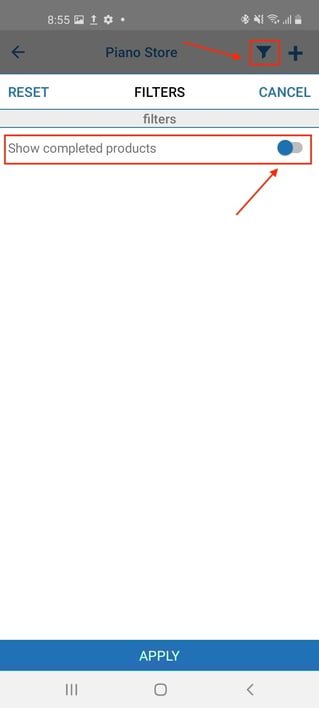
By default, completed products are displayed in the product list. If you would prefer to hide the completed products you can use the filter function (filter icon) in the top right corner of the navigation bar. Select the filter icon and then click the sliding bar called 'Show completed products' so that it is no longer green (for iOs) or blue (for Android). This will then remove all completed products from the product list.
Showing Completed Products
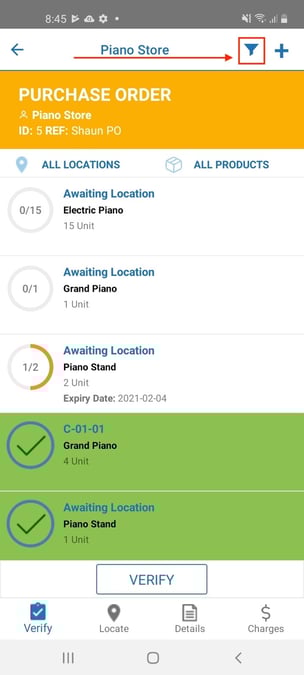
Hiding Completed Products
-
Product Quantity
-
Expiry Date & Custom Fields: Based on the tenant settings, plus expiry date for the product. More information on setting up Custom Fields: Enabling Custom Purchase Order Product Fields (Batch, Serial etc)