
Table of Contents
- Purpose
- Benefits / use cases
- How to pre-print pallet labels in bulk
- How to assign a pallet barcode during the inbound process
- How to print pallet labels during the inbound process
- How to print pallet labels from the web app
- How to apply pallet labels to stock already in the warehouse
- How to merge pallets when allocating pallets to a bulk location
- How to import Purchase Orders with a pallet barcode assigned
Purpose
CartonCloud allows you to print, assign and scan pallet labels throughout the system. Pallet labels can be applied when stock arrives, or, to stock already in the warehouse. Pallet labels can be used to locate stock to a location, move stock between locations, to consolidate stock, or to split stock apart.
Pallet labels can be automatically generated when new stock arrives, or pre-printed in bulk and assigned to stock that is arriving. Pallet labels can also be used when picking to specify or verify the stock being picked.
Pallet labels can be printed either from the mobile or web app.
Benefits/use cases
- Ability to print pallet labels in bulk (avoid continually accessing the printer, can instead only go to the printer once)
- Ability to assign a pallet barcode to a pallet (don't have to use the one automatically assigned if a pallet label has already been printed)
- Print pallet labels during the inbound process (don't have to pre-print them in bulk)
- Can easily can and move a pallet with pallet barcodes
- Streamline the inbound process, locate and move stock process with pallet barcodes. All stock on the pallet can be scanned once to move it with the pallet barcode.
- Pallet barcodes can be used for Reallocation
- Create a multi-product pallet which contains a mix of different products.
Note: CartonCloud currently only supports pallet labels which were generated from within CartonCloud itself. However, we’re working to enhance this to support externally-generated pallet labels, and will allow these to be specified on incoming Purchase Order docs so they can be scanned to allow for quicker receiving.
How to pre-print pallet labels in bulk
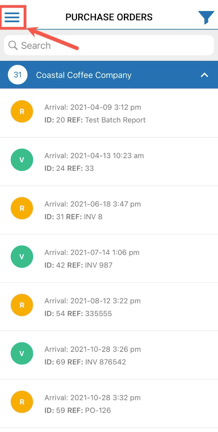
- From the Purchase Orders mode within the App, select the menu navigation icon in the top left corner of the screen.
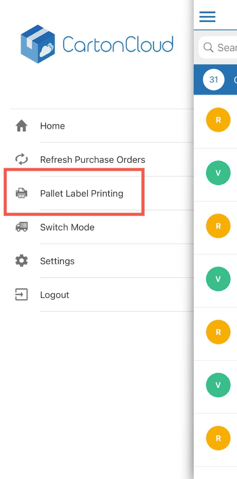
- Select Pallet Label Printing.
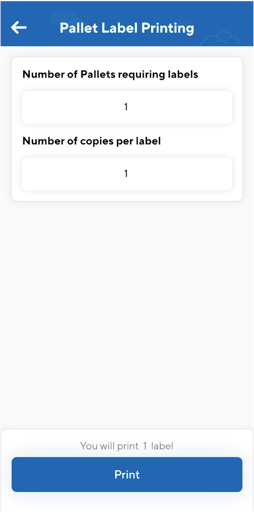
- Enter the number of pallets requiring labels and the number of copies per label.
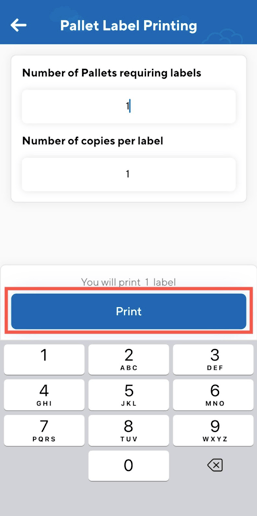
- Click Print.
- You will now have a number of pallet labels, from here you can assign the pallet barcode to the pallets during the receival process. This process is outlined below.
How to assign a pallet barcode during the inbound process
You can assign a pallet barcode to pallets on a Purchase Order at any point during the receival process. Once you have clicked ‘Receive’ against the order you can assign the pallet barcode before or after you have recorded the unique references. In the below case, the pallet barcode will be assigned before the unique reference is recorded against each line of stock.
- Click Receive against the relevant Purchase Order.
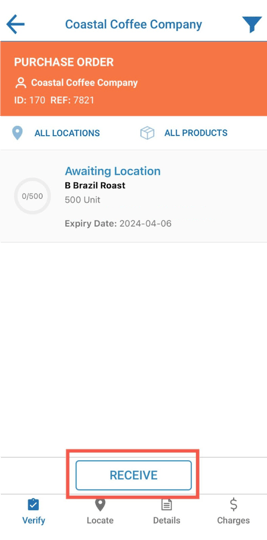
- Click the pallet you wish to assign a pallet barcode to.
- Select the carton icon next to the scan icon.
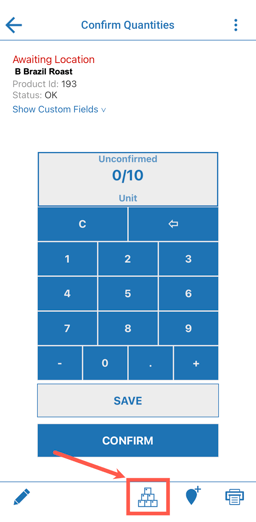
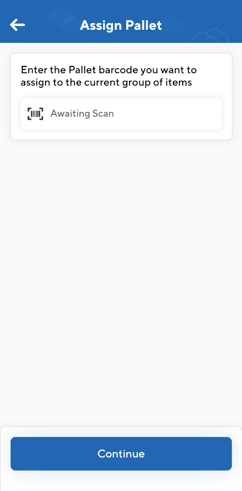
- Scan the pallet barcode and click Continue.
- If your products do not have unique references recorded against them (if using unique references the pallet barcode will automatically be assigned when the stock is received) and you do not have a pallet barcode to scan, you will need to generate the barcode before printing the label, click Generate Pallet Barcode.
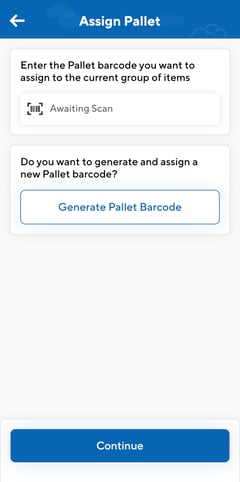
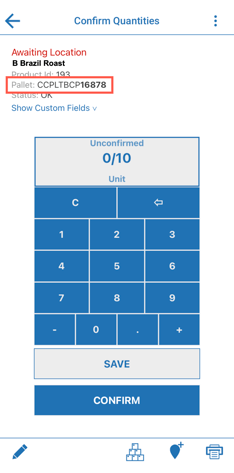
- The pallet barcode has now been assigned to that pallet. You will see it against the Pallet Id field. You can now continue to receive the stock in and then locate it.
How to print pallet labels during the inbound process
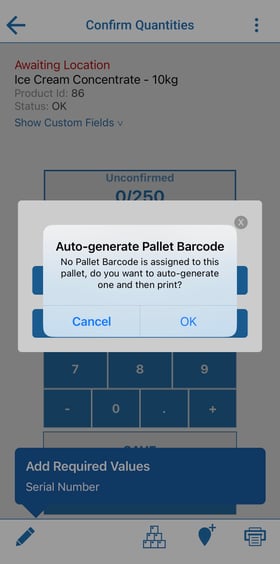
If you haven’t pre-printed your pallet labels (as outlined in the process above) you can choose to print your pallet labels during the inbound process. If you have not yet assigned a pallet barcode you will be asked if you wish to auto-generate a pallet barcode.
- Click Receive against the relevant Purchase Order.
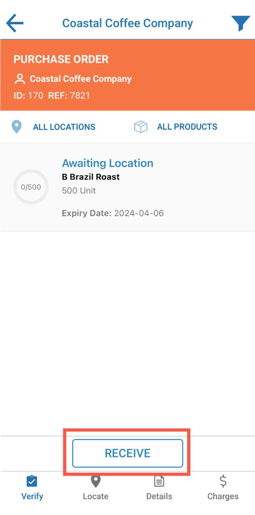
- Select the pallet you wish to print the pallet label for.
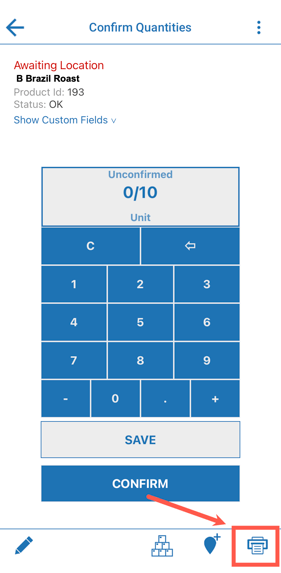
- Select the print icon in the bottom right corner.
- If you have not yet assigned a pallet barcode you will be asked if you wish to auto-generate a pallet barcode. You will need to click Ok if you wish to print a pallet label.
- Click Print Pallet Label.
- Select the number of labels you would like to print.
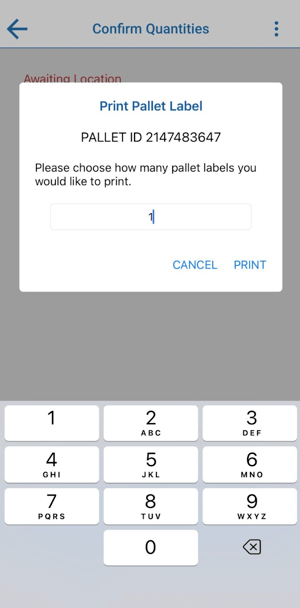
- Once the pallet label has been placed on the pallet you can use this barcode to scan move and locate the pallet.
How to print pallet labels from the web app
There are two ways in which you can print pallet labels from the web app. You can print them from within the Purchase Order (if the pallet ID is already assigned) or from the Pallet Label printing page if you have not yet assigned the pallet label.
Print label from within the Purchase Order
- Navigate to the relevant Purchase Order.
- Select the Products tab.
- Use the select box to select the relevant Pallet you wish to print the label for.
- Select Print Pallet Label.
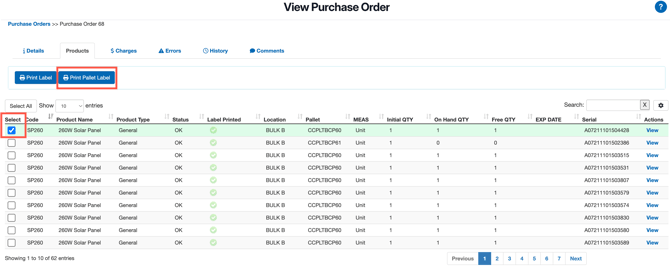
- Click Print Now or Download PDF (depending on your printer setup).
Print Pallet label from the Pallet Label Printing Page
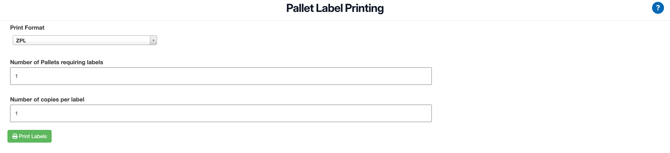
- Navigate to the Pallet Label Printing page by typing Pallet Label Printing into the Search for anything bar.
- Select the Print Format of either ZPL or PDF.
- Select the number of pallet labels you wish to print and the number of copies of each label.
- Click Print Labels.
How to apply pallet labels to stock already in the warehouse
How to merge pallets when allocating pallets to a bulk location
When receiving Purchase Orders on the web app and locating pallets into bulk locations you have the option of merging the pallets.
- On the Verify & Allocate Purchase Order page, you will notice the Pallet ID against the line of stock.
- Select the Pallet ID.
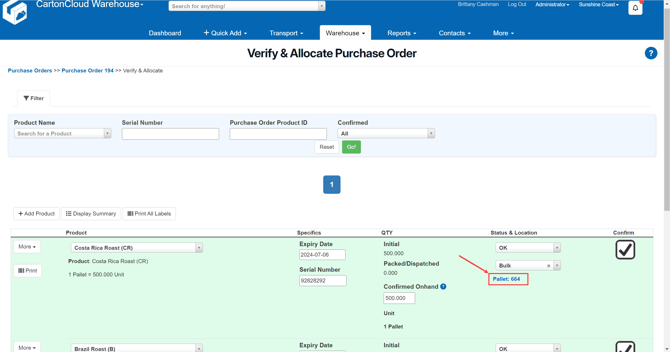
- Select the Create option to merge all pallets onto the one.
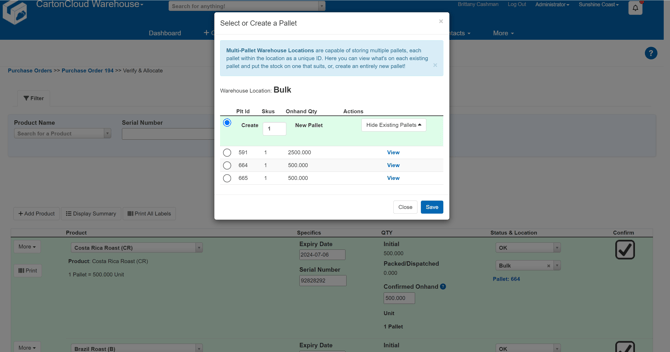
- Click Save.
How to import Purchase Orders with a pallet barcode assigned
Purchase Orders can be imported (via the Purchase Order Parser) with pre-assigned pallet barcodes. This allows you to assign stock directly to specific pallets during import, reducing manual work when receiving palletised stock.
Benefits:
-
Reduces manual handling when receiving pre-palletised stock.
-
Improves data accuracy by automatically linking products to pallet IDs on import.
-
Supports pre-labelling workflows for teams who print pallet labels in advance.
-
Prevents conflicts with existing pallet data using smart validation.