
Table of Contents
Purpose
The Job Allocation View allows users to allocate jobs from their mobile devices, either by entering a barcode using a connected Bluetooth barcode scanner or through the manual entry option.
The video below demonstrates how this works.
Please note that the Job Allocation functionality is only available to mobile app users that have been assigned a "Driver" role through the CartonCloud web app. Users who are solely "Pickers" will not see the Job Allocation menu option in the main menu, as described below.
For more information on User Modes please check out this article: User Modes
How to allocate a job
Job Allocation View
The Job Allocation View can be reached by opening the slide-in menu through selecting the menu button in the top left of the main view and then choosing "Allocate Jobs".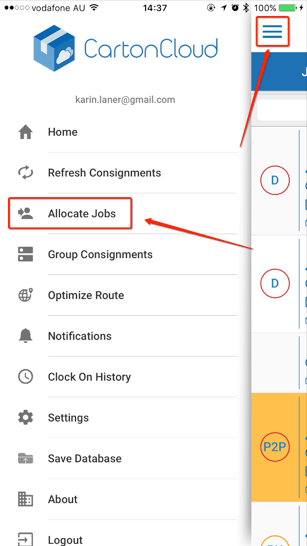
Allocation Modes
There are three allocation modes available in the Job Allocation view: "Allocate", "Unallocate" and "Mark as in Warehouse". The current mode is displayed on top of the view and can be changed by tapping on the mode label and choosing a mode from the mode picker.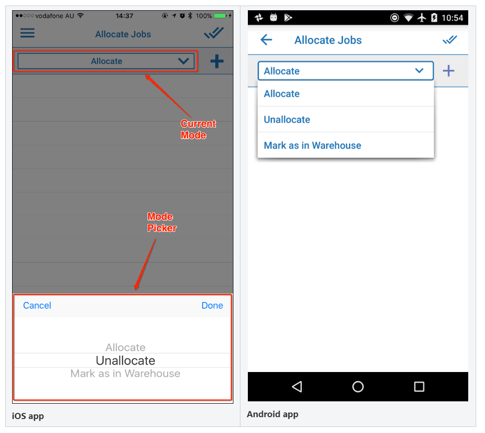
Allocate a job by manual entry
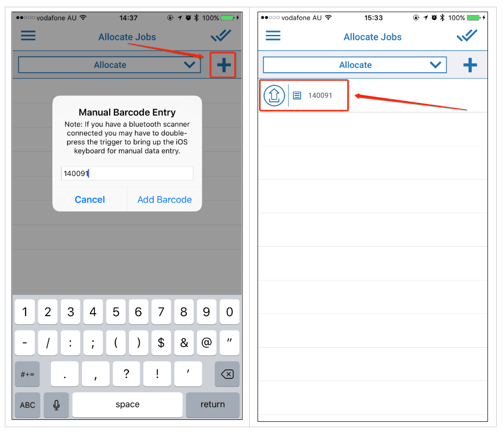
To allocate a job by manual entry, choose the plus ( + ) sign next to the allocation mode label. An alert window will be displayed, allowing you to enter a barcode manually. Once you have selected "Add Barcode", the job allocation will be displayed in the job allocation list.
Allocate a job by barcode scanning
To be able to allocate jobs by scanning a barcode, ensure a Bluetooth scanner is connected to your mobile device. Once this is all set up, simply navigate to the Job Allocation View & start scanning. Job allocations will immediately be displayed in the job allocation list after scanning.
For more information on how to connect a Bluetooth barcode scanner to your mobile device please check out this article: Connect a Bluetooth Barcode Scanner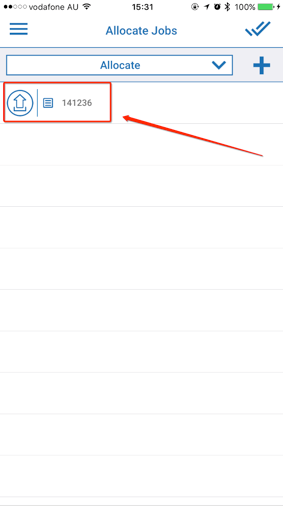
Job Allocation Status
After adding a job allocation, there are several statuses the allocation can be in.
Uploading
This is the initial state for any allocation, as the information is being transferred to the CartonCloud server. Allocations in this state will not be deleted from the list until you leave the Job Allocation View. The only bit of information being displayed while uploading is the entered barcode.
Successful
After a successful allocation, the corresponding entry in the job allocation list will be adjusted accordingly, showing more information about the allocated consignment and the server response.
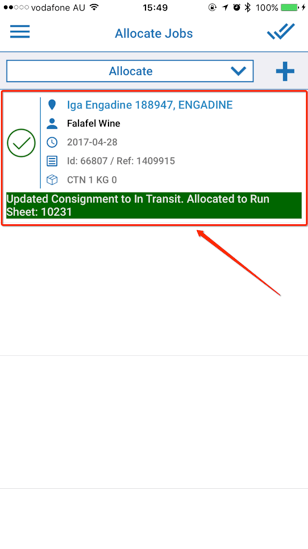
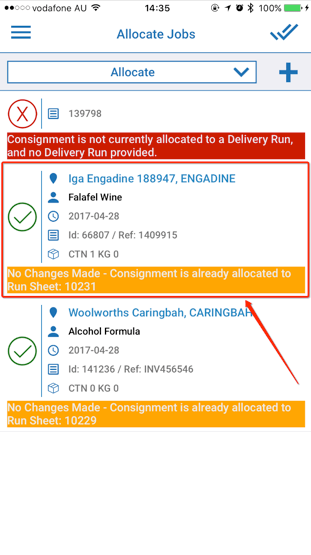
A successful status will also be displayed if no changes were made on the server due to the consignment already being in the desired state. In this case, a warning will be displayed in orange in place of the "success" server response, informing the user about the fact that no changes were made on the server.
Failed
After a failed allocation, the corresponding entry in the job allocation list will be adjusted accordingly, showing details about the issue that was encountered when trying to allocate the job on the server.
Failed with Multiple Matches
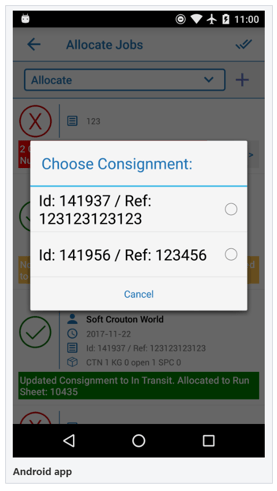
A possible failure can be encountered if multiple matches are found for an entered barcode, e.g. if the entered barcode is "123" and there exists one consignment with Id "0123" and another one with Id "1123". If this is the case, the list entry will be updated to be shown as a failure, giving the user the option to choose which one of the consignments they want to continue the allocation with. On selecting the desired consignment, the app will automatically remove the failed allocation and replace it with a new allocation linked to the selected consignment.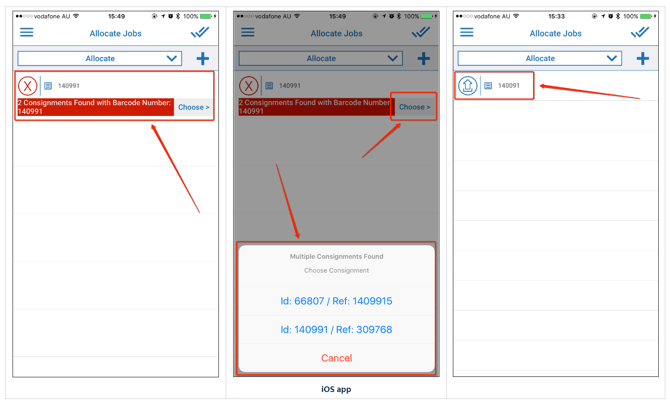
Notes
-
On the iOS app, the job allocation list will reset to an empty list every time you leave the Job Allocation View. On the Android app, the list will be cleared when you enter the Job Allocation View.
-
Only 5 items are being kept in the allocation list at any time, meaning "old" items will be dropped as new allocations are added. Notable exceptions are allocations that are still in "uploading" status, and those that find multiple matches. These will be kept in the list until the upload is resolved or the consignment is chosen.
- A short delay of 0.2 sec is enabled between barcode reads when using a barcode scanner. Please be aware that scanning barcodes any faster than this may cause barcodes to be read incorrectly.
- Internet connection is required for any allocation to take place successfully.
Troubleshooting
iOS app
-
No keyboard displaying when in manual entry alert:
-
On your bluetooth barcode scanner: Ensure HID features for Apple iOS are enabled. Double-pressing the trigger button on your scanner may be required to bring up the iPhone keyboard for manual entry if you do not want to disconnect/reconnect your bluetooth scanner every time manual entry is required. HID features can normally be enabled/disabled by scanning the corresponding barcode in your bluetooth barcode scanner's manual.
-
-
Scanned barcode does not appear: Ensure your bluetooth barcode scanner is connected to your iOS device. Alternatively, try manual entry.
Android app
-
No keyboard displaying when in manual entry alert: This normally happens when your device favours a hardware input method, e.g. barcode scanner, over soft keyboard.
-
Normally a click on the input field will bring up the keyboard. If not, try to double click or long click on the input field. The keyboard may come up or a notification will pop up on the top of the screen, prompting you to “Select keyboard input” or “Choose input method”. Click on that: disable the hardware input method or choose the soft keyboard one.
-
After clicking on the input field, check whether a keyboard symbol shows up in the bottom menu area. Click on that and choose the right keyboard.
-
An alternative is to temporarily disable the barcode scanner and then click on the input field. Some barcode scanners allow to be temporarily disabled with simple steps.
-
If nothing works, unpair the scanner to remove this hardware input method.
-
-
Scanned barcode does not appear: Ensure your bluetooth barcode scanner is connected to your mobile device. Alternatively, try manual entry.