
🔔 Note: this article is part of the CartonCloud Academy - TMS Basic Setup Trail. Please ensure you have read Get Stared with Organisation Settings - Transport first. 🎓
What is a User in CartonCloud?
The next step in setting up your CartonCloud account is deciding who and how you want people to access your CartonCloud account.
Nick from Coffee Warehousing and Distribution manages a large team. He wants his employees to have access to CartonCloud (he doesn’t want to be doing all the work!); however, his staff have very different roles and responsibilities in the company. For example, he has two assistant managers (Carly and Rob) who manage all of the customer communications, admin and orders, several warehouse floor staff (Rose and Ned) and several drivers (Tom and Jodi). Nick also has several customers, Coastal Coffee and Country Roasters, that are excited about having visibility to their stock, access to reports and log in and add new orders.
With Users, Nick can give permission to the relevant people so they can access the Coffee Warehousing and Distribution CartonCloud account. However, Nick will also need to assign them the appropriate User Role. The User Role dictates what information and functionality the User have access to in CartonCloud. Let’s take a look at what each User role has access to.
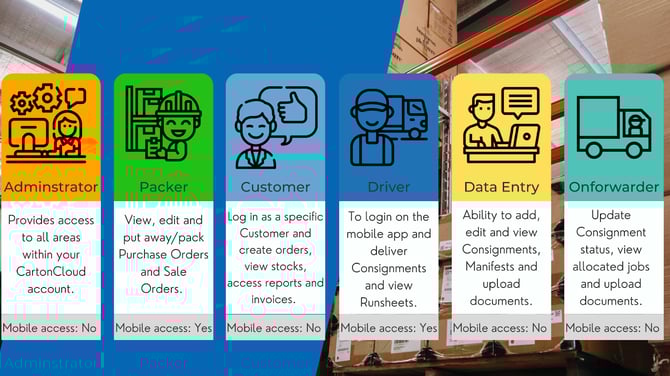
For Nick, he will need to assign the following roles:
- Carly and Rob (managers) = Administrator role
- Rose and Ned (warehouse staff) = Packer role
- Tom and Jodi (drivers) = Driver role
- Coastal Coffee and Country Roasters (customers) = Customer role
Let's create a User!
It is now time to create your first User in CartonCloud. Follow along with Vincent, as he shows you how to add Users to your account.
How to add a User
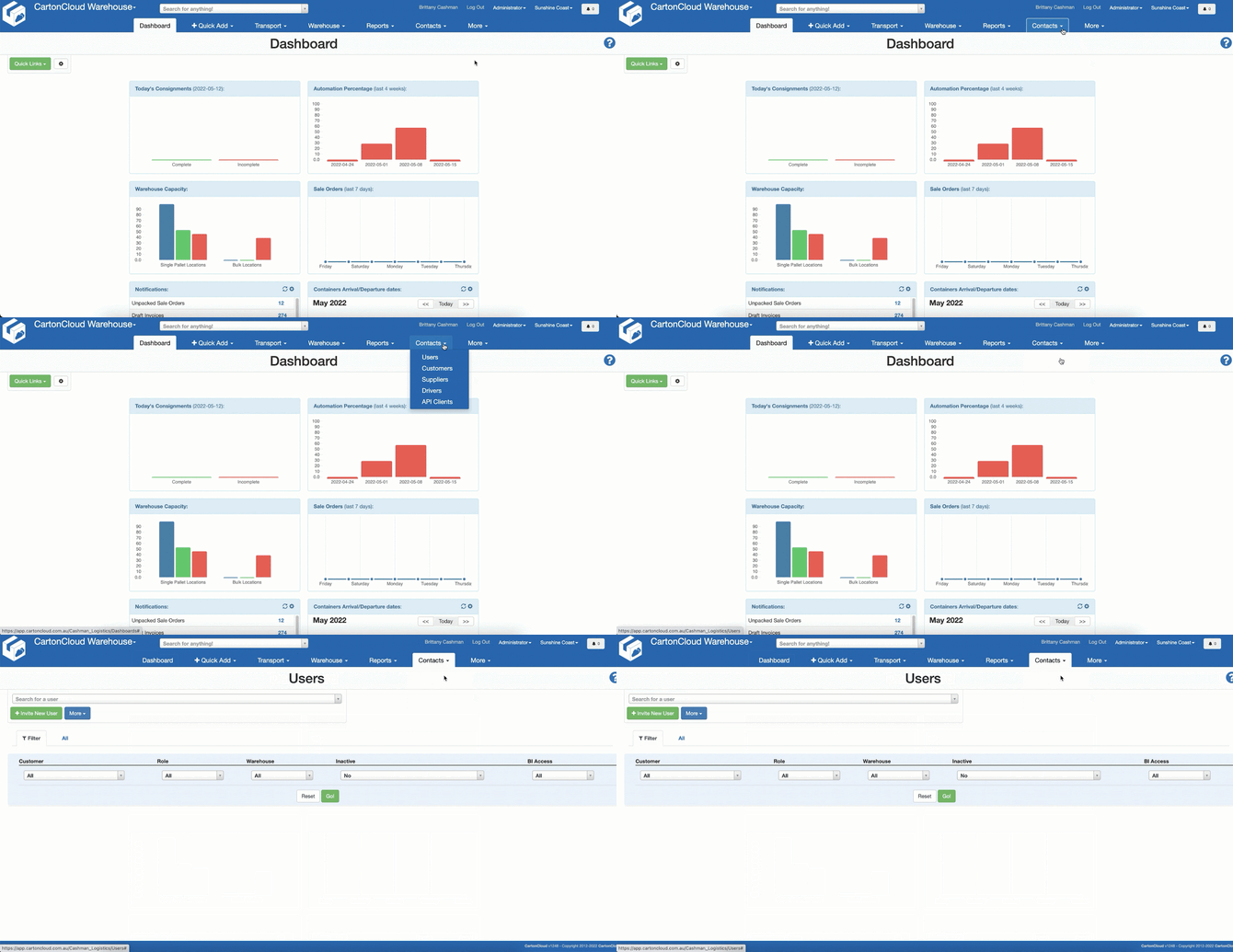
- Navigate to the Users page, Contacts>Users.
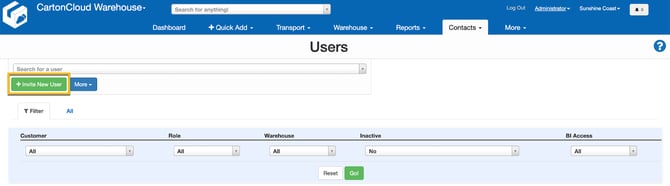
- Click +Invite New User.
- Enter the Name and Email (the User will use this email address to log in to CartonCloud).
- Tick Create User Now if you wish to set the password for the User now or leave the box unticked if you want the User to set up their password.
Tip: Create User Now option is helpful if you have warehouse staff or drivers who may not have an email address they can access. In this case, you can use a fake email address.
- Select the Warehouses you wish the User to have access to.
- Select the Roles you wish the User to have.
- Under Additional Settings, tick Hide all Charging information from this user if you wish for the user not to see charging information.
Tip: If you choose to hide all charging information from a user, they will not be able to see any rates against an order, Rate Card or Invoice.
- Click Continue.
Nick has several other staff members he needs to give Coffee Warehousing and Distribution CartonCloud access to. However, he doesn’t want to add each user individually (that will take up too much of his time), so he decides to create multiple users at once.
Check out our Tony Tips video, where Tony explains how to upload multiple users simultaneously!
▶️ Follow along in the TMS Basic Set Up Trail...next up is Learn about Customers - Transport 🎓