
Table of Contents
Purpose
To remove or override charges on an individual Sale Order, Purchase Order or Consignment.
Benefits
- Enables flexibility if prices or charging methods change for that particular item.
Use cases
- If you offer your Customer a discounted rate for a particular job and do not wish to use the standard rate card charges.
- If unforeseen circumstances arise, such as late delivery and you need to reduce the customer's price for that particular job.
Scope
The below steps apply to charges on a:
- Sale Order
- Purchase Order
- Consignment
How to remove/override charges
For the below steps, a Sale Order will be utilised as an example; however, these steps can also apply to Purchase Orders and Consignments.
-
Navigate to the Sale Orders page, Warehouse>Sale Orders.
-
Select the relevant Sale Order.
-
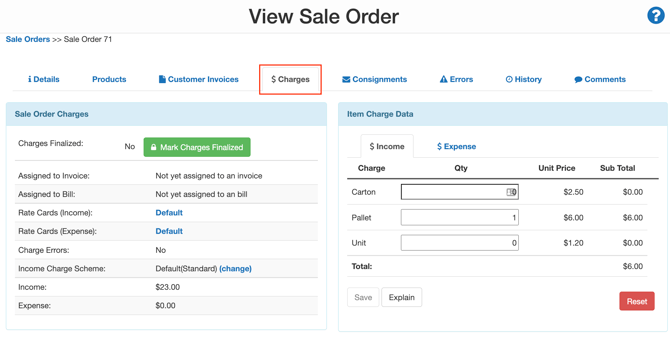
Select the Charges tab.
-
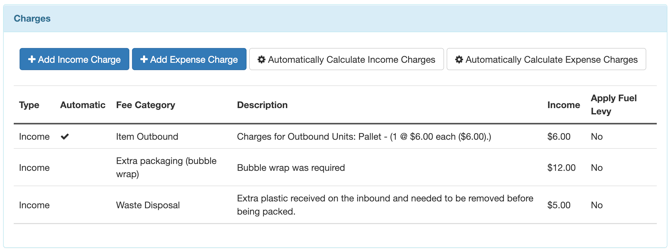
Scroll down to the Charges box.
-
Charges with the Automatic column ticked are from the Rate Card associated with the Customer. If this column is not ticked, it means the charges were added manually.
To remove a charge:
-
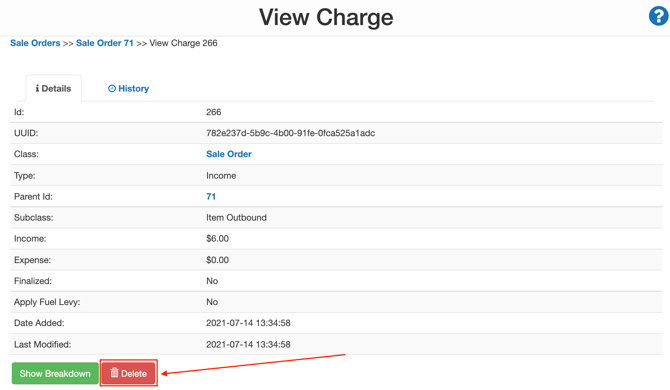
Select the charge you wish to remove.
-
Click the red Delete button.
To override a charge:
-
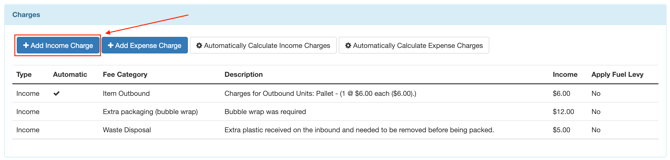
Select +Add Income Charges.
-
Select the Fee Category, Description and Income amount for the new charge.
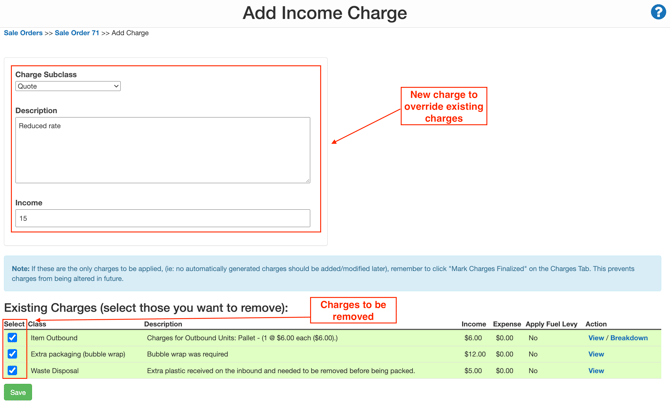
For information on Fee Categories and how to create them please see the Fee Category page.
-
Select the charges you wish to override by ticking the box in the Select column.
-
Click Save.
-
Select the Mark Charges Finalized button.
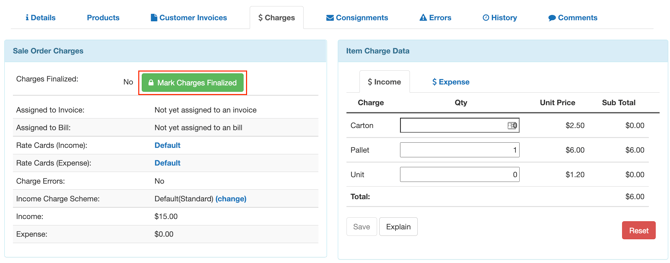
If you do need to change the charges again, you will have the option to select the Mark Charges Unfinalized button.