
Table of Contents
- Purpose
- Solution 1 - custom button (printing from within CartonCloud)
- Solution 2 - print on status change (printing from within CartonCloud)
- Solution 3 - scan label barcode (printing from the shipping aggregator platform)
Purpose
To print shipping aggregator labels (such as Shippit & Starshipit) from within CartonCloud or the shipping aggregators platform.
Process flow for printing shipping aggregator labels from within CartonCloud:
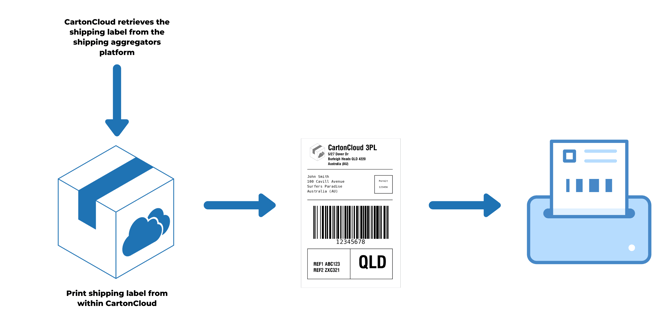
Please note that for the below workflows to work an existing integration with a shipping aggregator platform such as Shippit or Starshipit must exist. If you have an account with either of these platforms and are not yet integrated, please reach out to our integrations team via CartonCloud Help
Solution 1 - Custom Button (printing from within CartonCloud)
A Custom Button allows you to trigger various custom actions and workflows with the click of a button. In this case, the Custom Button would be configured to print the courier label when clicked in CartonCloud. This is useful if you do not want automatic printing, but do not wish to continually change between platforms.
Requirement: You will need to add a Custom Button to your CartonCloud account. To do so, please reach out to our integrations team via CartonCloud Help
Solution 2 - Print on status change (printing from within CartonCloud)
By using an order status update as the trigger, such as when a Sale Order is marked as 'Packed' or 'Dispatched', the system will then automatically pull label data from the shipping aggregator and send it to your printer.
Requirement: You will need to add a printing integration to your CartonCloud account. To do so, please reach out to our integrations team via CartonCloud Help .
Solution 3 - Scan Label Barcode (printing from the shipping aggregator platform)
From within the shipping aggregators platform, you can scan the CartonCloud label barcode and print the shipping label.
The Sale Order PDF template uses the Sale Order reference in the barcode. If you have adjusted this barcode please download and edit the Sale Order PDF template (see Document Templates article) and update the barcode to the Sale Order reference.
To print by scanning the CartonCloud label barcode:
- Using the quick print function in Starshippit or the printmode search function in Shippit (depending on what shipping aggregator platform you are using) scan the CartonCloud label into the applicable feature to trigger the printing process.
Requirement: WMS only account, be using a barcode scanner and utilising the Sale Order PDF template (with the Sale Order reference in the barcode).