
Table of Contents
Purpose
To aggregate Handling Charges by SKU by location or across the entire warehouse.
Aggregation Options
|
Picking Charge Aggregation Options |
Explanation |
Import/Export Option Name |
|
No aggregation (default) |
Products will not aggregate together. |
NONE |
|
Aggregate by SKU by Location |
CartonCloud will aggregate all products for a Sale Order in the same location, regardless of whether they are from different POP records. |
LOCATION |
|
Aggregate by SKU across the entire warehouse |
Regardless of what location the products for a Sale Order are in, they will be aggregated. |
WAREHOUSE |
An example where 6 bottles = 1 case
|
Location |
Pick / Put-away Quantity |
No aggregation (default) |
Aggregate by SKU by Location |
Aggregate by SKU across the entire warehouse |
|
AA-01-01 |
5 |
Charge 5 Bottles |
Combine 7 bottles together (5+2) which converts to 1 Bottle + 1 Case Charge 1 Case + 1 Bottle |
Combine 12 bottles together (5+2+5), which converts to 2 cases. Charge 2 Cases |
|
AA-01-01 |
2 |
Charge 2 Bottles |
||
|
AA-01-04 |
5 |
Charge 5 Bottles |
Charge 5 Bottles |
|
|
Total Charge |
|
12 Bottles |
6 Bottles + 1 Case |
2 Cases |
Use Case
Scenario: You are a wine distributor that sells to your customers down to the bottle level.
If your customer orders a case of wine, and there is less than a case left against one POP record, CartonCloud will charge for bottle picks rather than a full case because it is splitting the charges down to bottles. You would then need to manually amend these charges to reflect what was ordered and actually picked. With aggregation turned on, CartonCloud will combine the number of bottles against the Sale Order (either by location or the entire warehouse) and look at it collectively rather than individually and charge in that manner. This means your charging better reflects what was actually picked.
How to set up aggregation for Handling Charges
Step 1: Enable aggregation from the Rate Card settings
Before creating your Handling Charges you will need to enable aggregation from the Rate Card of the relevant Customer. To do so:
-
Navigate to the Rate Card page, More>Rate Cards.
-
Select the relevant Rate Card.
Ensure the Customer you are wishing to set up aggregation for is associated with the Rate Card
-
Select the blue Edit button at the bottom of the Rate Card.
-
Within the Purchase Order box, select Default (Scale to Highest Unit Of Measure) from the Putaway Charge Option dropdown.
-
Select the aggregation option from the Putaway Charge Aggregation dropdown.

-
Scroll down to the Sale Order box, select Default (Scale to Highest Unit Of Measure) from the Putaway Charge Option dropdown.
-
Select the aggregation option from the Putaway Charge Aggregation dropdown.
-
Scroll down to the bottom and click the green Save button.
Step 2: Add Handling Charge
-
Navigate to the relevant Rate Card and select the Handling Charges tab.
-
Select +Add Handling Charge.

-
Select the Product Unit of Measure.
-
Select the Charge Behaviour, Charge this Unit Of Measure.
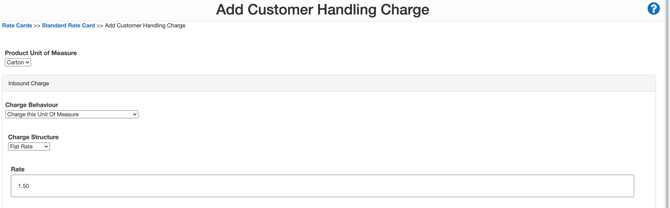
If you wish to select a different Charge Behaviour and round up or down when charging please see How to charge of Unit of measure for all Handling Charges.
-
Select the Charge Structure.
-
Enter the Rate.
-
Repeat the same for Outbound Charge.
-
Repeat this process for the relevant product unit of measure conversions that your customer will be utilising.
-
Scroll down and select Save.
