Table of Contents
- Purpose
- How to view the Delivery Run
- Delivery Run Details tab
- Delivery Run Consignments tab
- Delivery Run Map tab
Purpose
Delivery Runs in CartonCloud are the geographical boundaries of the places your operation delivers to. Once you have created your Delivery Runs you can view each Delivery Run, modify the Delivery Run, see what Consignments are assigned to that run and access a map overview of the Delivery Run.
How to view the Delivery Run
- Navigate to the Delivery Run page, Transport > Delivery Runs.
- Click on the relevant Delivery Run.
- You will be taken to the individual Delivery Run and be able to view and make any changes to the Delivery Run.
Delivery Run Details tab
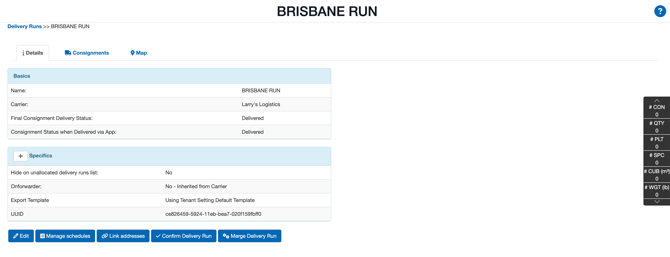
From the Details tab you can view:
| Field | Explanation |
| Basics | |
| Name | Name of the delivery |
| Carier | The carrier assigned to the Delivery Run |
| Final Consignment Delivery Status | The final status the Consignment will reach once it is delivered. You can update this status by editing the Delivery Run. |
| Consignment Status when Delivered via App | The status of the Consignment when it has been delivered via the mobile app. This can be updated by editing the Delivery Run. |
| Specifics | |
| Hide on unallocated delivery runs list | If the Delivery Run will be hidden from the unallocated Delivery Runs list. This can be enabled when creating or editing the Delivery Run. This is useful for runs such as Pickup Runs, which you don't want to see on the "Unallocated Delivery Runs" list, especially if you're automatically allocating the run to a device using: Automatically allocate Consignments to Drivers from Delivery Runs. |
| Onforwarder |
If an onforwarder operates the Delivery Run. This can be set when creating the Delivery Run or by editing the Delivery Run. For additional information about Onforwarder functionality, see Onforwarder Addresses. |
| Export Template | The template that is utilised when exporting the Delivery Run |
Buttons
| Button | Function |
| Edit | To edit the Delivery Run |
| Manage schedules | To manage the schedule of the Delivery Run. See Delivery Run Schedules for more information. |
| Link addresses | To set up Address to Delivery Run mapping. |
| Confirm Delivery Run | To confirm the Delivery Run (quantity). |
| Merge Delivery Run | To merge the Delivery Run with another Delivery Run |
Consignments tab
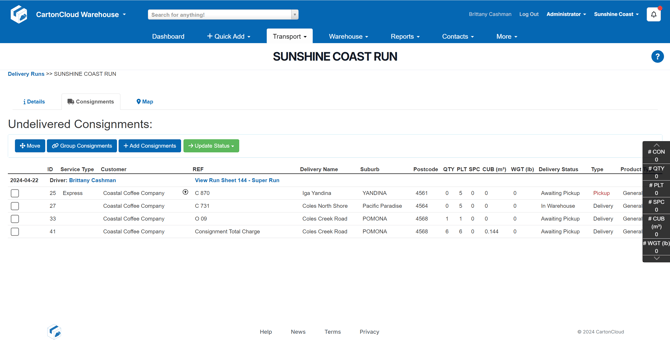
From the Consignments tab you can view all Consignments on the Delivery Run.
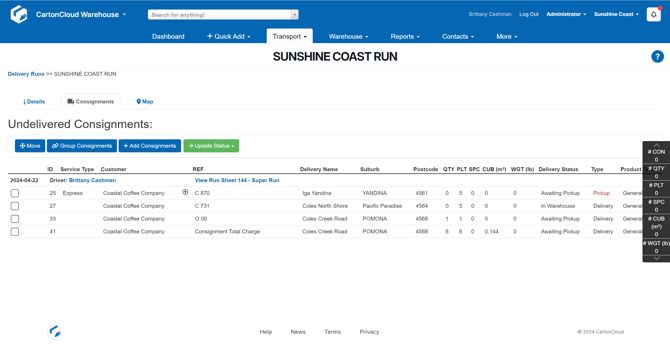
| Button | Action |
| Move | Select a Consignment and select the Move button to move it to a different Delivery Run. |
| Group Consignments | Select more than one Consignment and click Group Consignments to group Consignments together. |
| + Add Consignment | To add Consignments to the Delivery Run. |
| Update Status | By selecting Consignments you can update the status of the Consignments in bulk. |
Note, if there is a lock icon against the Consignment this means there is a required delivery date for that Consignment and the date can not change.
Map tab
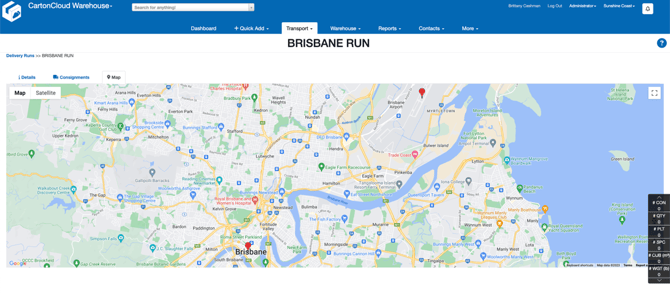
From the Map tab you can see a map view of all Consignments on the Delivery Run.