
Table of Contents
Purpose
Now that you know how to record stock coming into your warehouse in CartonCloud (Purchase Order) the next step is to learn how to record stock going back out (Sale Order).
When stock leaves your warehouse a Sale Order is the name of the document which records that stocks movement within CartonCloud.
A Sale Order automatically stops warehouses charges from continuing to accumulate against the corresponding stock, however, there are settings which can allow this to continue until the stock physically leaves the warehouse. Optionally, Sale Orders can also generate a Consignment Note upon creation, pushing the product details from the Sale Order into the created Consignment Note, but we will revisit and explain this functionality during the TMS setup.
How to create a Sale Order
- Navigate to the Sale Orders page by selecting Warehouse>Sale Orders from the main menu.
- Select +Add Sale Order.
-
On the Add new Sale Order page, complete the fields. You can use the descriptions below to assist you as you complete the fields.
Sale Order Fields
|
Field |
Description |
|
Attach Invoice |
Allows you to attached a customer invoice to the Sale order quickly. Invoices can also be attached after the Sale order is created through the Customer Invoices tab. |
|
Customer |
The owner (supplier) of the goods. Sale Orders can only be created for the stock of a single Customer. |
|
Customer Reference |
A reference number for the Sales Order. Normally this is your Customer's Invoice Number |
|
Delivery Address |
Where the Sale Order is going. It is recommended that you enter a Delivery Address even if the order is being picked up from your warehouse. This helps you distinguish between different Sale Orders when looking at the list view. In addition, this address will be printed onto the Consignment label; therefore, this will again help you identify the order and w |
|
Order will be picked up from Warehouse |
Tick if the order will be picked up. This will put the Consignment created from the Sale Order onto the default run set up for the Warehouse; this is usually the "Pickup from Warehouse" delivery run but can be configured. If you do not wish to use a default Delivery Run, you can modify this against the Warehouse (See Edit Warehouse Settings). Note, if you are not using a default Delivery Run and have Zone Sets enabled, CartonCloud will use the Transport Lanes, and Zone Sets logic to determine the expected Delivery Run for the Sale Order. See Setting up CartonCloud to allocate Consignments for more information automatically. |
Advanced Options
|
Packing Instructions |
Special instructions that show on the Packing Slip and Pick/Pack screen. |
|
Delivery Instructions |
Special instructions that get copied into the Consignments Special Instructions |
|
Sale Order Value |
The value (invoice amount) of the Sale Order. This field is only required if you charge your customer picking fees based on Percentage Of Invoice |
|
Cash On Delivery |
Whether or not the Sale Order requires Cash On Delivery to be collected. This information is passed onto the Consignment created by the Sale Order. |
|
Attach Invoice to Goods |
If your customer wants to upload an Invoice file to CartonCloud, which is then printed and attached to the order, this should be set to Yes. |
|
Required Ship Date |
The date that the order should leave the warehouse. This is useful if you're sending with Onforwarders and have limited control over the Delivery Date. In this case, you often want the order to leave your warehouse as soon as possible, but then you may specify a required delivery date with the carrier. |
|
Required Delivery Date |
The date that the stock should be delivered. This affects the day that the related consignment is allocated. |
|
Order Urgent |
If an Urgent Order has been set up, then it will be used by selecting this option as Yes. |
-
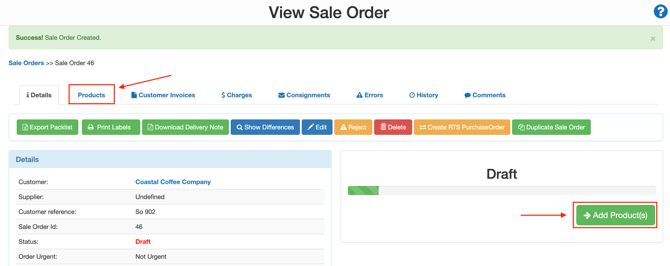
To add products to the Sale Order, select the Products tab or select the green button Add Product(s) on the Details tab.
-
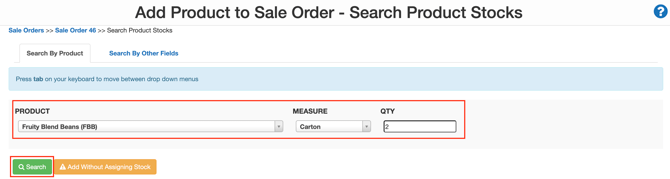
Select the product from the PRODUCT drop-down menu and enter the quantity in the QTY box.
-
Click the green Search button.
-
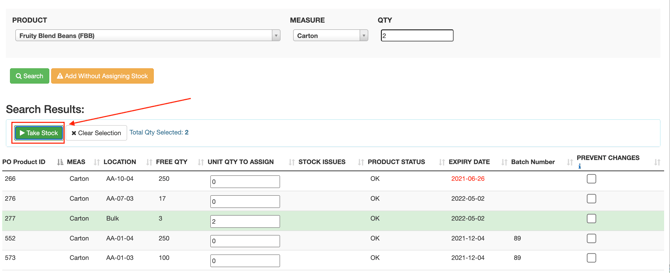
CartonCloud will automatically select the stock to assign to the Sale Order based on the stock selection method selected at the Product settings. See How CartonCloud chooses outgoing stock - Stock Selection Methods.
-
If you want to override the selection, select the x Clear Selection button and enter the quantity value for the stock, you wish to select.
-
Once you have selected the stock, click the green Take Stock button.
-
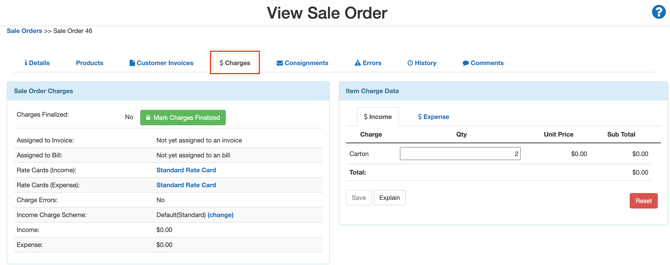
Select the Charges tab.
-
Check that the charges are calculating correctly. CartonCloud will prompt you if something doesn't look right. For example, if you haven't loaded picking charges for a Unit of Measure, it will prompt you to fix it.
-
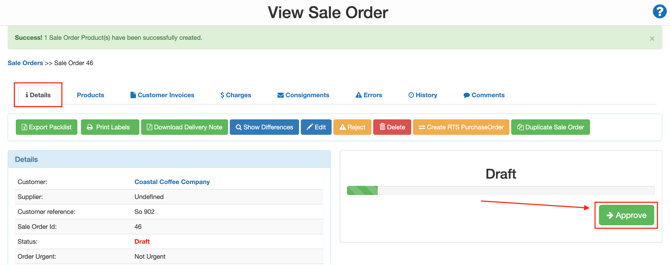
Return to the Details tab and select the green Approve button. This will change the status to Awaiting Pick and Pack and make it visible within CartonCloud to your Packers.
See Packing a Sale Order for the next steps on how to pack a Sale Order.