
Table of Contents
Purpose
The Add Warehouse page will allow you to create a new Warehouse in your CartonCloud tenancy with its own Address, Warehouse Locations, and Stock. It is also possible to automate deliveries, leaving this warehouse to be allocated to a designated Delivery Run.
Please note: Activating or reactivating Warehouses will incur additional charges per Warehouse. Billing starts automatically once a Warehouse is activated and stops automatically upon deactivation of the Warehouse.
Please contact accounts@cartoncloud.com for further information.
To add a new Warehouse
- Navigate to the Warehouses page by typing "Warehouses" in the Search for anything bar.
- Select +Add Warehouse.
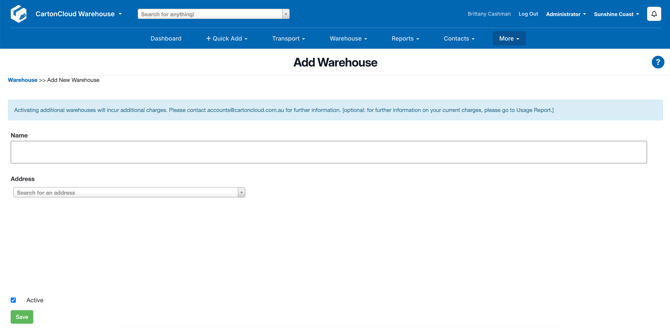
- Enter the Name and Address of the Warehouse.
- Ensure the Active option is enabled if you wish for the Warehouse to be in use immediately. Unticking this field means you will not be able to use the warehouse. Note: Activating additional warehouses will incur additional charges. Please contact accounts@cartoncloud.com. for further information.
- A 'PICKUP FROM WAREHOUSE' Delivery Run will be automatically created and assigned to the new warehouse.
- To update the Delivery Run allocate options you will need to do so after the Warehouse has been created.
- Once completed, click Save.
- You will now see the new Warehouse in the list of Warehouses.
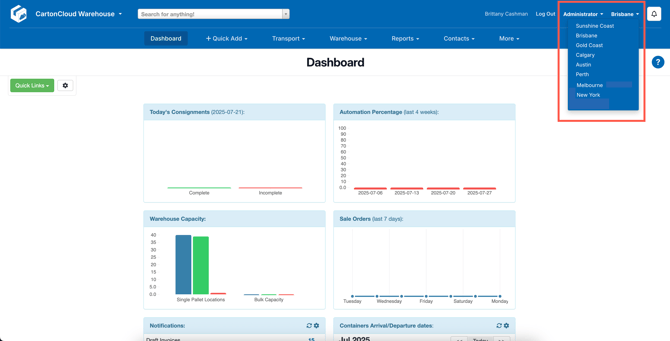
- You can now change to operate within that warehouse using the drop-down menu at the top right of the browser.
Enabling users for the new warehouse
Once you have created the new warehouse, you then need to ensure the correct users have access to the warehouse. Without enabling the warehouse on the users profile, they will not be able to access the warehouse. Click here for steps on how to enable a warehouse for a user.
Edit an existing warehouse
To edit an existing warehouse:
- Navigate to the Warehouses page by typing "Warehouses" in the Search for anything bar.
- Select the Edit against the warehouse you wish to edit.
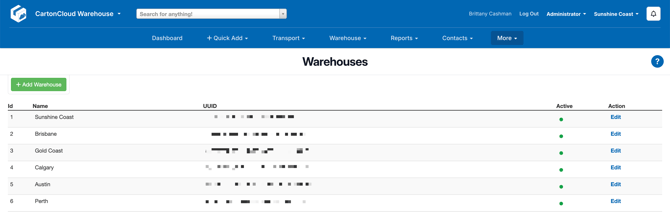
- Update the relevant fields and click Save.
- Name: name of the warehouse
- Delivery Run Allocate Options: Use Postcode / Suburb to allocate the delivery, or select Use default Delivery Run if you want all deliveries leaving the warehouse to be allocated to the same Delivery Run, every time. Note, if you are not using a default Delivery Run and and have Zone Sets enabled, CartonCloud will use the Transport Lanes and Zone Sets logic to determine the expected Delivery Run for the Sale Order. See Setting up CartonCloud to automatically allocate Consignments for more information.
- Address: the address of the warehouse.
- Pickup Delivery Run: to update the pickup Delivery Run
- Active: if the warehouse is active and in use, this should be enabled. If the warehouse is no longer in use untick this option.