
Table of Contents
What is Cost + Margin Billing
Cost + Margin Billing allows you to automatically charge your customers for freight costs incurred when booking shipments through a Carrier Connection.
When a shipment is booked, CartonCloud captures the expense charges returned by the carrier. Cost + Margin Billing then uses those expenses to generate income charges on the Consignment, either passing the cost through directly or applying a percentage or fixed fee markup on top.
Using Cost + Margin Billing, you can:
- Map external carrier charges to CartonCloud Fee Categories.
- Configure a percentage or fixed margin for each Fee Category.
- Automatically invoice customers for freight costs, including any configured margins.
This is configured using the Charge Group type called Cost+, which is added to a Transport Rate within a Rate Card. Unlike standard Transport Rates, which calculate charges based on zones, weight, or cubic, Cost+ rates calculate charges based on what the carrier actually billed.
Watch a walkthrough: See Cost + Margin Billing set up live in the CartonCloud Unboxed webinar, CartonCloud Connects to 150+ Carriers. Cost + Margin Billing is covered alongside other new carrier features, including automated carrier selection and live rate comparison at the Pack Screen.
Use Cases
- You book shipments through a carrier integration and want to pass freight costs to your customers with a 15% margin applied.
- You want to apply a margin to some fee categories (e.g. Delivery) but pass others through at cost (e.g. Fuel Levy).
- You want to suppress certain carrier charges entirely and not bill the customer for them at all.
- You are a WMS-only operator (no TMS) and use a Carrier Connection to book freight — Cost + Margin Billing lets you charge customers for freight costs without needing the full TMS enabled.
Considerations
- On the Pack Screen, displayed rate options will include any configured margins.
- Expense charges and their associated income charges are visible on the Charges tab of the consignment.
- Carrier costs used for Cost + Margin calculations exclude taxes. If your carrier's platform displays tax-inclusive pricing, the amounts shown may differ.
Prerequisites
Before setting up Cost + Margin Billing, ensure the following is set up:
- A Carrier Connection is configured and active in your account
- A Rate Card exists for the customer you wish to bill
How to set up Cost + Margin Billing
Step 1 - Set up Carrier Fee Category Mappings
Map the carrier’s fee descriptions to the CartonCloud internal Fee Categories so that Cost + Margin Billing can be applied correctly.
- Navigate to More > Organisation Settings.
- Select the Transport > Carrier Fee Category Mappings tab.
- Click + Add Rule.

- Fill in the following fields:
- Rule name: the name of the rule, so you can easily identify it
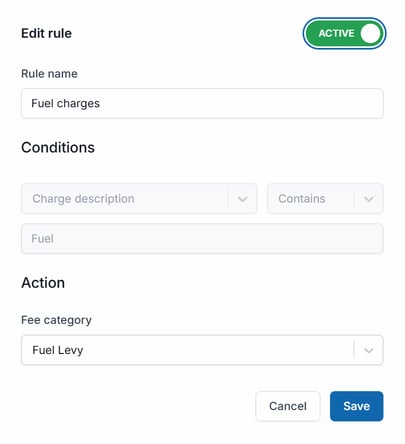
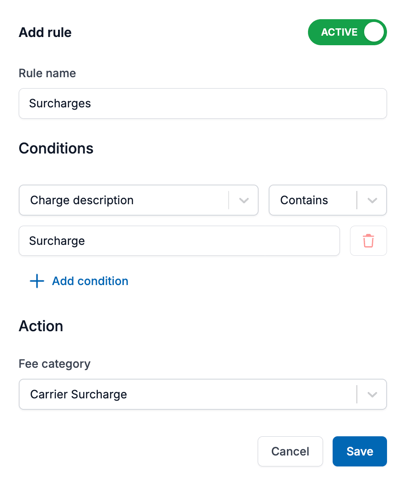
- Conditions: what defines which carrier fee will be mapped, for example, Charge description contains Fuel
- Action: what Fee Category in CartonCloud the carrier charge will be mapped to, for example, Fuel Levy
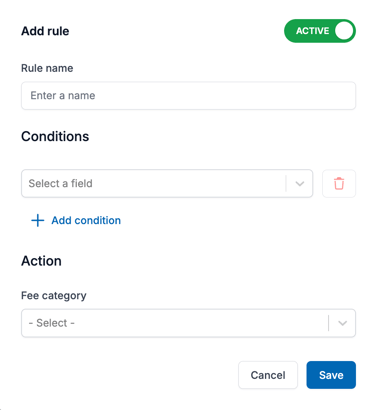
- Ensure you enable the Active toggle.
- Click Save.
Rules will be applied as per the order they appear in the Carrier Fee Category Mappings
Examples:
Step 2 - Set up Cost+ charges in the Rate Card
Define what margin is or isn’t applied for each Fee Category.
- Navigate to More > Rate Cards.
- Select the relevant Rate Card.
- Select the Transport Rates tab.
- Click +Add Rate.
- Click +Add Charge Group.
- Click Cost Plus Margin.
- Apply a margin to expense charges by Fee Category.
- Define a Markup based on Percentage or Fixed Fee:
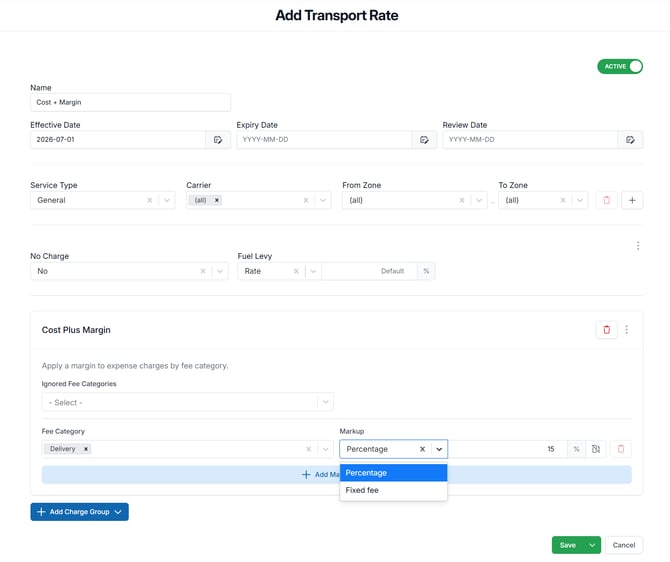
- Click Save.
How Charges are Calculated
When a shipment is booked through a Carrier Connection, CartonCloud:
- Captures the expense charges returned by the carrier and records them against the Consignment.
- CartonCloud looks for a matching Cost+ Transport Rate on the customer's Rate Card.
- Applies the configured margin to each Fee Category and generates the corresponding income charges on the Consignment.
Example
A carrier returns the following expense charges after booking:
- Delivery: $10.00
- Fuel Levy: $2.00
The Cost+ rate is configured as follows:
- Delivery: +15% margin
- Fuel Levy: pass-through (0% margin, or configured as Create income charge for the full amount)
The resulting income charges on the consignment would be:
- Delivery: $11.50
- Fuel Levy: $2.00