
Table of Contents
- Purpose
- Comparison between adhoc charges and manual charges
- How to create an adhoc charge
- Bulk update of adhoc charges
- Mobile app support for adhoc charges
- Configure customer-specific and order rates for each of the adhoc charges
- Customer specific consignment adhoc charges
- Order specific adhoc charges
- Examples of where adhoc charges can be shown
- Applying adhoc charges
Purpose
To create and apply customised Adhoc Charges.
Adhoc Charges allow you to add on charges that may not apply to every job. For example, you may create an Adhoc Charge for Demurrage (waiting time), Hand Unload, and Labelling work. Adhoc Charges can apply to all Customers, be customer-specific or be customised for an individual order.
Adhoc charges are created to be available across the entire organisation and then further adjusted within each of your Customer's Rate Cards. For example, you can have an Adhoc Charge for Pallets Wrapped, but set a price of $3 a pallet for Customer A for $4 a pallet for Customer B. This would be achieved by adjusting the Adhoc Charge within each Customer's respective rate card.
Scope (what you can apply an Adhoc Charge to):
-
Sale Order
-
Purchase Order
-
Consignment
-
Run Sheet
Comparison between Adhoc Charges and Manual Charges
|
Adhoc Charges |
Manually Created Charges |
|
Predefined prices, so staff entering in figures don't need to know rates - these are calculated automatically. |
Staff entering the charge must know the rates to be charged. |
|
Adhoc charges are considered Automatic Charges, which means that Charge Errors are never generated when using them. |
Manually created charges will always generate a Charge Error as CartonCloud doesn't know how they should be implemented alongside Automatic Charges. |
|
Adhoc charges are an easy and efficient way of adding charges. |
Manual charges are more time consuming and difficult to add. |
How to create an adhoc charges
- Navigate to the Adhoc Charge by typing Adhoc Charges into the Search for anything! bar.
- Select the tab you wish to create the charge for (Sale Order, Purchase Order, Consignment or Run Sheet).
- Click the Add New Charge button.
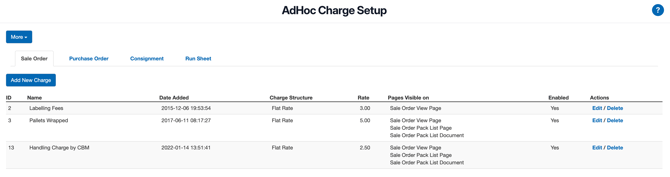
- Complete the fields using the descriptions below for assistance if required.
You can now apply this Adhoc charge whenever required using the specified page that you selected under "Show this Adhoc charge on".
| Field | Description | Example |
| Name | The name of the Adhoc Charge | Labelling Fees |
| Show this Adhoc Charge on | Provides a list of the places where you can add an option to apply this Adhoc Charge. See Examples of where Adhoc Charges can be shown for more information. | Sale Order View Page |
| Rate | The rate per Adhoc charge. Total charge is calculated as quantity x rate, where quantity can be specified on each charge. | 1.99 |
| Enable by default | Will automatically make the Adhoc charge available on any rate card. (unless overwritten by Rate Card settings). | Yes |
| Description Template | The Description Template dictates how the charge description and detailed calculation appear on the invoice. | Labelling Fees -- price calculated as %ChargeQuantity% x $%ChargeUnitPrice% = $%ChargeTotal% |
| Fee Category | Fee Categories provide a way to create customised labels for Adhoc Charges. This label (Fee Category) is the name that will appear against the charge on the Customer's invoice. | Labelling Fees |
| Charge Structure |
The format in which you will input the Adhoc Charge data.
|
Text Box |
- Select Save, and the Adhoc charge will be created.
If you want to alter this Adhoc charges price or enable/disable it per rate card, you must use the Rate Card Adhoc Charges settings.
Bulk Update of Adhoc Charges
To update all Adhoc charges quickly, you can export all Adhoc charges to a file, make the required changes and then import the changes.
To bulk update Adhoc Charges:
- Navigate to the Adhoc Charge Setup page by typing Adhoc Charge Setup into the Search for anything bar.
- Select the More button and then Export All Adhoc Charges.

- Open the download file and edit the charges/add the charges accordingly.
- Save the file.
- Navigate back to CartonCloud and select Import Adhoc Charges.
- Select the file and click Upload File.
Mobile Apps Support for Adhoc Charges
The CartonCloud mobile app supports Adhoc Charges for Consignments, Sale Orders, Purchase Orders and Run Sheets. Click here for more information.
Configure customer-specific and order rates for each of the adhoc charges
By default, the base rate set within the Adhoc Charge will be applied to all customers; however, you can also change this by simply going into the relevant Customer's Rate Card.
-
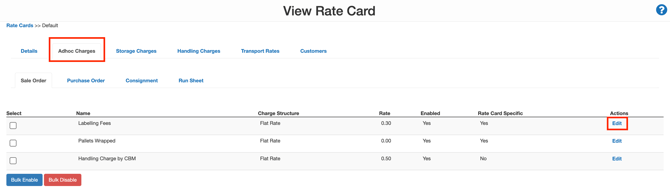
Navigate to the relevant Rate Card.
-
Select the Adhoc Charges tab.
-
Select Edit against the relevant charge.
-
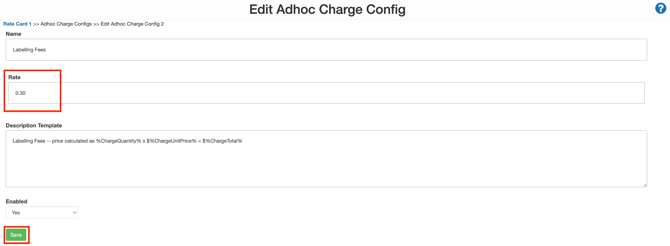
Change the rate against the charge.
-
Select Save.
Customer specific consignment adhoc charges
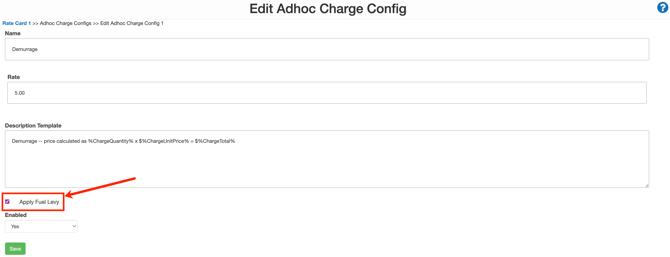
For Customer Specific Consignment Adhoc Charges, there is an additional option to set the fuel levy. This enables you to override the default setting to turn it on or off for a specific customer.
Order specific adhoc charges
If you wish to apply a specific Adhoc Charge different from the Customer's Rate Card, you can change the charge within the individual order.
-
Navigate to the relevant order.
- Select the Charges tab.
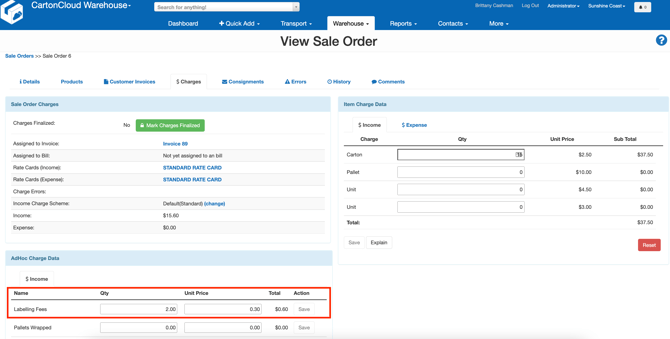
- Edit the Unit Price against the relevant Adhoc Charge.
- Click Save.
Examples of where adhoc charges can be shown
Sale Order View Page
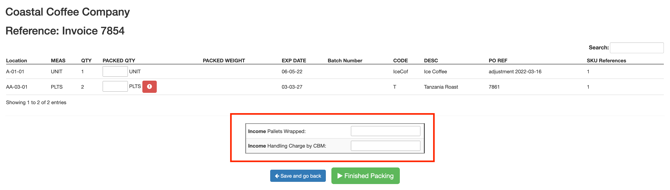
Sale Order Pick List Page
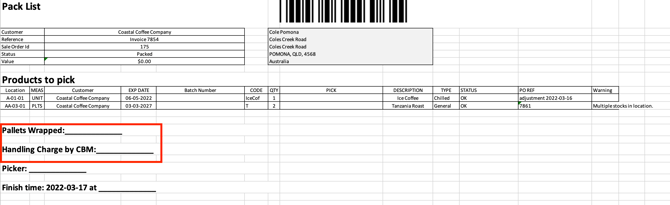
Sale Order Pick List Document
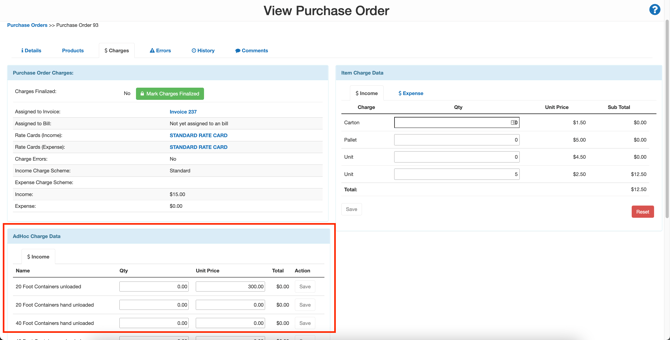
Purchase Order View Page
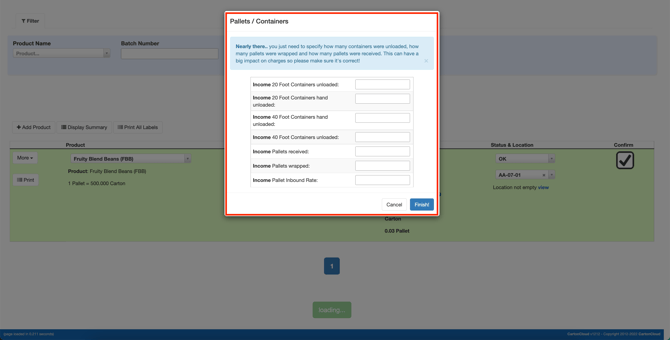
Purchase Order Verification Page
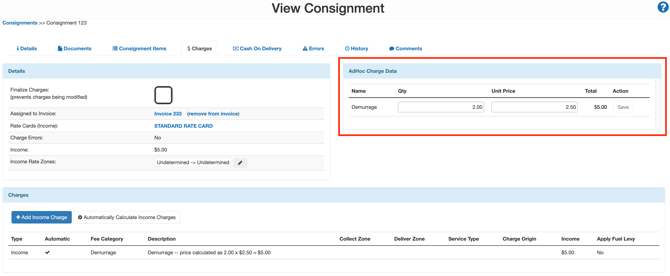
Consignment View Page
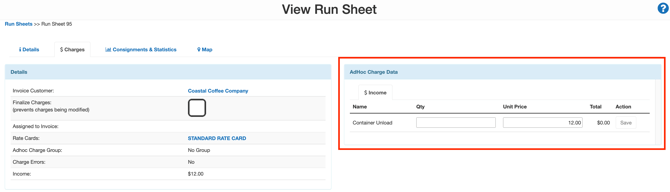
Run Sheet View Page
Applying adhoc charges
You can apply Adhoc Charges upon putting away/packing orders; however, you can also manually enter them against the order in the web app.
-
Navigate to the relevant order.
-
Select the Charges tab.
-
By default, the Customer's Rate Card rates will apply. If you wish to use a different rate, edit the Unit Price.
-
Enter the number of charges you wish to apply in the Qty box.
-
Select Save.
-
The charges will now show in the Charges box once you select Automatically Calculate Income Charges.

The charges will show on the Invoice Summary as Misc Charges.