
Table of Contents
Dock Management is a paid CartonCloud application. Contact the CartonCloud support team for pricing and access.
Stop being the booking switchboard — let carriers book their own slots.
Adding a carrier
Under Settings → Carrier Management, add each transport company with a name and contact email. Each carrier gets a unique booking link.
How the booking link works
Send a carrier their link once - they can use it any time. When they open it they:
- Choose the warehouse they're delivering to (if you run more than one site)
- Choose what they're booking (if you've set up load types they can use)
- Pick a date and an available time slot, only within your working hours
- Enter their details and confirm
If you've set up load types, carriers pick one before choosing a date, and are only offered slots long enough for that kind of job. Carriers with only one load type available skip the step entirely. See Load Types for how to set these up and how to restrict which load types a carrier can book.
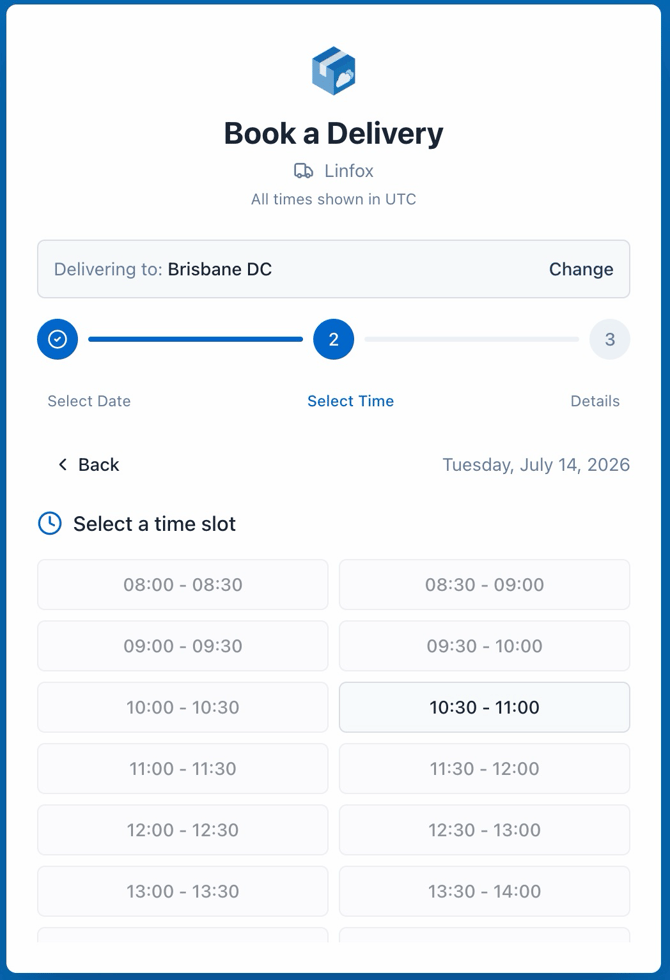
The booking appears on your calendar immediately, ready for your team to drag onto a door when planning the day.
If the site has Require booking approval switched on, the booking arrives as Pending Approval instead. It holds the slot so nobody else can book it, but it is not confirmed until someone on your team approves it.
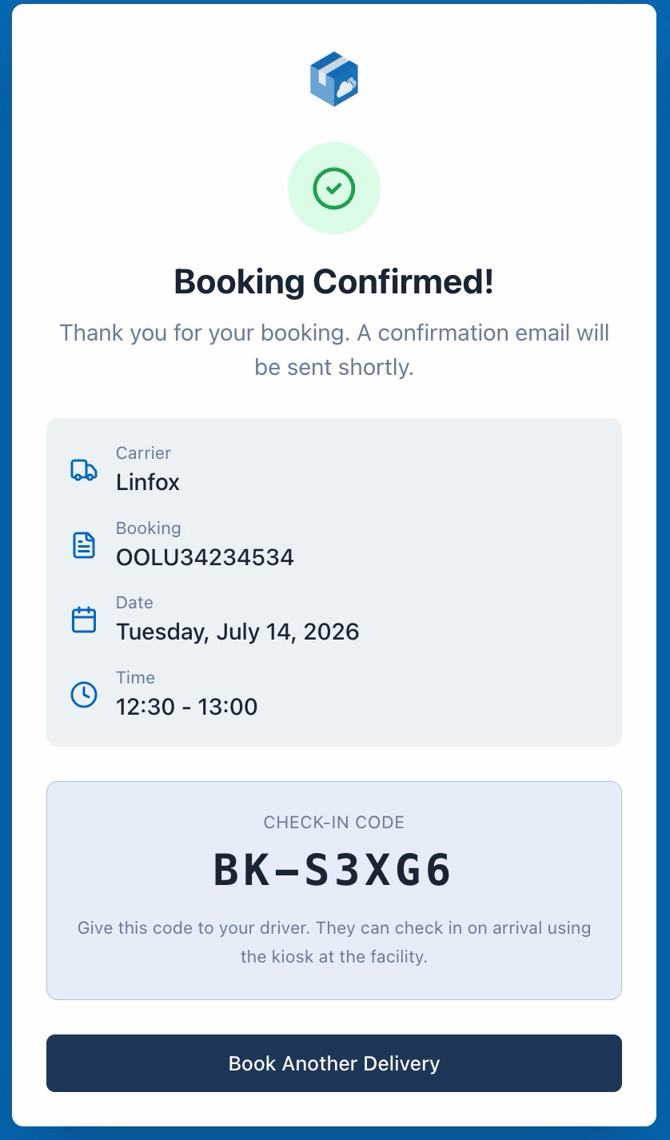
The confirmation
The carrier sees a confirmation screen and also receives a confirmation email. The email includes the check-in code and instructions to give to their driver. The check-in code is what the driver enters at the kiosk on arrival.
If the site has Require booking approval switched on, the carrier receives a Booking Requested email instead, telling them the slot is not yet confirmed. Their confirmation email, with the check-in code, is sent when your team approves the booking by opening it and clicking Mark as Scheduled.
Approving and allocating a dock are separate steps. You can approve a booking now and assign its door later, or assign a door first and approve when you are ready. Only approval sends the carrier their confirmation.
Anything you've marked as visible on the carrier booking form appears on the details step, so carriers can supply references, PO numbers or container numbers at the time they book. See Booking Fields for how to turn this on.
You can disable a carrier's link at any time by toggling Booking link enabled off — handy for carriers who repeatedly no-show.
Note that a carrier’s email address is used as the fallback recipient for notification emails when a booking has no confirmation email of its own, so it’s worth keeping populated.