
Table of Contents
- The calendar: your dock at a glance
- Views
- List View
- Reading a booking card
- Switching warehouses
- Searching
- The Today board
Dock Management is a paid CartonCloud application. Contact the CartonCloud support team for pricing and access.
The calendar: your dock at a glance
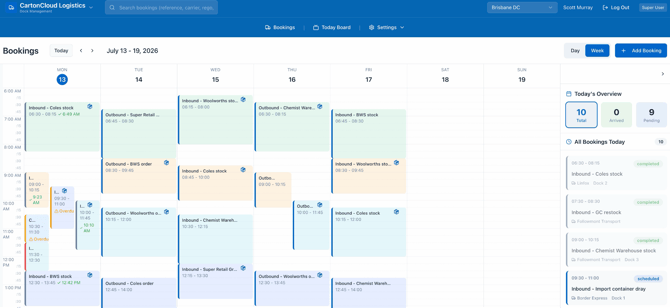
The calendar is the home screen. Every booking at every dock lives here.
Views
- Week view shows Monday to Sunday side by side — best for planning ahead.
- Day view breaks today into dock-door columns, so you can see exactly which door is busy when — best for running the day.
- List view shows every booking in a date range as a sortable, filterable table, with an export. Best for daily checks and finding bookings that need attention.
- Greyed-out periods are either outside your working hours or closed by a block. See Blocking Docks for Holidays and Maintenance.
Switch between views with the List / Day / Week toggle at the top right. Your Day or Week choice is remembered next time you open the calendar.
The list view
The calendar is built for reading a day at a glance. When you want to check everything across a week, or find the bookings still missing a dock, switch to the list.
Click the list icon in the List / Day / Week toggle. You get every booking in your chosen date range as a sortable table, with filters for site, status, carrier, dock, load type and how the booking was made. You choose which columns appear, and you can export what you see to a spreadsheet.
Click any row to open the booking, exactly as you would on the calendar.
Reading a booking card
Each card shows the booking title, time, and live status:
- Coloured left edge — the booking's status (or its dock's colour)
- ✓ with a time — the truck has arrived; that's the actual arrival time
- ⚠ Overdue — the booking's start time has passed and no truck has checked in
- CartonCloud icon — this booking is linked to a CartonCloud purchase order, sales order or consignment
Hover any card to see its check-in code and notes. Click it to open the full booking.
Switching warehouses
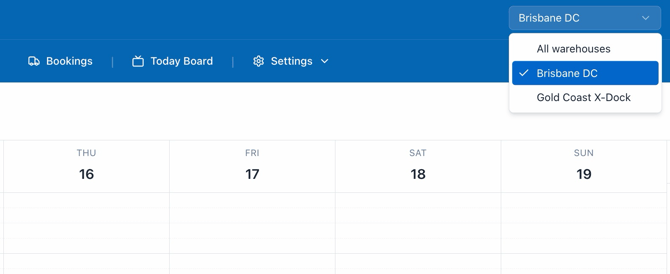
If your organisation runs more than one site, the warehouse selector sits in the top bar next to your name. Pick a warehouse to see only its docks and bookings, or All warehouses for the combined view. The calendar, working hours, and the Today board all follow this selection.
Searching
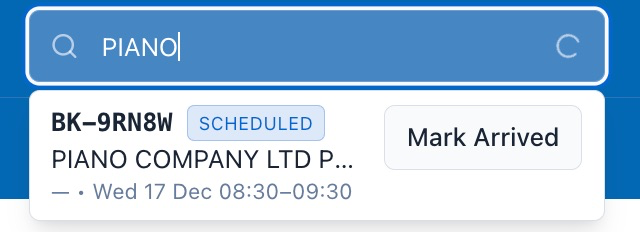
The search bar finds any booking by check-in code, carrier, rego, or title — across all dates. Results show the booking's status, and scheduled bookings have a Mark Arrived button right in the results for fast gate-side check-ins.
The list view has its own search, which also matches linked purchase order, sales order and consignment references.
The Today board
Click Today board in the navigation bar for a full-screen, live view of today's bookings sorted by time — designed for a wall-mounted TV in the office or dock house. It updates in real time as trucks check in. To exit, click the back button in your browser.
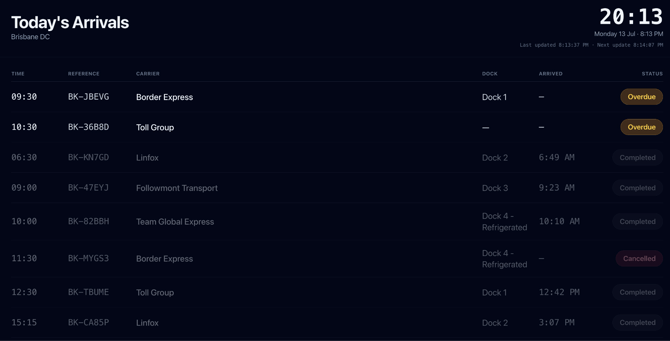
You can choose what the board shows. Under Settings → Bookings → Today Board, pick which columns appear and drag them into the order you want. Any custom booking fields you've set up are available as columns too, so a cold store can lead with temperature while another site shows trailer numbers.
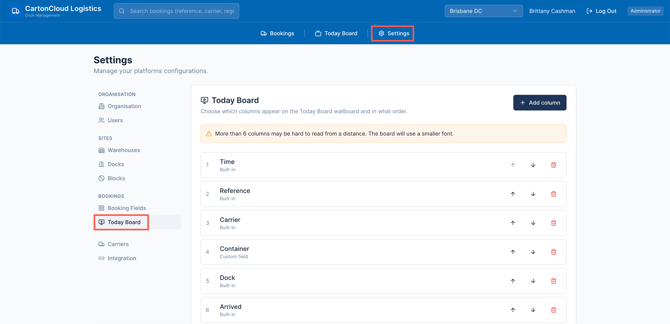
Columns are shared across your organisation. The board warns you when you've added enough columns to affect readability from a distance.