
Table of Contents
-
What a block does
-
Creating a block
-
Repeating a block
-
What carriers see
-
What your team sees
-
Managing a series
Dock Management is a paid CartonCloud application. Contact the CartonCloud support team for pricing and access.
What a block does
A block closes a dock, or a whole warehouse, for a period of time. Use it for public holidays, site shutdowns, or a door that's out for maintenance. You no longer need to create placeholder bookings to hold the space.
Blocks live under Settings → Bookings → Blocks.
Creating a block
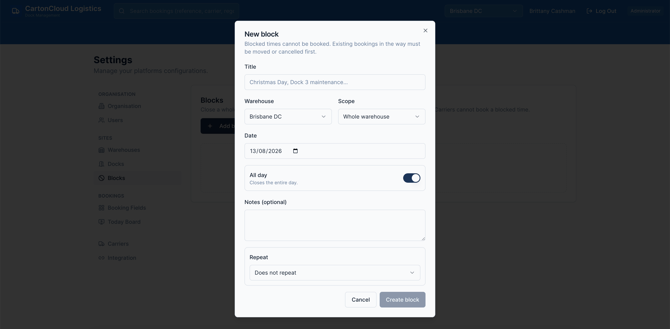
Choose a warehouse, then either leave the dock as All docks to close the whole site, or pick a single dock to take just that door out.
Set the date, then either tick All day or set a start and end time. Give it a title your team will recognise, like "Christmas Day" or "Dock 3 — hydraulics service".
Repeating a block
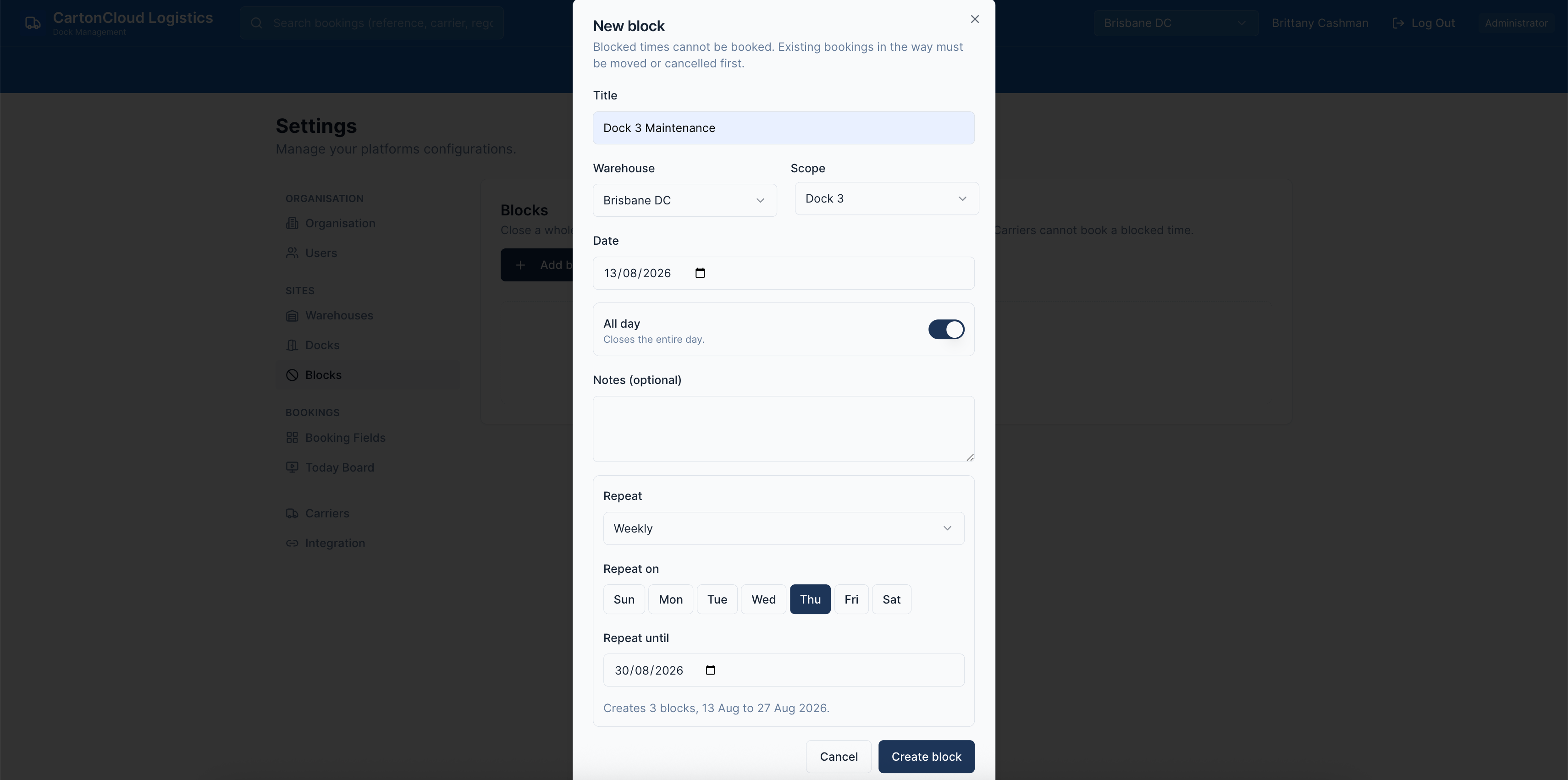
Set Repeat to Daily or Weekly and pick a Repeat until date.
- Daily follows the working days configured for that warehouse, so days you're already closed are skipped automatically.
- Weekly lets you tick the days it applies to — Monday and Wednesday, for example.
Before you save, a line tells you how many blocks will be created and the date range they cover.
What carriers see
Carriers can't book a closed time. Blocked slots don't appear in the booking link, and a fully closed day can't be selected. There's nothing for them to work around and nothing for you to police.
What your team sees
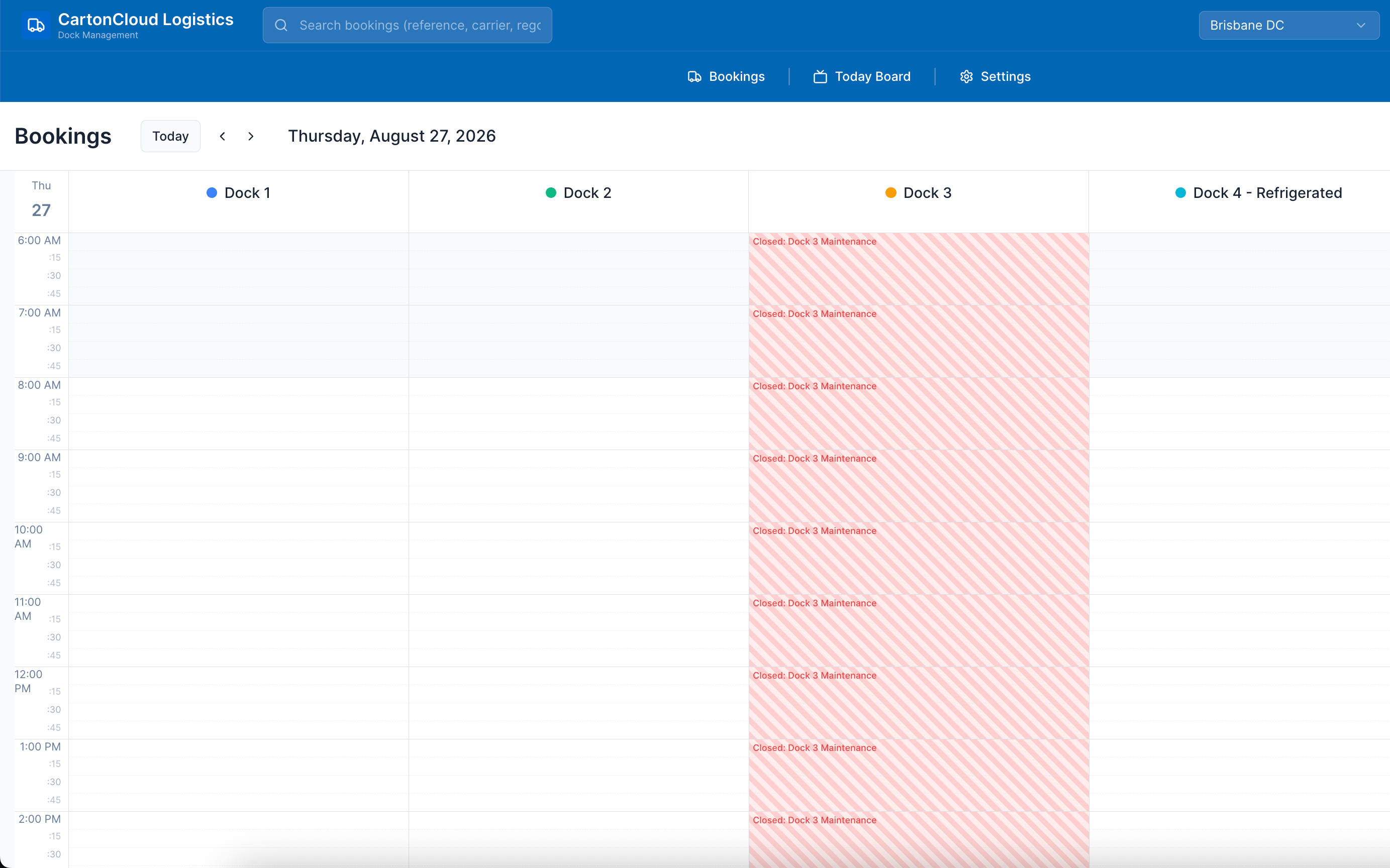
Closed periods are shaded on the Day and Week views, so it's obvious before anyone starts filling in a booking.
Your team can still book into a closed period. If a truck turns up on a shutdown day, staff confirm once and the booking goes in. This is deliberate: the block stops carriers self-booking, it doesn't stop you recording what actually happened.
Managing a series
A repeating block appears as a single entry showing the pattern and the number of dates, not fifty separate rows.
- Expand the series to see the individual dates. Delete one to skip that date and leave the rest running.
- Delete the series to remove every date at once.
- Editing the series changes the title, times, and dock across every date. To change the pattern or the dates themselves, delete it and create it again.
Note: A block can't be created over the top of an existing booking. Move or cancel those bookings first. When you create a repeating block, any dates that already have bookings are skipped, and the skipped dates are listed for you.