
Table of Contents
- Overview
- Accessing Business Intelligence
- Understanding Business Intelligence Collections
- Building reports with Explore with AI
- Building your own Dashboard
- Known Limitation
Overview
Business Intelligence is CartonCloud's reporting and data visualisation tool. It replaces CartonCloud's previous reporting tool (BI Dashboard) and gives you a more flexible way to explore your data, build your own charts, and create dashboards tailored to your business. Data you can report on includes:
- Consignments — track volumes, delivery activity, and performance over time.
- Sale Orders — explore order volumes, statuses, and trends.
- Purchase Orders — review inbound stock activity and receiving trends.
Business Intelligence is available in selected plans. To enable it on your account, contact the CartonCloud Service Desk team.
Accessing Business Intelligence
Business Intelligence is available from the Reports menu.
- Reports > Business Intelligence to open the Business Intelligence page.

Understanding Business Intelligence Collections
When you open Business Intelligence, your data is organised into collections. Each collection serves a different purpose:
Prebuilt Collection
The prebuilt collection contains a default dashboard, built and maintained by CartonCloud, that gives you an overview of key data across your business (for example, consignment and sale order activity). You can view and interact with this dashboard, but you can't edit it.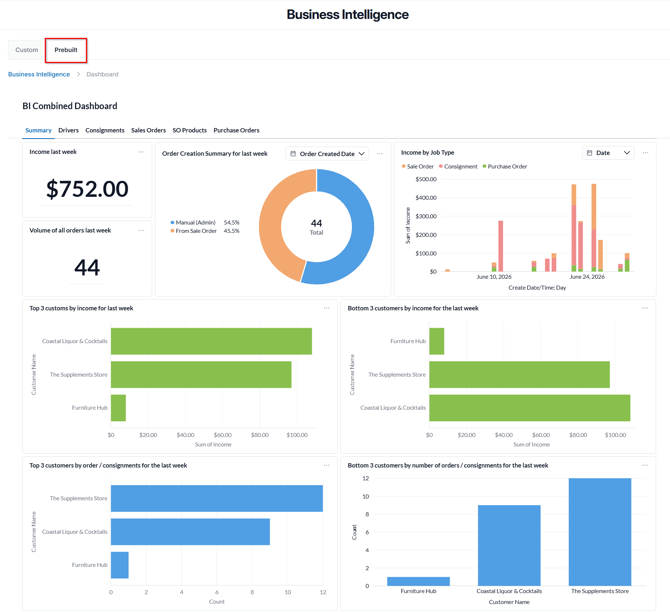
Custom Business Intelligence Collection
Your Custom Business Intelligence collection is where you build and save your own charts, questions, and dashboards. Anything you create here is fully editable and specific to your business.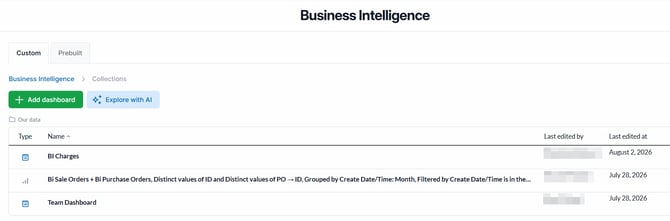
Use the prebuilt dashboard as a starting point to understand what data is available, then build your own charts in your Custom Business Intelligence collection to answer more specific questions about your business.
Building Reports with Explore with AI
Explore with AI is an AI-powered chat assistant available within your Custom Business Intelligence collection. It lets you ask questions about your data in plain English and generates charts and reports for you, without needing to know how to build a query.
To use Explore with AI:
- Go to Reports > Business Intelligence to open Business Intelligence.
- Open your Custom Business Intelligence collection.
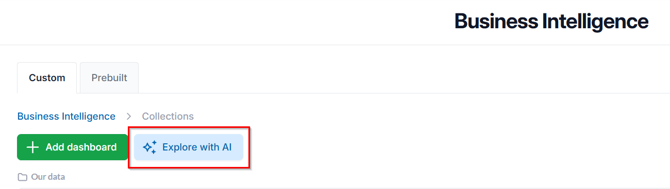
- Select Explore with AI
- Type your question in plain English, for example: "Show me the number of sale orders created per week over the last 3 months."
- Review the chart or table Explore with AI generated. You can refine your question and ask follow-up questions to adjust the result.
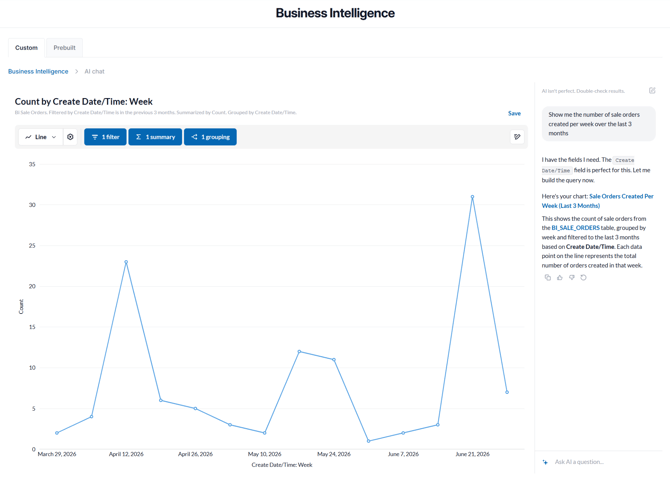
- Click Save to save the result to your Custom Business Intelligence collection so you can access it again later.
Explore with AI can only build a report using data that already exists in your account. For example, if you don't currently have any sale orders in a particular status, you won't be able to filter or select that status until data in that status exists.
Building your own Dashboard
As well as using Explore with AI, you can build a dashboard directly in your Custom Business Intelligence collection and add your own charts and saved questions to it — including charts you've built with Explore with AI.
To create a dashboard:
- Go to Reports > Business Intelligence to open Business Intelligence.
- Open your Custom Business Intelligence collection.
- Click +Add dashboard.
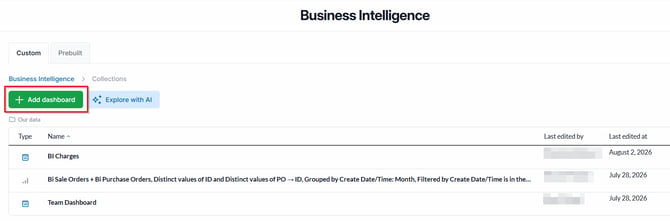
- Give your dashboard a name and click Create.
Add a chart to your dashboard by either:
-
Building a new chart or by selecting an existing saved question — including one you built with Explore with AI — from your Custom Business Intelligence collection.
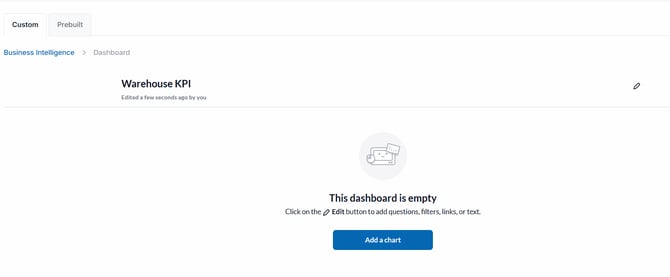
-
- Click Add a chart.
- Click New Question.
- Pick your starting data.
- Add Filters based on your requirements and follow the configurations to build your chart.
-
- Once completed, click Visualize.
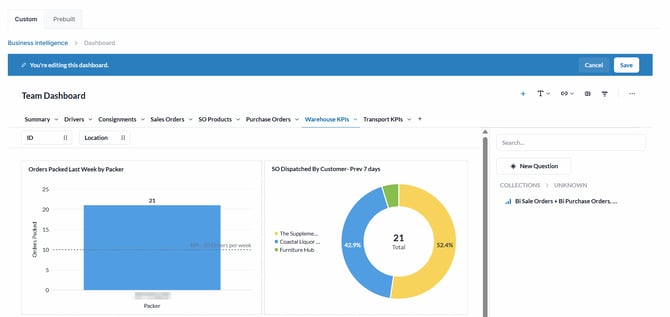
- Arrange and resize your charts as needed.
- Click Save.
Known Limitations
- Business Intelligence and Explore with AI are being rolled out progressively. If a feature described in this article isn't visible in your account yet, contact CartonCloud Service Desk to check your rollout status.
- Exporting or downloading reports, scheduled email reporting, and access for your own customers are planned for future releases and aren't available yet.