
Table of Contents
- Purpose
- Benefits
- Considerations
- Explanation of each Dashboard and data
- How to apply and change filters on a Dashboard
- How to export Visuals
- BI tool webinar
Please note this is a WMS Premium only feature. For more information on WMS Premium and to upgrade your account please reach out to our Service Desk team here.
Purpose
The Business Intelligence (BI) Tool is an analysis tool that provides you with historical information that will provide you with valuable insights into your Operation.
To gain access to the BI Tool please contact us.
Benefits
- Greater visibility - the BI dashboard enables users to analyse data to make better decisions. Whether it's preparing for rate changes, reviewing which warehouse pickers are the most efficient, or identifying which customers require the most data entry. All of this is available at the click of a button.
- Improve relationships - Strengthen your customer relationships by providing your clients with insights into their own business. CartonCloud BI allows you to evaluate data on a per-customer level so you can notify your clients of trends your seeing in their business. Use these insights to position yourself as a premium provider and make your customer relationships sticky.
- Navigate Change - As the saying goes, "Change is the only constant in business". Shifts in volumes, delivery locations, customer revenue, fast moving products, and staff efficiency all occur over time. CartonCloud BI allows you to spot these trends early, enabling you to better position your business sooner, and converting change from a hassle into an opportunity.
Considerations
- There a number of Dashboards available and each Dashboard contains a large number of graphs, tables, data highlights and summaries.
- The type of graphs and how they are formatted is not customisable, however, there is a large variety of different graphs, tables and summaries that allow you to easily analyse data and make decisions. In addition, you can apply different filters to the existing graphs and data.
- Filters can be applied to each Dashboard at either the Dashboard or individual visual level. For example, you may filter by a certain Customer or change the date range displayed.
- The available Dashboards include:
- Summary
- Drivers (TMS only)
- Consignments (TMS only)
- Sale Orders (WMS only)
- SO Products (WMS only)
- Purchase Orders (WMS only)
Explanation of each Dashboard and the Visuals
For definitions of each Visual per Dashboard see BI Dashboards Explained
How to apply and change filters on a Dashboard
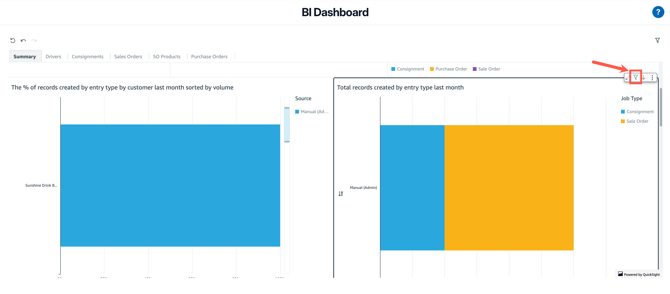
- Hover your mouse over the data/graph on the Dashboard you wish to apply a filter for and select the Filter icon in the top right corner.
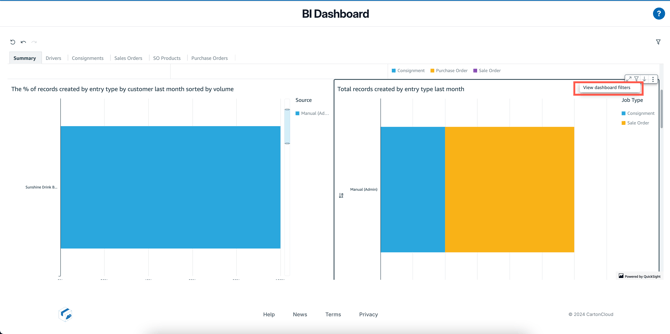
- Select View Dashboard filters.
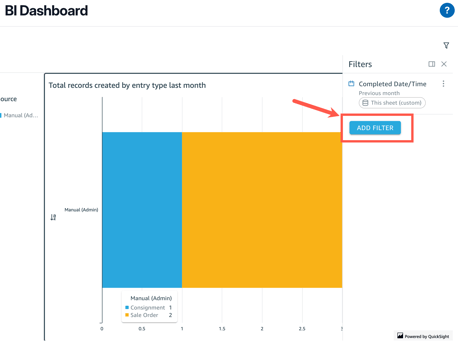
- If you wish to add a new filter, click Add Filter.
- Select the field you wish to filter by.
- Click the filter you just selected.
- Select if you wish to apply the filter at the individual or Dashboard level.
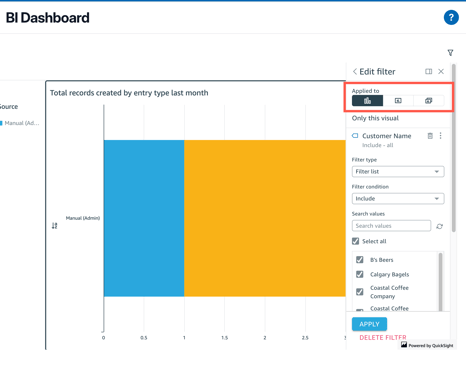
- Select the filter type, it is suggested you use Filter list (filter the list of values) or Custom Filter (allows you to use conditions to filter by).
- Select the filter condition.
- Enter or select the values to filter by.
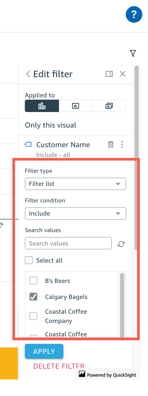
- Click Apply.
How to export Visuals
To export a visual you will need to:
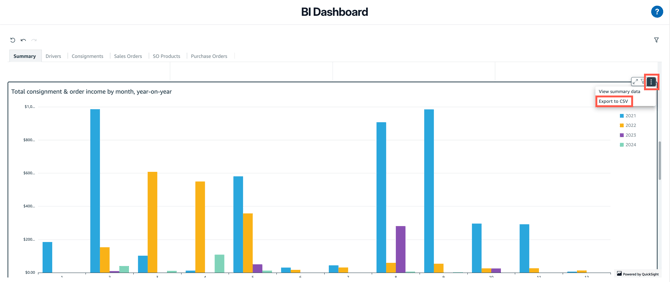
- Hover over the Visual you wish to export.
- Select the three-dot icon, Menu options in the top right corner and then Export to CSV.
BI Tool Webinar
We held a Webinar back in March which provided an overview of the functionality within the BI tool.