
Table of Contents
- Purpose
- Disabling Auto-Confirm on Putaway
- How scanning behaves when Auto-Confirm on Putaway is on
- Duplicate scan protection
- Verify unconfirmed products dialog
- GS1 barcode scanning (Android)
Purpose
Auto-Confirm on Putaway is a device-level setting that speeds up receiving by confirming Purchase Order lines automatically as they're scanned, instead of requiring a separate manual confirmation tap for every line.
When receiving a Purchase Order with a large number of lines — for example, an order with 100 or more serialised items — confirming each line individually in the mobile app can slow down high-volume receiving. Auto-Confirm on Putaway removes this extra step: a successful scan during Verify confirms the matching line immediately, so you can move through large orders faster without tapping Confirm on every line.
Auto-Confirm on Putaway is turned on by default. Existing Putaway workflows are unchanged unless you turn the setting on. For the standard (setting off) workflow, see Putaway process.
Disabling Auto-Confirm on Putaway
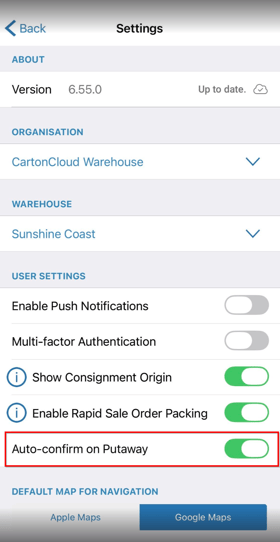
Auto-Confirm on Putaway is enabled by default and is configured per device, not per organisation or user. If you do not want to use this feature on a particular mobile device, you can disable it in the device settings.
- On the mobile device, open the CartonCloud app and navigate to Settings.
- Find the Auto-Confirm on Putaway setting.
- Turn the setting Off to disable it for that device.
How scanning behaves when Auto-Confirm on Putaway is on
When Auto-Confirm on Putaway is enabled, the app automatically confirms Purchase Order lines as you scan them.
What happens depends on the type of barcode you scan:
Serial numbers and verifiable custom field barcodes
If you scan a serial number or verifiable custom field barcode that matches a single Purchase Order line, the line is confirmed automatically.
You’ll see a “Confirmed” message and can move on to the next line.
Product code and Unit of Measure barcodes
If you scan a product code or Unit of Measure barcode, the scanned quantity is added to the Purchase Order line.
You’ll see an “Added” message. Continue scanning until the full quantity for the line has been scanned. Once the full quantity is reached, the line is confirmed automatically.
|
Scan type |
What happens |
Message Shown |
|
Serial number / verifiable custom field barcode (single match) |
Line confirmed immediately |
"Confirmed …" |
|
Product code / UOM barcode (quantity not yet reached) |
Quantity added, line stays open |
"Added …" |
|
Product code / UOM barcode (full on-hand quantity reached) |
Line automatically confirmed |
"Confirmed …" |
Duplicate scan protection
If you scan a serialised line that has already been confirmed, the app now shows an error and rejects the scan. This prevents accidentally scanning the same item twice and double-counting confirmed quantities.
Verify unconfirmed products dialog
When you close a Purchase Order from the Verify tab while it still has unconfirmed lines, a dialog opens showing what will happen to those lines before you commit. The dialog now clearly separates:
- Lines with a saved (partially scanned) quantity, which will be confirmed at that quantity.
- Lines with no scanned quantity, which will be left empty.
The button labels and on-screen copy adjust depending on which of these applies, so you can see exactly what will be confirmed — or left unconfirmed — before you continue.
GS1 barcode scanning (Android)
On Android devices, when Auto-Confirm on Putaway is turned on, GS1 putaway scans follow the same auto-confirm rules as standard barcodes described above.
GS1 barcode alignment applies to Android only. GS1 putaway scanning is not available on iOS.