
Table of Contents
How to add a Purchase Order
-
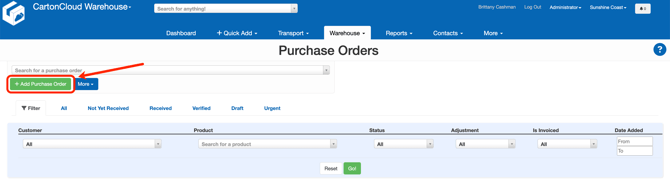
Navigate to the Purchase Orders screen, Warehouse>Purchase Orders.
-
Click +Add New Purchase Order.
-
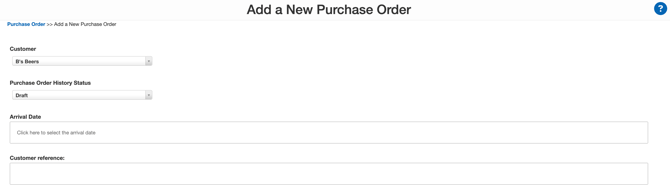
Select the Customer you wish to create a Purchase Order for.
-
Select the status of the order, arrival date of the stock, the customer's reference for the order and any relevant special instructions.
-
Click Save.
-
You will now arrive on the View Purchase Order page where the remaining details of the Purchase Order can be added.
-
Specifically, you will need to add Products to the order, check the charges are correct (and what you expect) and if required upload an invoice to be stored against the order using the Upload Invoice button.
Adding Products to the Purchase Order
To add Products to the Purchase order:
-
Select the Products tab.
-
Select Add Product.
-
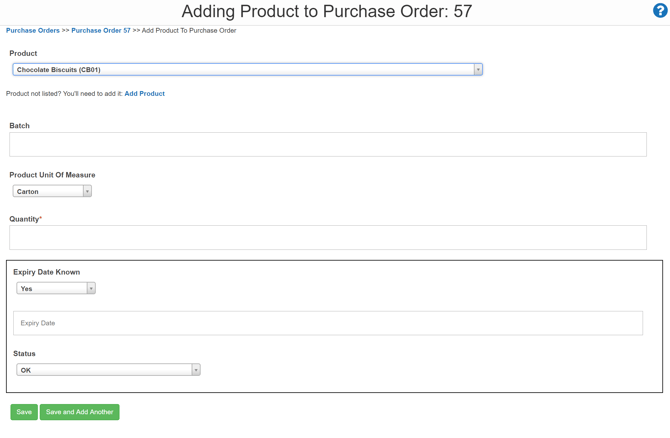
Search for the product you wish to add to the order and fill in the applicable fields.
-
Select Save or if you wish to add additional Products, select Save and Add Another.
-
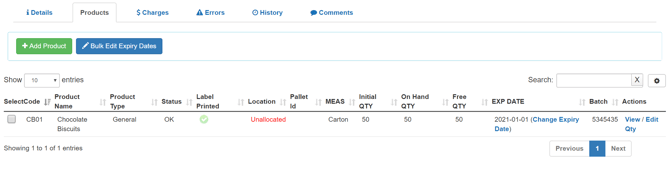
The product's stock record will now be viewable on the Products tab as shown below.
- Once all Purchase Order's details are completed, you can then step through the status updates such as Draft → Approved → Received → Verified & Allocated at the appropriate stages of the stock's physical movement.
For further assistance, see the View Purchase Order page article.
It's important to know that a Purchase Order's status can be rolled back, however, there are some implications with doing so. They can also be deleted entirely, and this is covered in Deleting a Purchase Order.