
Table of Contents
- Purpose
- Use Cases
- How to create a Warehouse Zone
- How to update a Warehouse Location with a Warehouse Zone
- Product Preferred Zones
Purpose
Warehouse Zones allow you to group Warehouse Locations together to more efficiently plan warehouse operations.
Use Cases
- Enables zone-based Wave Picking for optimised pick routes.
- Zone-specific management for specialised storage requirements (cold storage, bulk areas and dangerous goods).
- Picker workload distribution based on zone assignments.
- Logical grouping of Warehouse Locations into defined zones, for example, Pick Faces.
How to create a Warehouse Zone
A Warehouse Zone is created when it is added to a Warehouse Location.
- Navigate to the Warehouse Locations page, Warehouse > Warehouse Locations.
- Select the Warehouse Location you wish to assign the new Warehouse Zone to.
- Click Edit.
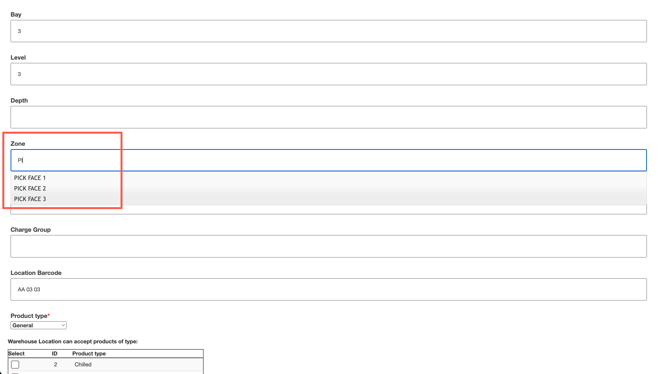
- Scroll down to Zone and type in the Warehouse Zone name you wish to create. Note, any other Warehouse Zones you have previously created will appear in the drop down as an option.
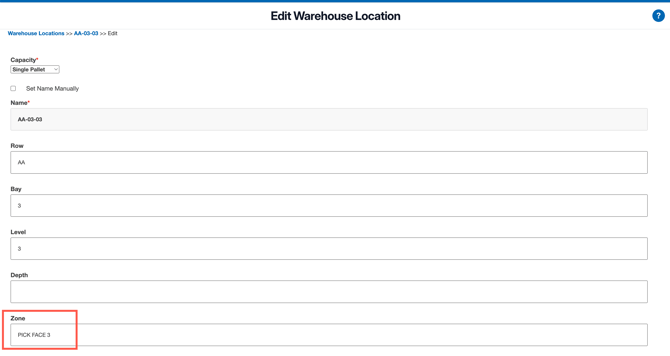
- Scroll down and click Save.
- The Warehouse Zone has now been created and will appear as an option when updating the Warehouse Zone for a Warehouse Location.
How to update a Warehouse Location with a Warehouse Zone
- Navigate to the Warehouse Locations page, Warehouse > Warehouse Locations.
- Select the Warehouse Location you wish to assign the new Warehouse Zone to.
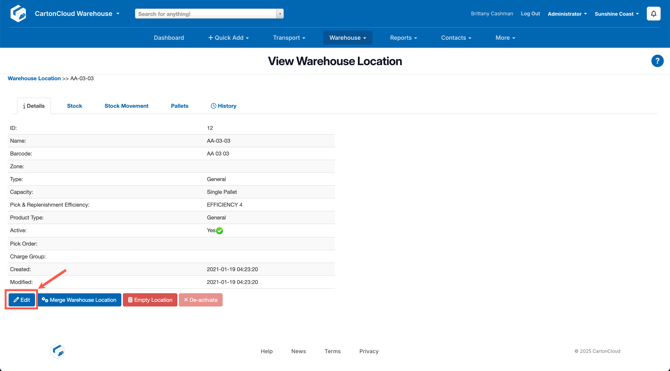
- Click Edit.
- Scroll down to Zone and search for the Warehouse Zone you wish to assign to the location. Select the Zone you wish to assign.
- Scroll down and select Save.
Product Preferred Zones
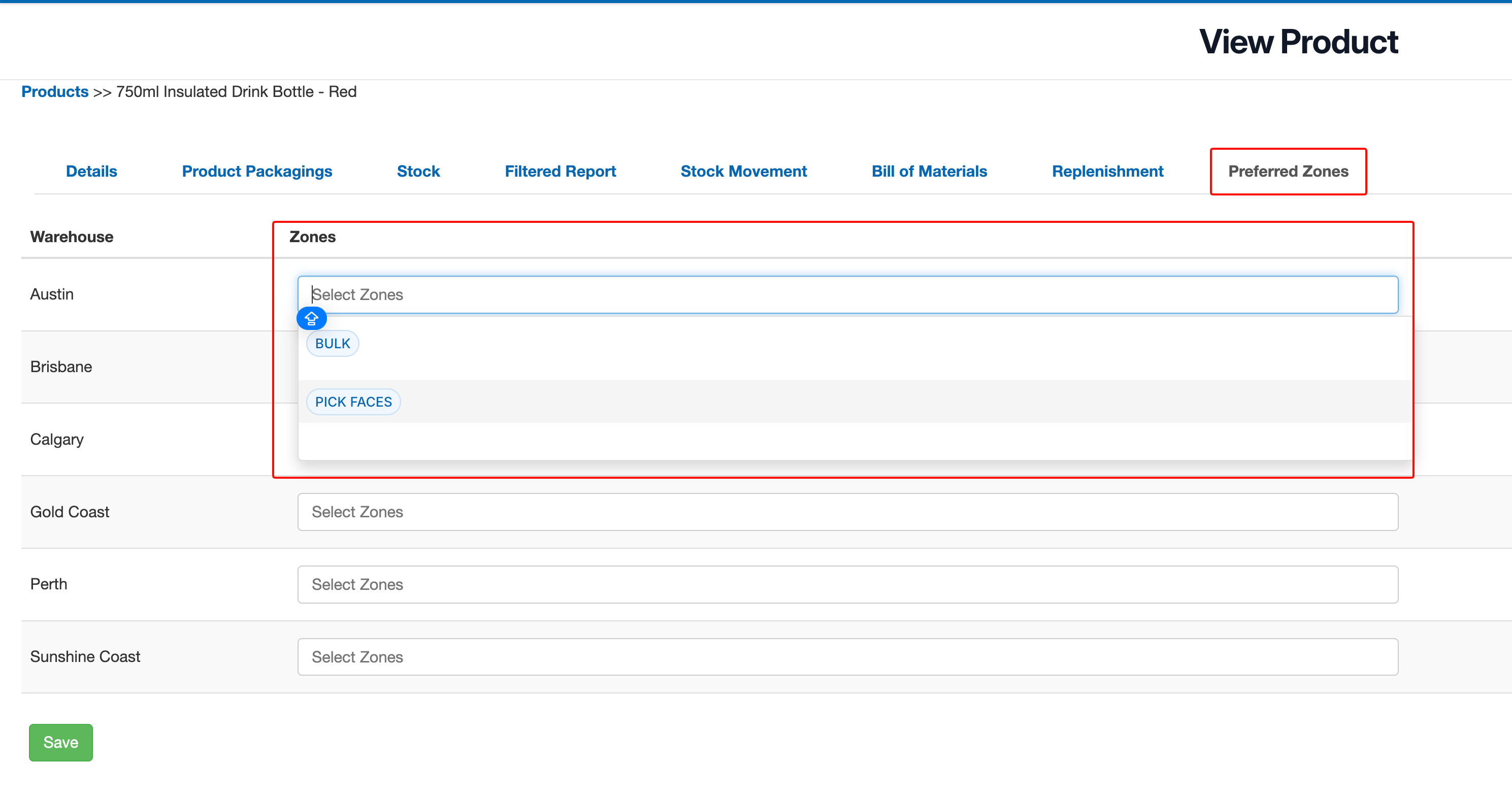
You can also tell CartonCloud which of the Warehouse Zones each product prefers to be stored in. These are called Preferred Zones.
Directed Putaway on the mobile app uses them to suggest put-away locations inside those zones.
| Warehouse Zones | Product Preferred Zones | |
|---|---|---|
| What it is | The zone a Warehouse Location belongs to. | The zones a product prefers to be stored in. |
| Where you set it | Warehouse > Warehouse Locations > select a location > Edit > Zone | Warehouse > Products > select a product > Preferred Zones tab |
| Scope | One zone per location. | Up to 10 zones per product, per warehouse. |
| Used for | Grouping locations, zone-based Wave Picking, zone-specific storage. | Directed Putaway In Zone suggestions. |
Considerations
- Preferred Zones only offer zones that already exist on Warehouse Locations in that warehouse.
- Create the zone on a location first (see How to create a Warehouse Zone), then select it on the product.
- Preferred Zones are set per warehouse. A product that belongs to Sydney and Brisbane has a separate list for each warehouse.
- Only users with the Administrator role can see and update the Preferred Zones tab.
Renaming a Warehouse Zone on your locations does not update the Preferred Zones on your products. If you rename a zone, update the Preferred Zones on the affected products as well, or Directed Putaway stops matching locations in that zone.