
Table of Contents
Purpose
CartonCloud provides a designated email address that can be used to receive signed PODs from onforwarders/carriers, provided the signed documents contain a QR Code overlay.
With the QR Code Overlay setup on the Customer Consignment Invoice, this document can be manually signed, scanned and then emailed to CartonCloud (using the appropriate email address), uploaded against the relevant Consignment, and then updated to 'Delivered'.
Use cases
This provides a simple way for onforwarders to send back completed PODs with minimal effort, increasing the chance of you receiving them back quickly.
How to use QR codes to attach a POD to a Consignment automatically
Follow the below steps to set up this automated workflow:
How to steps
Step 1: Set up the QR Code Overlay
To begin, you will need to set up Consignment Customer Invoices to be overlayed with a QR code. This QR code is what CartonCloud will use to match the document to the consignment record when it is sent back by the carrier.
Configuring QR Code Overlay for Invoices
The QR Code Overlay is set up at the Customer level. This means each Customer can have their own Consignment Customer Invoice template and the QR code position can be different for each Customer and their invoice.
To set up the QR Code Overlay:
-
Navigate to the Customer Settings, Contacts>Customers>click Edit against the relevant Customer.
-
Select Transport Management>Defaults tab.
-
Scroll down to Advanced and tick Enable Overlaying of QR on Customer Invoices. This will occur on Invoice generation.
-
You will now need to select an Invoice to be the template for choosing the position of the overlay. You can either select an existing recent invoice, or a new PDF file can be uploaded.
-
Once you have selected the file, it will appear on the page inside the QR Code positioning tool.
-
Use the QR Code positioning tool (move the red box) to place the QR Code in the desired location on the document and in the desired size.
-
Scroll to the bottom of the page and click Save.
QR Code Positioning Tool
The QR Code positioning tool supports the following.
|
Function |
Description |
|
Rotation |
Not required as QR codes are omnidirectional. |
|
QR Code Resizing |
Dragging from the bottom right corner of the red QR code square allows it to be resized as required. |
|
QR Code Placement |
Dragging and dropping the red QR code square will place it in that location for all future documents using the overlay feature. |
|
Page Rotation |
If the sample page has been uploaded in the wrong orientation, it can be rotated as required. |
|
On Pages |
In the scenario where a Customer Consignment invoice is multiple pages, this allows the user to select which page/s the QR code will be overlaid on. |
Step 2: Set the Customer up on the QR Code POD Parser
The QR Code POD Parser enables the file to be emailed and uploaded to the Consignment in CartonCloud.
You will need to set the relevant customer up against the QR Code POD Parser, following the instructions here.
Once the customer is set up against the Parser, they can email the document into CartonCloud, and the file will attach to the relevant Consignment and update the Consignment status to Delivered.
Step 3: Provide the parser email address to the onforwarder
Once you have set the customer up against the Parser, you will need to provide them with the to email address. You can find this against the Parser.
-
Navigate to the Parsers page, type Parsers into the Search for anything bar.
-
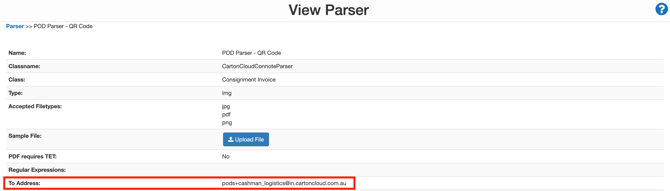
Select the QR Code POD Parser.
-
You will see the To address. Provide this address to your onforwarder.
Step 3: Provide paperwork to the onforwarder
Once the onforwarder has been given the email address to send the PODs to, you will need to ensure that the Consignment Invoice paperwork they are given contains a QR Code (if you have followed step 1, then this will happen automatically when uploading the file against the Consignment).
-
Print/send the Consignment Invoice from the Consignment to the onforwarder.
-
The onforwarder will then get the paperwork signed by the receiver and scan it back to the Parser's email address.
-
CartonCloud will automatically read the files sent to the email address and attach them to the appropriate Consignment.
-
Once the file is attached, the Consignment will be updated to a status of 'Delivered'.
Step 4: Managing the returned Consignment Invoices
When a file is sent back to CartonCloud, each page is individually checked for a QR Code. This QR Code acts as a reference to link it to the appropriate Consignment.
Since each page is checked individually, it is possible to gather multiple PODs into a single PDF file and then send them as one email. This can save the carrier time as they can scan all outstanding PODs to their computer at once and then forward them to the email address (for many printers, they can bypass scanning to their computer by setting up the POD email in the printers address book, then scanning directly to it).
If a page is sent to the POD email that does not contain a QR code, it will not be attached to a consignment. When this occurs, it will appear as an unassigned Consignment Invoice / POD on the CartonCloud Dashboard.
How to manage unassigned Consignment Invoices
-
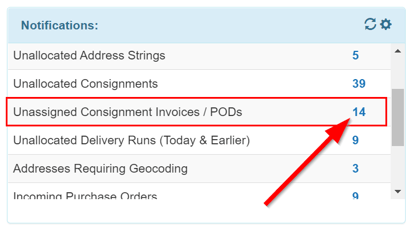
From the Dashboard, navigate to the Notifications box.
-
Find the title Unassigned Consignment Invoices / PODs in the notifications box and click on the number against it.
-
By clicking on the link, you will be taken to the Consignment Customer Invoices page within the Unassigned tab. From this tab, you can view what has been sent and either manually assign it to the appropriate Consignment or delete it from the system if it's not required.
If you are completing this process numerous times, it is suggested you revisit step 1 to investigate why a QR code was not on the page (for example, perhaps the customer uses multi-page PODs, but the QR Code has only been configured to overlay on the first page).