
Table of Contents
Purpose
Please note that if your CartonCloud account was created prior to 1 July 2019 the below functionality may not be available at this stage. If you would like to discuss migrating to the newer version of the CartonCloud TMS, please use CartonCloud Help and lodge a case with our Service Desk,
Once you have added your zones to the Zone Set, you will then need to create location entries.
A location entry is a suburb and postcode combination that will be used to find a match against addresses on consignments. These location entries will then be associated with the relevant zone.
How to steps
1. Select the location entry type
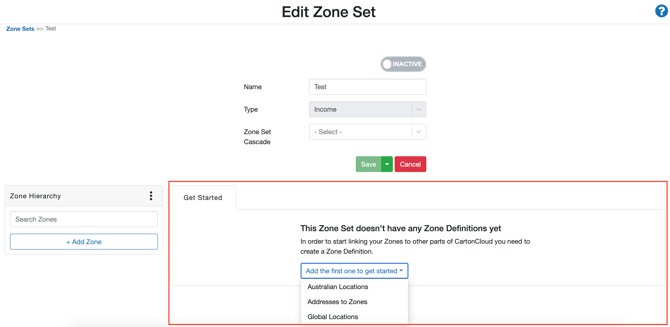
Once you have created your zones in the Zone Hierarchy panel you will then need to use the window to the right of the panel to create your location entries. As you do not have any location entries yet, the window will appear as below.
-
Select, Add the first one to get started.
- You will have three types of location entries to choose from. Select the location entry type you would like to start using (use the below table to help you select the most suitable location entry type).
|
Location Entry Type |
Definition |
|
Australian Locations |
Used to associate Australian locations with a Zone. These entries must contain a postcode of 4 digits in length. |
|
Addresses to Zones |
Used to associate a specific address with a Zone. This is useful if you wish to create a Transport Rate (using the Income Zone) and/or Transport Lane (using the Transport Zone) related to that particular address. |
|
Global Locations |
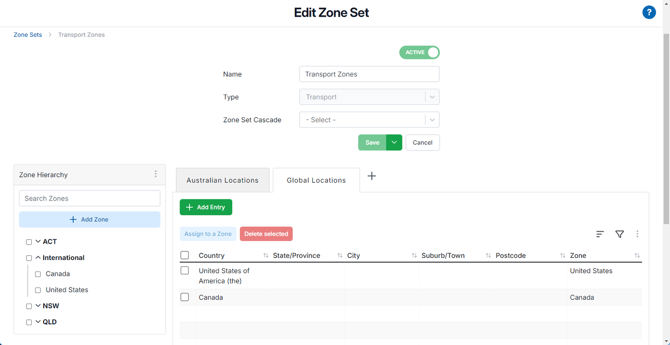
Used to associate suburbs/postcodes outside of Australia with a Zone. Global location entries can contain postcodes of any length. Global Location entries can include just the Country and do not require a state, city, suburb or postocde. This allows you to add a country as a location without having to manually add each individual state/province.
|
-
You can have multiple location entry types for the one Zone Set. Each additional location entry type will appear as a tab at the top of the window.
2. Add a new location entry
Upon selecting the location entry type a new tab will appear with the location entry type as the header.
To add a new location entry, you can either (a) add a single entry or (b) create multiple entries with the export/import function.
When creating your location entries you have the option to associate a zone to the entry. If you already know what zones will be associated with the location entries it is recommended you associate the zones in this step. If not, you can complete this in the next step - Assigning location entries to a zone.
(a) Add a single entry
- Select + Add Entry.
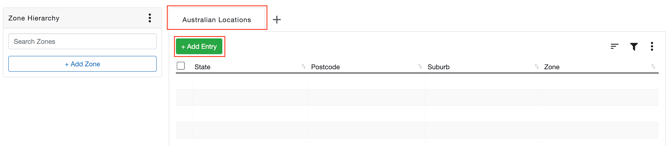
Complete the required fields, as seen in the below example, and select save. 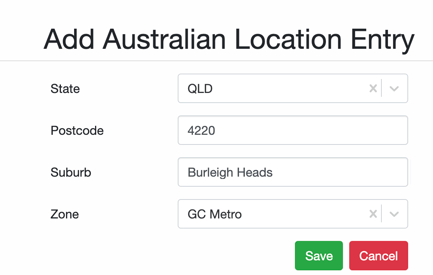
(b) Add multiple entries with the export/import function
When adding a large number of location entries it is suggested you use the export/import function. This is especially useful when you already have the location entries you use stored in a spreadsheet format.
If you do not have your locations saved in a spreadsheet format you can use the below Australian Locations file. This file contains all postcodes and suburbs in Australia. When using this file be sure to remove the locations that are not applicable to your operation before importing them into CartonCloud.
Australian Postcodes file
-
If you already have location entries in CartonCloud and need to edit/add more location entries follow the below export/import process:
-
To export location entries, select the 3 vertical dot icon, then Export xlsx.
-
The red bell at the top right of the page will then notify you when the export file is ready.
-
Select the bell icon then Download here.
-
Open the file in Excel or your chosen spreadsheet editing software.
-
To add new location entries, add the state, postcode, suburb, and zone (if you wish to associate the zone in this step)
-
When updating or creating new location entries do not change the id column.
-
Once the file is saved and ready to be imported, select the 3 vertical dot icon, then Import and select the file.
-
You will be notified once it is complete through the red bell at the top right of the page.
-
Review the import results to check if all location entries were created/updated successfully, or review any errors that may have occurred.
-
-
If you have no location entries and wish to add entries through the import function:
-
To import location entries, select the 3 vertical dot icon, then Import.
- If using the Australian Locations template (ensure you have deleted the irrelevant entries) then select this file, if using your own file make sure the excel file matches the below heading format and keep the id column blank.

- You will be notified once it is complete through the red bell at the top right of the page. Please note, if the import is large there may be a slight delay in the import success notification showing in the bell notification.
- Review the import results to check if all location entries were created/updated successfully, or review any errors that may have occurred.
If you have not yet associated the location entries to a zone, please follow the next step - Assigning Location Entries to zones
If you are using location entries in New Zealand please ensure you have all fields filled in for your location entry including state, postcode and suburb. When CartonCloud is looking for the correct location entry to match to the address on the Consignment, it will use the below list to find the best match. For example if the location entry has a postcode , state and suburb that match to the address it will select that location entry over one that has a city postcode and suburb match.
New Zealand location matches in order of best match:
- city + postcode + state + suburb
- postcode + state + suburb
- city + state + suburb
- city + suburb
- city + postcode
- suburb + postcode