
Table of Contents
How to navigate to the consignment report
To navigate to the Consignment Report page:
-
Select Reports>Consignment Report in the drop-down menu.
This feature is available for both Warehouse Management System (WMS) and Transport Management System (TMS) customers.
Report overview
The Consignment Report is used to generate custom reports on consignment activity, predominantly on recently delivered consignments. The report is viewable either in the web browser by clicking the Show Report button or by exporting the report into a CSV file by using the Export Excel button. It can also be sent as part of a daily consignment report notification.
The report is customisable and can be saved as a "Report Template" for later use.
Report Filters
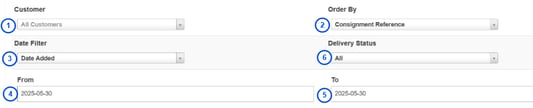
1. Customer (Admin Only): Either run the report over all your customers or just for a specific customer.
2. Order By: The order in which the report is sorted.
3. Date Filter: In combination with 4. From and 5. To this is used to filter the report to a specific date range (e.g. all consignments delivered today).
6. Delivery Status: Current status of the consignment (e.g. Awaiting Pickup, In Transit (Pickup → Warehouse), Delivered, Delivered (Warehouse Fulfilment). To view the available statuses, please see Consignment Types.
Report Columns
Below are a list and description of all the fields that can be used in this report. For any that are custom fields (".. Custom Fields"), these will show all available custom fields in the report. Each custom field will have a separate header and appear in the order they were set up.
Transport Fields
|
Field Name |
Description |
|
Customer ID |
The id of the customer |
|
Customer Name |
The name of the customer |
|
Consignment Reference |
The reference of the consignment |
|
Date Delivered |
The date the consignment was delivered |
|
Consignment Date Modified |
The date the consignment was last modified |
|
Consignment ID |
The id of the consignment |
|
Consignment Income |
The income of the consignment. Note, with grouped consignments, parent consignments will display the income data aggregated from the associated child consignments. Child consignments will reference the parent consignment, however, will not show income data and will appear as $0. |
|
Consignment Expense |
The expense of the consignment |
|
Consignment Date Added |
The date the consignment was added |
|
Consignment Invoice ID |
The id of the consignment invoice |
|
Group Consignment ID |
The id of the consignment's group. |
|
Group Consignment |
Yes if the consignment is part of a group, else No. |
|
Cash On Delivery |
How much cash on delivery for the consignment. |
|
Consignment Value |
The value of the consignment |
|
Consignment Delivery Status |
The current delivery status of the consignment e.g. Awaiting Pickup |
|
Consignment Custom Fields |
All enabled consignment custom fields. |
|
Consignment Data Custom Fields |
All enabled consignment data custom fields. |
|
Delivery Run Date |
The delivery date of the delivery run. |
|
Delivery Run |
The name of the delivery run. |
|
Pickup Company Name |
The company name of the consignment's pickup address. |
|
Pickup Street Address |
The street address of the consignment's pickup address. |
|
Pickup Suburb |
The suburb of the consignment's pickup address. |
|
Pickup City |
The city of the consignment's pickup address. |
|
Pickup Postcode |
The postcode of the consignment's pickup address. |
|
Pickup State |
The state of the consignment's pickup address. |
|
Delivery Address ID |
The id of the consignment's delivery address. |
|
Delivery Address |
The full address of the consignment's delivery address. |
|
Delivery Company Name |
The company name of the consignment's delivery address. |
|
Delivery Street Address |
The street address of the consignment's delivery address. |
|
Delivery Suburb |
The suburb of the consignment's delivery address. |
|
Delivery City |
The city of the consignment's delivery address. |
|
Delivery Postcode |
The postcode of the consignment's delivery address. |
|
Delivery State |
The state of the consignment's delivery address. |
|
Delivery ID |
The delivery id of the consignment |
|
Manifest ID |
The manifest id of the consignment |
|
Driver Name |
The name of the driver for the consignment |
|
Vehicle Name |
The name of the vehicle for the consignment |
|
Mobile App Custom Fields |
The Mobile App Custom Fields. See: Custom Fields within the App |
| Tracking Company |
The name of the courier or carrier company tracking the consignment. |
|
Tracking Reference |
The tracking reference assigned to the consignment by the tracking company. |
Consignment Item Fields
You can choose to display the Consignment Item fields of the Consignment. If you do this, each Consignment Item associated with the Consignment will show as an individual line.
Considerations when using Consignment Item fields
-
If the Consignment has a Sale Order associated with it, the Sale Order fields will show as a new line below the Consignment Item lines (an astricts * will sign that the Consignment has a Sale Order associated with it).
-
If using the Consignment Item Custom Fields, you can not select individual Custom Fields; therefore, all Custom Fields will be displayed.
-
When using Consignment Item Fields, load times for the report may increase.
-
If using Consignment Custom Fields, note that this field relates to the total Consignment, so it will not show line item details.
|
Field Name |
Description |
|
Consignment Item Code |
The code of the Consignment Item's Transport Product e.g CAR for Carton |
|
Consignment Item Description |
The description of the Consignment Item's Transport Products e.g Carton |
|
Consignment Item Qty |
The quantity of the Consignment Item |
|
Consignment Item Pallets |
The number of pallets of the Consignment Item |
|
Consignment Item Spaces |
The number of spaces of the Consignment Item |
|
Consignment Item Cubic |
The cubic of the Consignment Item |
|
Consignment Item Weight |
The weight of the Consignment Item |
|
Consignment Item Length |
The length of the Consignment Item |
|
Consignment Item Width |
The width of the Consignment Item |
|
Consignment Item Height |
The height of the Consignment Item |
|
Consignment Item Custom Fields |
The Consignment Item Custom Fields. Note you can not select individual Custom Fields; therefore, all Custom Fields will show. They will be displayed in the same order in the Consignment Item UI. |
Warehouse Fields
|
Field Name |
Description |
|
Sale Order Reference |
The reference on the sale order |
|
Sale Order Date added |
The date the sale order was added |
|
Sale Order ID |
The id of the sale order |
|
Sale Order Delivery Status |
The current delivery status of the sale order e.g. Awaiting Pick and Pack |
|
Order Qty |
The original number of units of a product requested for this sale order |
|
Ship Qty |
The number of units of a product that were dispatched with this consignment |
|
Product Code |
The code of the product |
|
Product Name |
The name of the product |
|
Product Type |
The type of product |
|
Unit of Measure |
The unit of measure used by the product |
|
Expiry date |
The expiry date of the product |
|
Pop Custom Fields |
The purchase order product custom fields (e.g. Batch Number) |
Consignment Notification
It is possible to automatically send daily Consignment Reports to Customers through their notification settings.
To do this:
-
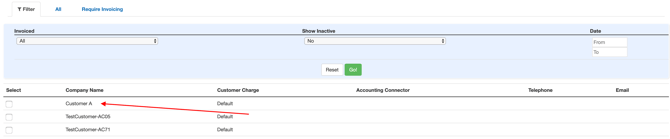
Select Contacts>Customers.
-
Select the Customer whom you wish to set up notifications for.
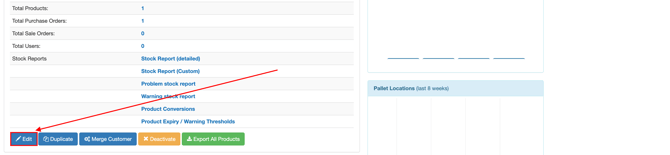
- Click Edit.
-
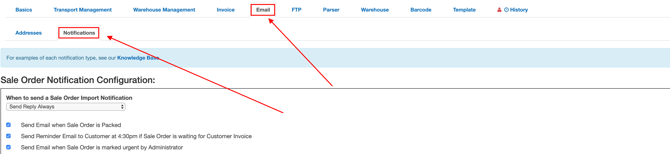
Select the Email tab and then the Notifications tab. Confirm that Send Daily Consignment Report Email is enabled.

-
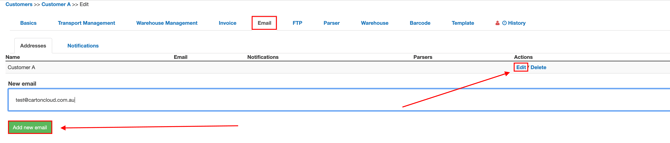
Under the Email tab and then under the Addresses sub-tab, either edit an existing notification or add a new email address.
-
Tick the Consignment Notification box and add the desired templates. These templates will be part of the Consignment Notification emails, which are sent out daily.

The Report Templates will be sent as an attachment with the name of the attachment used as the Report Template name (so name them wisely!) The attachments are sent as CSV files and contain exactly the same format/columns/data as can be extracted by exporting the report through the web app. One crucial difference is that it does not use both filters, rather it uses whichever filter you selected in the Run Email Notification Over. The options are:
-
Last Day: This uses the Report Template's saved Date Filter and Delivery Status and runs the report over the last day. For example, if date filter was set to date delivered and the delivery status was all and the date was the 18th then the email sent would contain an attachment with all consignments delivered on the 18th.
-
Last 3 Months: This uses the Report Template's saved Delivery Status and behaves exactly the same as the first option except it runs the report over the past three months.
Report Templates will not be sent if no consignments match the criteria defined in the template. This is to prevent users from being spammed daily with empty reports. If multiple attachments are supposed to be part of the email and only one has any consignments, just one attachment will be sent.