Table of Contents
- Purpose
- Consignment types
- Workflow of consignment types
- Configuring the default consignment type
- Consignment type field positions
Purpose
Consignment Types change the behaviour of how a Consignment is handled within CartonCloud.
The largest operational difference between Consignments Type is whether a driver is required to record a signature at the pickup, delivery point, or both.
They also come into play if you are using Onforwarders for the delivery of Consignments.
Consignment types
CartonCloud contains the following consignment types:
- Consignment Types - Delivery Consignment
- Consignment Types - Pickup
- Consignment Types - Pickup + Delivery
- Consignment Types - Point to Point Consignment
- Consignment Types - Return
- Consignment Types - Warehouse Fulfilments
Workflow of consignment types
Delivery, Split, Duplicate, Return
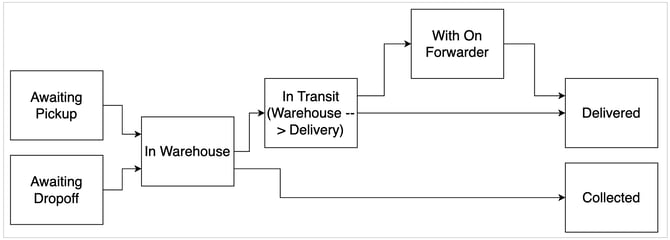
Delivery style consignments are considered "Cross-Dock", in that they're leaving from the Warehouse and only tracking on the delivery component is recorded.
With these consignments, they're not typically given a "Delivery Run Date" (and therefore don't show up for allocation), until they have been marked "In Warehouse".
Pickup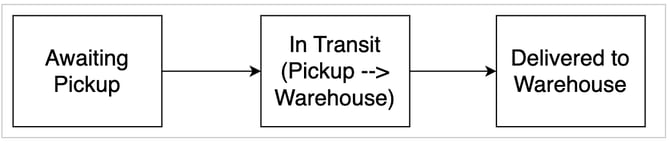
Pickup Consignments are often used in conjunction with Cross-Dock (Delivery) consignments in order to bring the bulk pallets back into the depot from the client's site.
Point to Point 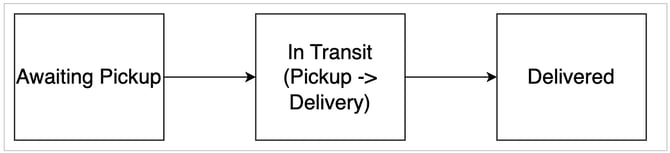
Point to Point (commonly referred to as Taxi-Truck), are deliveries which require the driver to capture both Pickup and Delivery details on the phone. These are jobs in which a single driver will be both collecting the stock, and also delivering to the end destination.
Warehouse Fulfilment
Warehouse Fulfilment Consignments are available for WMS-only CartonCloud accounts. The Warehouse Fulfilment works in conjunction with the Pack Screen to create an optimised packing process. The Warehouse Fulfilment moves between the following statuses:
- Awaiting Sale Order Packing
- In Warehouse
- Shipped
- Delivered (Warehouse Fulfilment)
Configuring the Default Consignment Type
The default consignment type can be configured from the Organisation Settings (under the Transport tab):
| Field | Description | Default |
| Default Consignment Type for Admins | When an administrator or other staff member (anything other than being logged in as a Customer) is entering a consignment, what should the Default consignment Type be? Note: None will force the user to select an option, so they cannot proceed with manually selecting something. |
Delivery |
| Consignment Type Field Position for Admins | Where the Consignment Type option appears if the user is another other than a Customer, either under the "Standard" or the "Advanced" sections, see below for more information | Standard Fields |
| Default Consignment Type for Customers | When a customer is entering a consignment, what should the Default Consignment Type be? | Delivery |
| Consignment Type Field Position for Customers | Where the Consignment Type option appears if the user is a Customer, either under the "Standard" or the "Advanced" sections, see below for more information. | Advanced Fields |
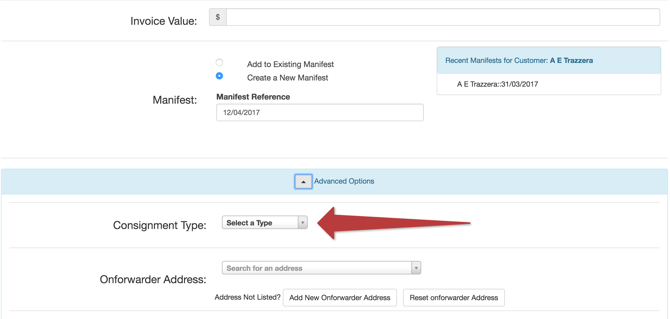
Be careful not to set the Default to None, and then put the field into the "Advanced Fields". The reason is, Advanced Fields are hidden by default when the page is shown, so the user will fill out everything they can see, click Save, and then they'll need to open up the Advanced Options to fill out the form. If you're going to force users to select a Consignment Type, put it into the Standard Fields.
Consignment Type Field Positions
When adding a new consignment the placement of the "Consignment Type" field can be in either the "Standard fields" or the "Advanced Fields". Putting things into the "Advanced" fields is good if you do 95% of your work with a single Consignment Type and are not expecting it to be changed often.
Standard Field Position
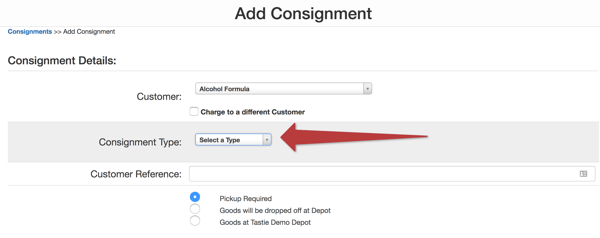
In the Standard Field Position, the Consignment Type selection appears at the top right underneath the Customer Selection (note, if a Customer is adding a Consignment then they don't have the Customer selection box).
Advanced Field Position
In the Advanced Field Position, the Consignment Type selection appears lower down, underneath the "Advanced Options". Note that when the page loads the Advanced Options are hidden and have to be expanded.