
Table of Contents
Purpose
CartonCloud provides two Sale Order Packing Slip templates that can be printed or downloaded directly from the Pack Screen. Both templates are customisable, but they behave differently depending on how you need your packing documentation structured.
This article explains the difference between the two templates, when to use each one, and how to set them up.
When to Use Each Template
|
Sale Order Packing Slip |
Sale Order Packing Slip Per Item |
|
|---|---|---|
|
Best for |
Orders where one document covering the whole order is sufficient. |
Operations where each box or carton needs its own individual slip. |
|
Output |
One PDF per sale order. |
A separate PDF per consignment item, combined into a single document. |
|
Example use case |
A customer wants a single packing list showing everything that was packed across the whole order. |
A warehouse packs multiple cartons per order and needs a separate slip placed inside each one. |
How Each Template Behaves
Sale Order Packing Slip (Aggregated)
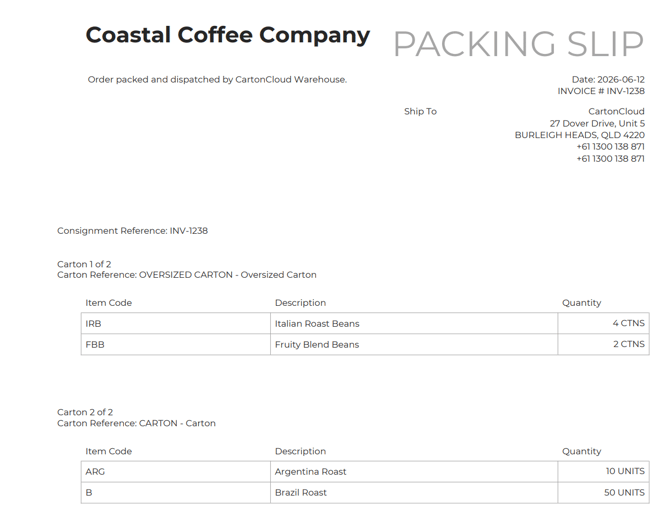
The Sale Order Packing Slip (Aggregated) displays all items from the whole Sale Order in a single file. If the order spans multiple consignments, each consignment's items are repeated within the document.
For example: if an order has two consignments with two items each, all four items appear in the one PDF.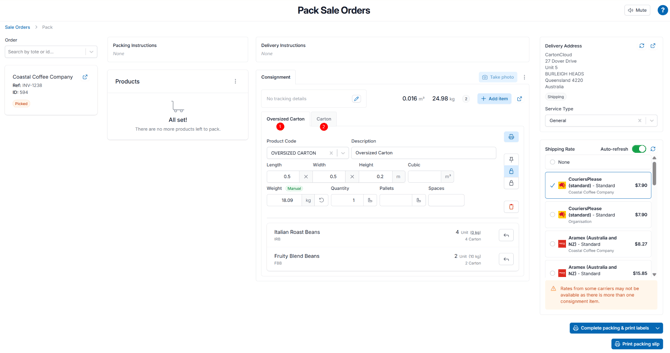
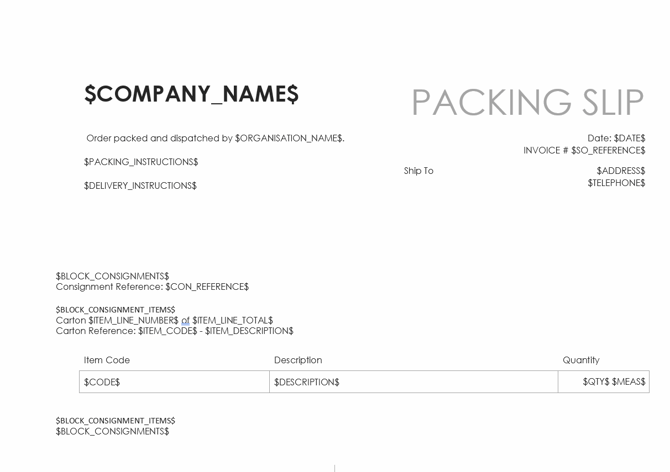
Example Sale Order Packing Slip Template with $BLOCK_CONSIGNMENTS$ and $BLOCK_CONSIGNMENT_ITEMS$ placeholders:
Example Sale Order Packing Slip (Aggregated) Output:
$BLOCK_CONSIGNMENTS$ or $BLOCK_CONSIGNMENT_ITEMS$ placeholders, only packed stock will appear. If the packing slip is printed before packing is complete, or part way through the packing process, products will not display on the document. Example Sale Order Packing Slip without $BLOCK_CONSIGNMENTS$ placeholders:
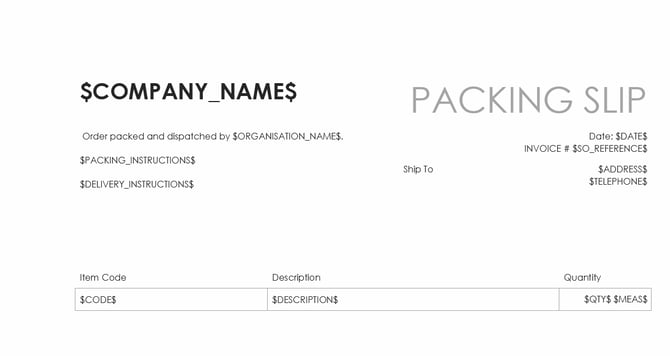
Example Sale Order Packing Slip (Aggregated) Output: 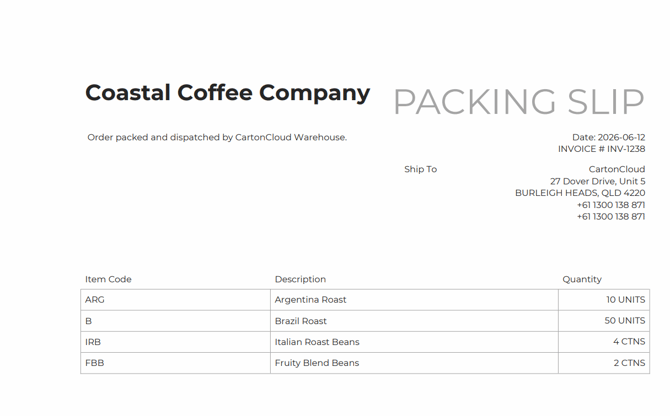
Sale Order Packing Slip (Per Item)
The Sale Order Packing Slip (Per Item) template renders once per consignment item, then stitches all pages together into a single PDF before sending to the printer or making it available for download.
For example: if an order has two consignments with two items each, the template renders four times — one page per consignment item — and the results are combined into a single PDF.
Example of Page 1 of 2: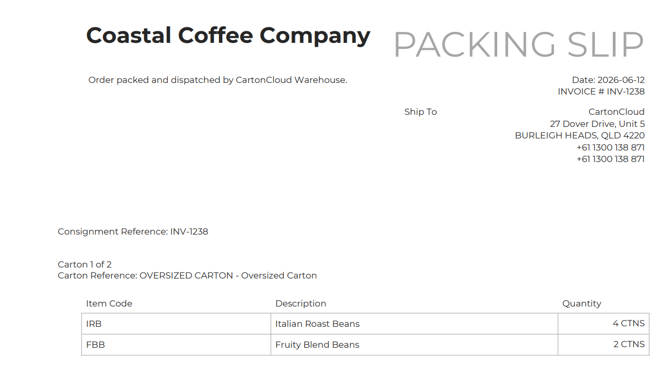
Example Page 2 of 2: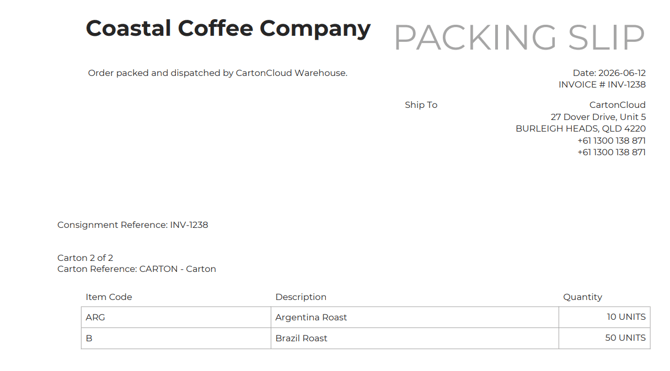
How to Set Up and Customise a Template
Both templates are customisable and available at the organisation level and per customer under Document Templates.
To download and customise a template:
- In the Search for Anything bar, search for "Document Templates".

- Scroll down to locate Sale Order Packing Slip or Sale Order Packing Slip Per Item.

- Click Download to download the current template.
- Open the template and make your edits using the Sale Order Packing Slip Placeholders.
For existing customers, the Sale Order Pack Slip default template has been left unchanged. If you would like it segmented by consignment item, download the Sale Order Pack Slip (Per-Item) default template and upload it as the Sale Order Pack Slip template. - Once complete, click Upload next to the relevant template to save your changes.
Templates can be set at the organisation level (applies to all customers) or overridden at the customer level for specific customers. Customer-level templates take priority over organisation-level templates.