
Table of Contents
- Purpose
- Prerequisites
- How to access CartonCloud's public Zapier
- Most common connections
- How to set up a Zapier integration with CartonCloud
- API Clients for Zapier
Purpose
Zapier allows you to integrate other applications with CartonCloud. Using your own Zapier account and CartonCloud's Public Zapier Integration, you can connect applications straight into CartonCloud yourself.
Prerequisites
- You will need your own Professional Zapier Account (if you are using Premium apps).
- You will need to create a CartonCloud API Client for each integration you wish to set up in Zapier (e.g. if you want to set up a Shopify integration for one customer and another Shopify integration for another customer, you would need to create two different API Clients or if you want to set up a Shopify integration and a Starshipit integration for a customer you would need to set up two different API Clients).
- Meet the integration requirements linked in the below table.
- Access your customer's connection account (e.g. full access to the customer's Shopify account).
How to access CartonCloud's Public Zapier
You can access CartonCloud's Public Zapier here.
Most common connections
Please note, these are just the most common ones we see users building. You can use Zapier to easily build an integration between CartonCloud and thousands of other applications.
| Connection | Link to template | Requirements to set up the integration |
| Xero pushing Purchase Orders into CartonCloud | Template in Zapier | Xero Integration Requirements |
| Starshipit pushing Sale Orders into CartonCloud | Template in Zapier | Starshipit Integration Requirements |
| Xero pushing Sale Orders into CartonCloud | Template in Zapier | Xero Integration Requirements |
| Shopify pushing Sale Orders into CartonCloud | Template in Zapier | Shopify Integration Requirements |
For applications not mentioned above, please see the Available Integrations section of the Knowledge Base to check the integration requirements for the specific application.
How to set up a Zapier Integration with CartonCloud
Note, this is only applicable to one-way integrations into CartonCloud.
- Navigate to the CartonCloud Public Zapier (through your Zapier account login).
- Select one of our Templates or search for an app to connect to.
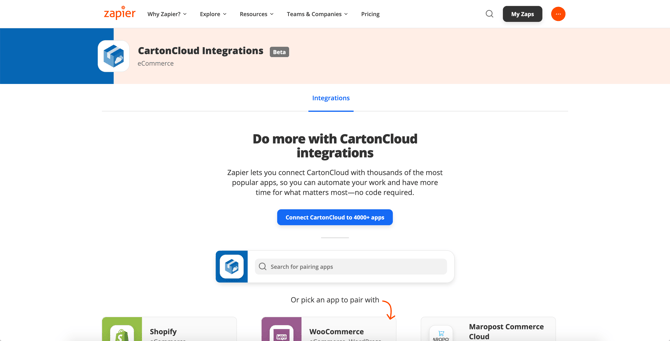
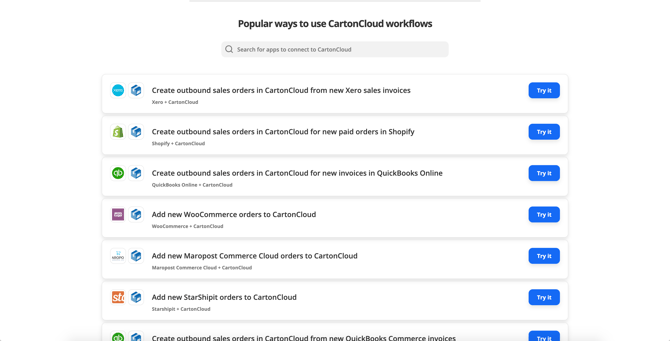
- Once you have selected an application or template, Zapier will guide you through the steps to set up the connection.
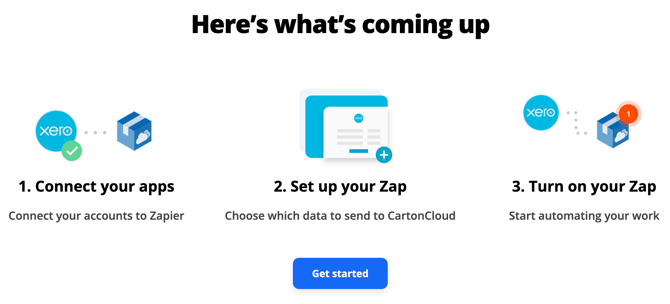
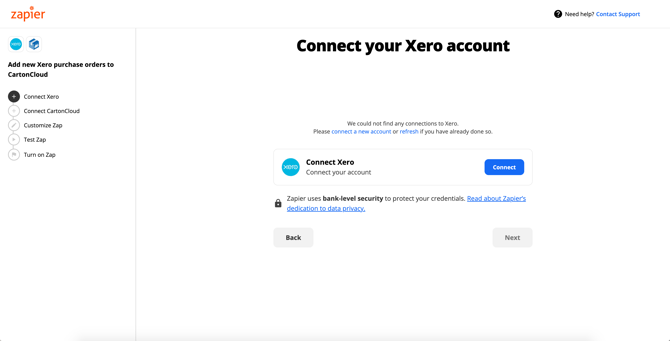
- Most of the information will be pre-filled if you are using a template.
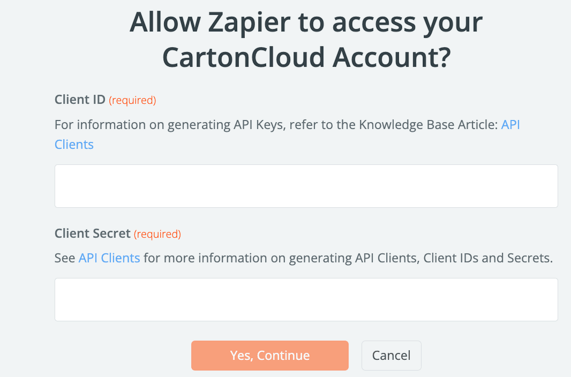
- When you get to the 'Connect to CartonCloud' step, you need to have the API Clients Credentials (the Client ID and the Client Secret). Please see the API Clients section of this article for more information.
API Clients for Zapier
To create a Zapier connection with CartonCloud, you require an API Client (created in CartonCloud). Each Zapier integration you create requires its own API Client. For example, if you are creating a Shopify connection for one customer and a Starshipit and Shopify integration for another customer, you would need three different API Clients.
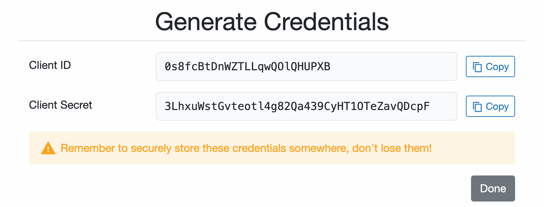
Once you have created the API Client, you will need to use the credentials to connect your CartonCloud account.
Connecting CartonCloud in Zapier:
CartonCloud API Client credetials:
How to create an API Client in CartonCloud
When creating the API Client in CartonCloud, it is recommended that you name the Client something that is easily associated with the Zapier connection. For example, if you create a Shopify integration for Coastal Coffee Company, you would call the API Client 'Shopify Zapier Coastal Coffee Company'.
You can find steps on how to create an API Client here.
Credentials for the API Client
When creating the Zapier integration and connecting your CartonCloud account, you must provide the appropriate API Client Credentials. Upon creating the API Client, you are provided with the Credentials; however, if you were to misplace the Credentials, you can follow the below steps to generate the Credentials again.