Table of Contents
Purpose
Scan Move 2.0 allows you to easily move stock from one location to another by either scanning or manually entering a label barcode. It provides details of every record being included in the move and also allows you to view all records that are currently recorded against a particular location or pallet.
In addition, there is a confirmation step when scanning the new location by either double scanning the new location barcode or selecting move on the screen to confirm the move.
Use cases/benefits
- Provides visibility and details on what is being moved.
- Can be used to check and confirm what stock is associated with the scanned or entered label barcode.
Increased accuracy when using the confirmation step (double scanning the new location barcode or selecting Move on the screen to confirm the move).
Prerequisites
-
You will need to be using a Mobile device (either a Mobile Phone (iOS or Android) or a Mobile Computer) to access Scan Move.
- If you are using a Bluetooth Barcode Scanner, ensure it is connected and working correctly. See Connect a Bluetooth Barcode Scanner for more information.
How to use scan move
There are two ways you can utilise Scan Move, either by using a barcode scanner or manually using the device's keyboard.
- Navigate to the Scan Move mode on your mobile device.
- The primary Scan Move screen will be displayed.
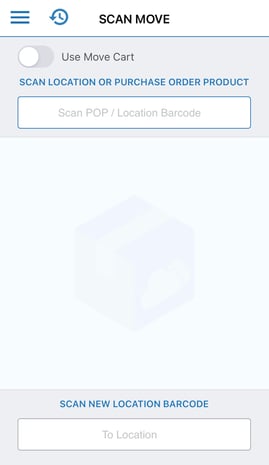
- Scan or manually enter the location, Purchase Order Product (POP) ID, unique reference, Unit of Measure (UOM) barcode or pallet ID barcode into the Scan POP/Location Barcode field at the top of the application.
- You will now be able to view all stock associated with that barcode.
Scanning a warehouse location barcode: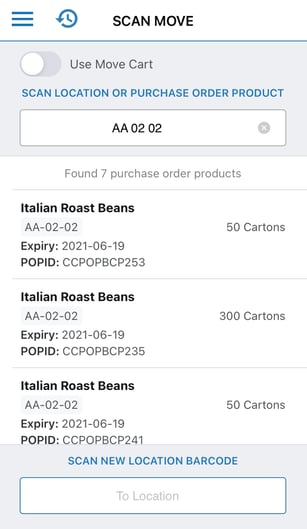
Scanning a POP ID barcode: 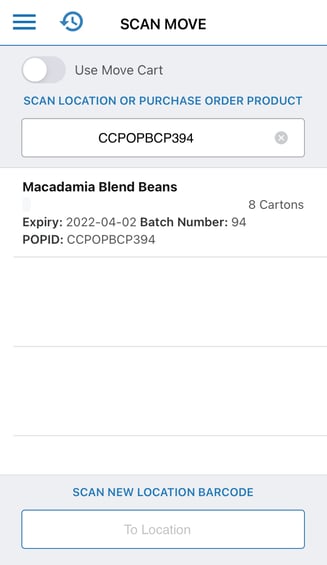
- Scan or manually enter the new location barcode into the To Location field at the bottom of the application.
To cancel the location, click the X icon in the location field.
- Select Move or scan the location barcode a second time to confirm the move. All Purchase Order Product IDs that are displayed will be moved to the new location.
- You will receive a success message that the stock has been moved to the new location.
To improve efficiency during the Scan Move process, scan the new location twice to confirm the move (if you are using a barcode scanner). 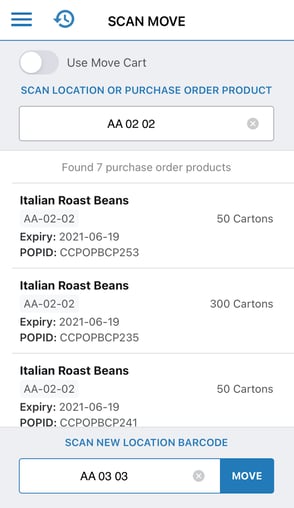
Scan Move History
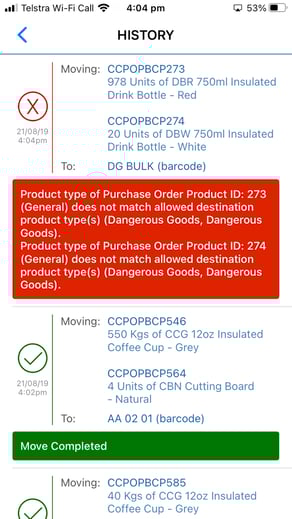
To access Scan Move history select the clock icon in the top left of the screen. You will be able to view all successful and unsuccessful Scan Move attempts.
Please note, Scan Move history is specific to the device being used. Even if the moves are completed within the same warehouse they will only show on the devices that the move was performed on.
Scan Move history will show the past 30 days of movements (specific to that device). 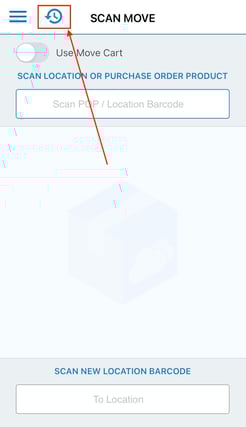
Successful move: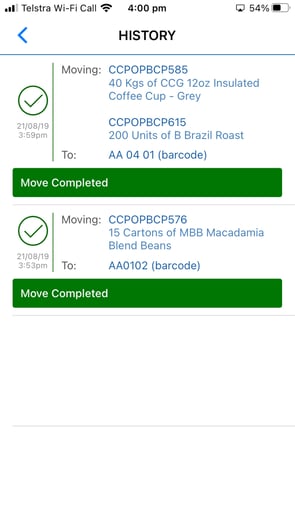
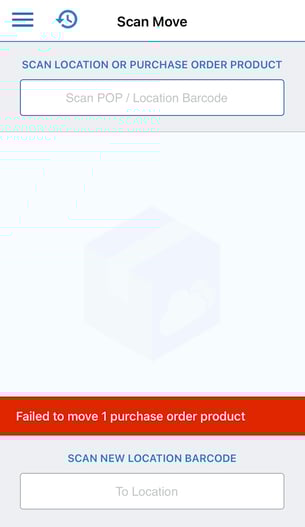
Unsuccessful move: