
Table of Contents
- Purpose
- How to access surcharges
- Adding a new surcharge
- Applying the surcharge to a transport rate on a rate card
- Example of a surcharge applied to a rate
- Applying a surcharge to the minimum charge
Purpose
Please note that if your CartonCloud account was created prior to 1 July 2019 the below functionality may not be available at this stage. If you would like to discuss further, please use CartonCloud Help and lodge a case with the Service Desk.
The Surcharges page provides the ability to create customisable and conditional Surcharges which can then be applied to transport rates on Rate Cards.
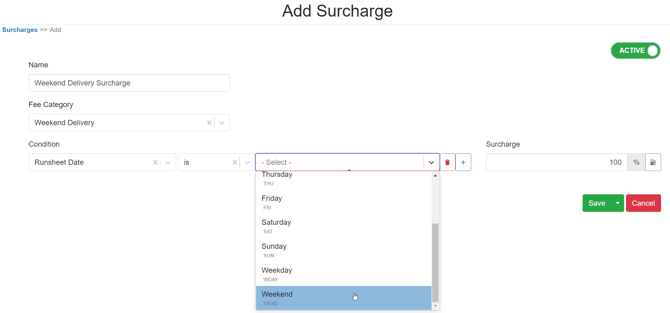
For example, a Surcharge can be created which is only applied on the condition that the required delivery date is a Saturday or Sunday.
How to access surcharges
- To access the Surcharges page navigate to More in the main menu, followed by Surcharges in the drop-down menu.
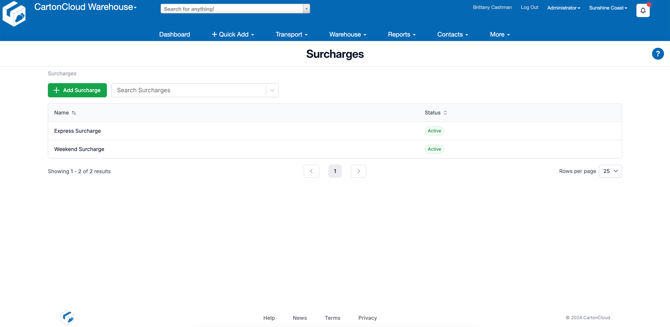
From here you will be able to view, search and edit already created Surcharges.
Adding a new surcharge
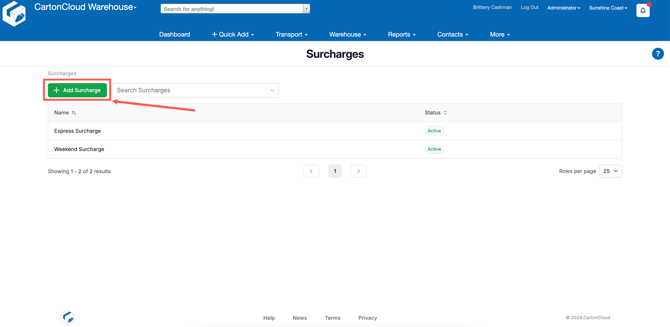
- To add a new Surcharge, begin by selecting +Add Surcharge.
- Give the Surcharge a name which allows you to identify it easily.
Applying the Surcharge to a Transport Rate on a Rate Card
- To apply the Surcharge begin by navigating to Rate Cards by selecting More in the main menu, followed by Rate Cards in the drop-down menu.
- Select the Rate Card which contains the transport rate you wish to apply the surcharge to.
- Navigate to the Transport Rates tab.
- Select the Transport Rate you wish to apply the surcharge to.
- Once viewing the Transport rate, select the 3 verticle dots as shown in the screenshot below, then enable Surcharges.
- Now, select the Fee Category you would like the Surcharge to apply to within the Transport Rate you are viewing, and finally, the particular surcharge to apply (which was created in the last part of this article).
Please note that multiple surcharges can be applied to multiple fee categories at the same time.
- Lastly, scroll to the bottom of the page and select Save.
In the example provided, we are charging a Weekend Surcharge on all fee categories within this Transport Rate, which is set up for Hourly Hire rates.
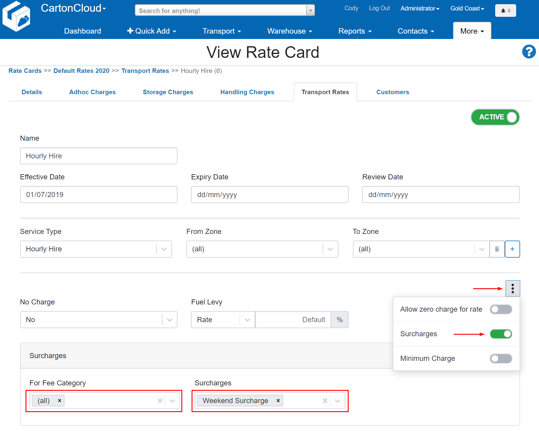
Now whenever the rate is applied to a consignment and the Surcharges conditions are met the Surcharge will be applied.
Example of a Surcharge applied to a Rate
In the example below an hourly hire consignment was booked charging for 4 hours of Semi hire at a rate of $125.00 on a Saturday. As the condition of it being weekend delivery was met the system has applied the surcharge of 100% on top of the hourly hire rate.
An extra hour of demurrage time was also charged on the day, but as the Surcharge is not applied to this ad hoc rate it does not affect it.
Applying a Surcharge to the Minimum Charge
If you want to apply a Surcharge to a Minimum charge then you will need to ensure you have selected the fee category (minimum charge description) of the minimum charge for it to apply.
As shown below the fee category must either be set to "All" or otherwise match the Minimum Charge Description provided as shown below.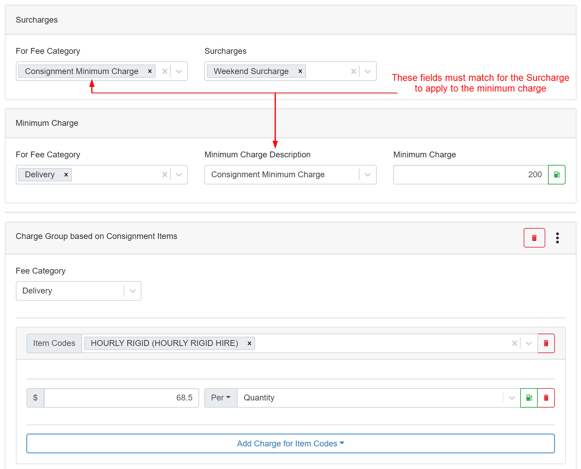
Example of a Surcharge applied to a Minimum Charge
In the example below an hourly hire consignment was booked charging for 1 hour of Semi hire at a rate of $125.00 on a Saturday. As a minimum charge of $200 was set up to be applied based on the rate shown above the system instead applied the minimum charge. As the condition of a weekend delivery was met the system has applied the surcharge of 100% on top of the minimum charge.
An extra hour of demurrage time was also charged on the day, but as the Surcharge is not applied to this ad hoc rate as ad hoc rates are not affected by surcharges.