
Table of Contents
- Purpose
- How stock adjustments work
- How to make a stock adjustment (increase or decrease quantity)
- How to make stock adjustments in bulk
Purpose
To make a stock adjustment.
How stock adjustments work
When you make a stock adjustment (increase or decrease stock quantity) via Adjustment Records, there is a clear traceable path for what stock was adjusted.
You can either increase or decrease the stock quantity.
When you increase the Purchase Order Product stock quantity, a new Purchase Order record will be created (stock is coming in).
When you decrease the Purchase Order Product stock quantity, a new Sale Order record will be created (stock is going out).
Depending on your Customer settings, each adjustment made for a day will be added to the same record (per customer). For example, if you decrease the quantity of stock A for one customer and then later in the day decrease the quantity of stock B for the same customer, the decreased quantity from both stock A and B will be added to the same Sale Order. If you wish for a new order to be created each time an adjustment is made, you can change this in the Sale Order Customer Settings.
How to make a stock adjustment (increase or decrease quantity)
Please ensure you have read and followed the steps outlined here to find the stock you wish to adjust.
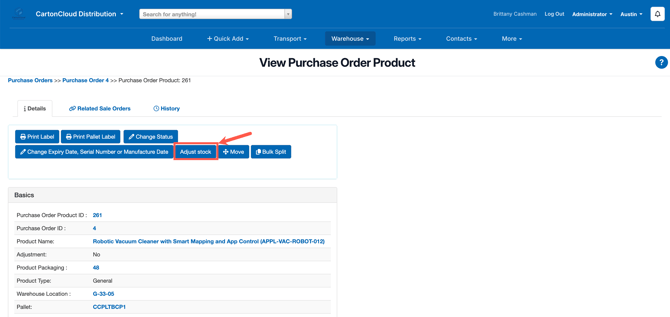
- Locate the stock you wish to adjust (using the instructions outlined here).
- Click Adjust Stock.
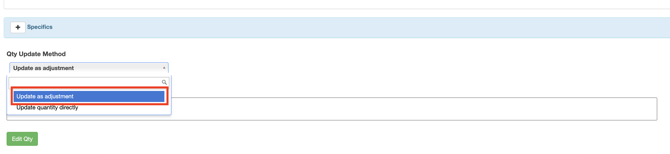
- Scroll down to the bottom and select Update as adjustment from the Qty to Update Method dropdown.
It is recommended that you use the 'Update as adjustment' option and not the 'Update quantity directly' option. This is because if you select the 'Update quantity directly' option, you will be directly modifying the Initial, Onhand and Free quantities with no traceability.
- Enter the quantity to adjust in the Unit Quantity Onhand field.
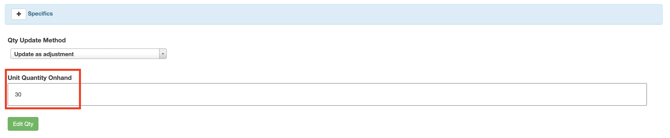
- Click Edit Qty.
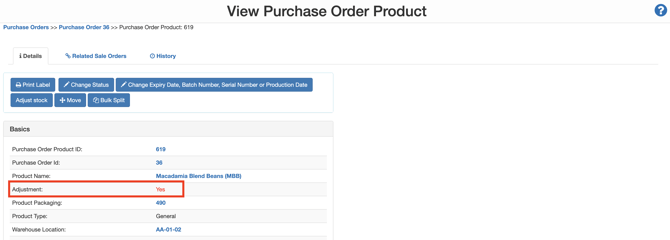
- Using the Stock Movement Report, you will be able to find the adjusted stock record. In addition, you will see if it is an adjustment from the Purchase Order list view and directly within the Purchase Order Product.

How to make stock adjustments in bulk
To make stock adjustments in bulk, you need to know the customer the stock relates to.
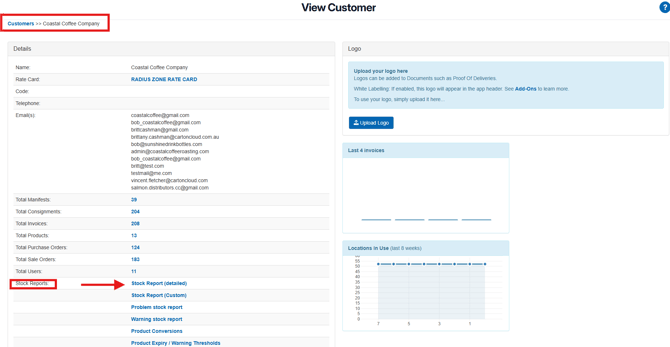
- Navigate to the relevant Customer, Contacts>Customers.
- Under Stock Reports, select Stock Report (detailed).
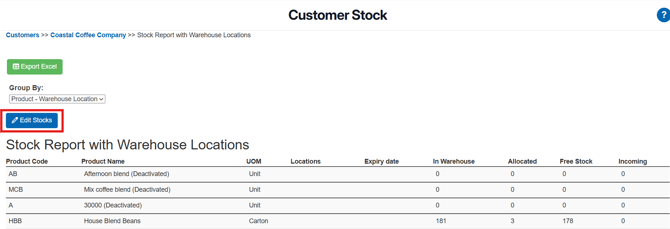
- Click Edit Stocks.
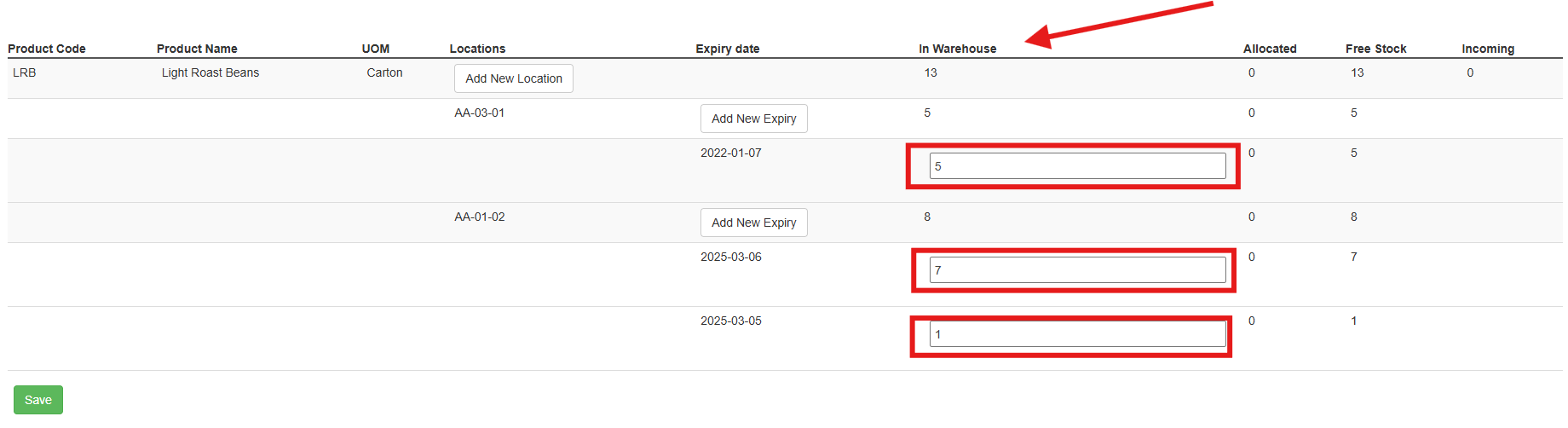
- Change the stock quantity against the relevant Purchase Order Product by changing the value in the In Warehouse text box.
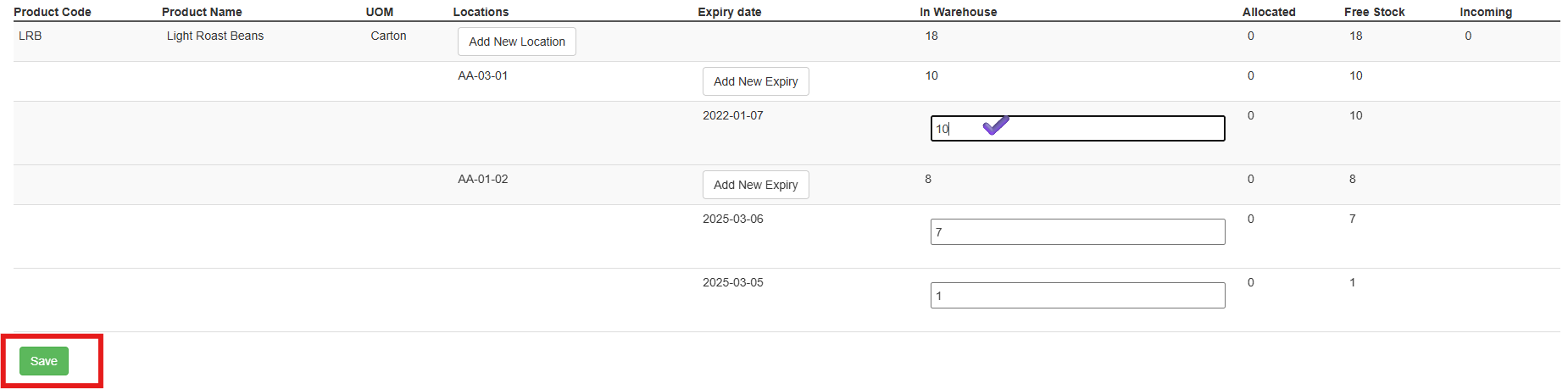
- Once you have made the adjustments within that Product Code, select Save. Continue this process for each Product Code.
- Click Stop Editing Stocks once you have made all relevant changes.

In the below video, Tony steps through how to make stock adjustments in bulk.