
Table of Contents
Purpose
To enable barcode scanning through the CartonCloud mobile application a Bluetooth Barcode Scanner must be connected to the mobile device being used (alternatively, if you are using a Mobile Computer, the barcode scanning will be built into the device, thus you will not need to connect a Bluetooth Barcode Scanner).
The setup and connection processes may vary from device to device. If in doubt, please consult your device manual and follow the manufacturer's instructions.
iOS
Connect Scanner
-
Ensure your Bluetooth scanner is charged and switched on.
-
Ensure your Bluetooth scanner is in discoverable mode. This may require you to scan a barcode provided in the device manual to choose how the scanner connects to your iOS device.
-
If the option is given, please choose for your scanner to operate in HID mode, ensuring that HID features for Apple iOS are enabled.
HID features can normally be enabled/disabled by scanning the corresponding barcode in your Bluetooth barcode scanner's manual.
HID mode allows you to still bring up the iOS software keyboard while a scanner is connected. To bring up the iOS keyboard, double-pressing the scanner trigger may be required for some scanning devices.
More information about this behaviour: Keyboard not Showing (iOS)
-
On your iPhone/iPad, navigate to the Bluetooth settings: Settings > Bluetooth
-
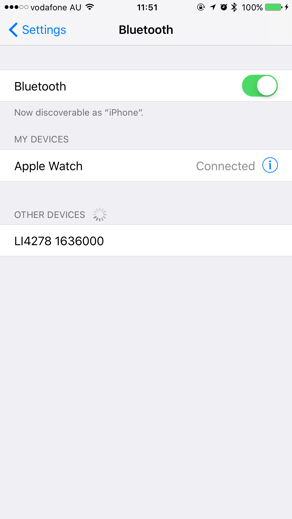
On your list of Other Devices, you should now be able to see your Bluetooth scanner. Beware that some devices may be listed under a relatively cryptic name, often representing the model number + serial number.
-
Select your device by tapping on it. The iPhone/iPad will now attempt to pair with the device.
-
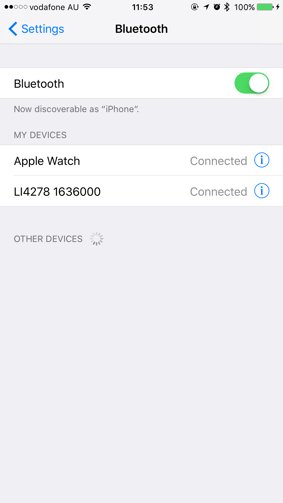
Once successfully connected, the scanner will be listed under My Devices and have a "Connected" label next to it.
-
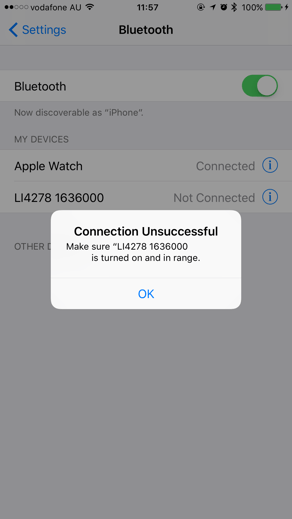
Should the connection attempt fail then check the scanner is not currently connected to another device. If you know it is /assumes it might be, unpair the scanner following the steps below ("Remove Scanner") and retry the connection steps above
Remove Scanner
-
Using the scanner:
-
Locate the "Unpair / Disconnect" barcode in the scanner's user manual and scan.
-
The scanner is now disconnected from any previously connected device.
-
-
Using the connected iOS device:
-
Navigate to the Bluetooth settings on your iOS device: Settings > Bluetooth
-
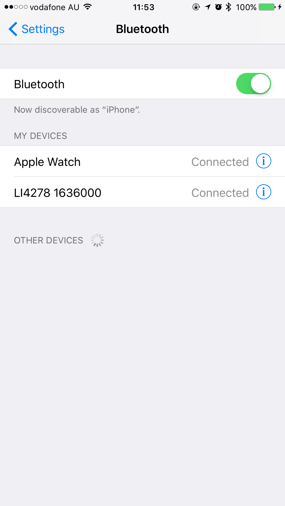
Locate the scanner on the My Devices list.
-
-
Select the Info button ("i") on the right of the list entry.
-
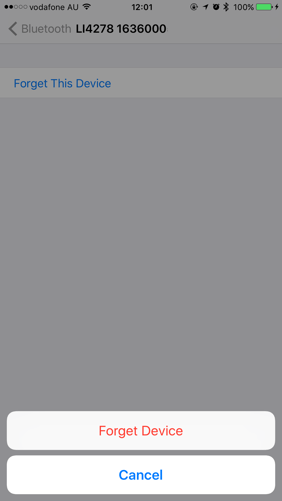
Choose Forget This Device and confirm your selection.
-
The scanner is now disconnected from the iOS device.
Troubleshooting
Troubleshooting Barcode Scanning (Mobile App)
Android
Connect Scanner
-
Ensure your Bluetooth scanner is charged and switched on.
-
Ensure your Bluetooth scanner is in "discoverable" mode. This may require you to scan a barcode provided in the device manual to choose how the scanner connects to your Android device.
-
If the option is given, please choose for your scanner to operate in HID mode. HID features can normally be enabled/disabled by scanning the corresponding barcode in your Bluetooth barcode scanner's manual.
-
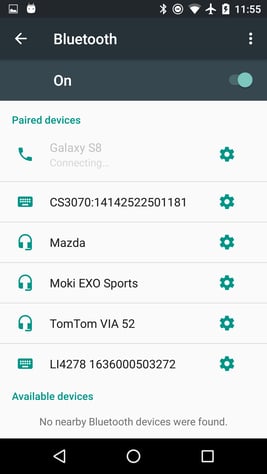
On your mobile device, navigate to the Bluetooth settings: Settings > Bluetooth or Settings > Connections > Bluetooth.
-
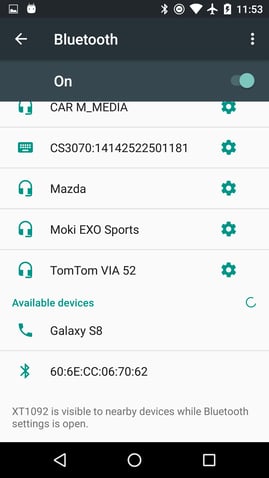
On your list of Available devices you should now be able to see your Bluetooth scanner. If not, click on the button normally named "SCAN" or the 3 dot image on the top right corner to bring up a pop-up menu, which will give you the option to refresh the list of devices. Beware that some devices may be listed under a relatively cryptic name, often representing the model number + serial number.
-
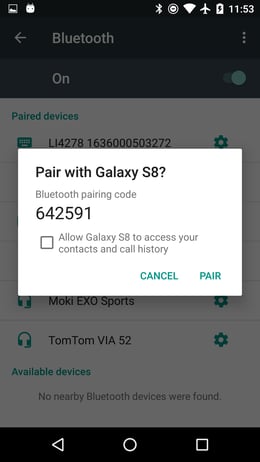
Select your device by tapping on it. Your mobile device will now attempt to pair with the device. A window will pop up. Press "PAIR" to continue the pairing.
-
Once successfully connected, the scanner will be listed under Paired devices and may have a "Connected" label next to it. To make sure, you can also tap the device to get it connected again.
-
Should the connection attempt fail, then check the scanner is turned on and not currently connected to another device. If you know it is /assume it might be, unpair the scanner following the steps below ("Remove Scanner") and retry the connection steps above.
Remove Scanner
-
Using the scanner:
-
Locate the "Unpair / Disconnect" barcode in the scanner's user manual and scan.
-
The scanner is now disconnected from any previously connected device.
-
-
Using the connected mobile device:
-
Navigate to the Bluetooth settings: Settings > Bluetooth, Settings > Connections > Bluetooth.
-
Locate the scanner on the Paired devices list. Click on the Settings button on the right of the list entry.
-
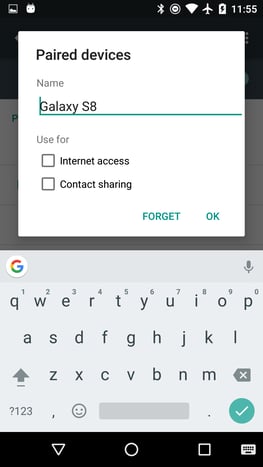
Choose "FORGET" and confirm your selection.
-
- The scanner is now disconnected from the mobile device.
Troubleshooting