
Table of Contents
- Purpose
- More information on retrying documents
- Viewing retrying documents
- Manually retrying documents
Purpose
Retrying documents have been uploaded to CartonCloud, but the Customer Reference Number on the document can not be matched to any order in CartonCloud. This process prevents documents from being categorised as 'Unassigned' straight away and allows time for the corresponding order to be added to CartonClud.
More information on retrying documents
Documents are uploaded via Email, FTP, or manually uploaded to CartonCloud. The Parsers extract the Customer Reference Number from an invoice. CartonCloud then uses this Customer Reference Number to try and automatically assign the Invoice to the correct Consignment, however in some cases, the Consignment Customer Invoices is imported before the Consignment. To prevent the Invoices from immediately going to "Unassigned", they're put into a "Retrying" status while waiting for the associated Consignment to arrive.
If a Consignment Invoice is uploaded to the system before the actual Consignment, a Consignment Customer Invoice is created with a Retrying status. This Retrying status means that the system will automatically look for the Consignment that the Consignment Invoice belongs to and then link them together if it does find it. If the system does not find the correct Consignment on a retry, it stays in retrying and checks again every hour. The retrying process will continue for 24 hours. If no Consignment is found that matches the Consignment Invoice, then it stops retrying and becomes an Unassigned Consignment Invoice.
Viewing retrying documents
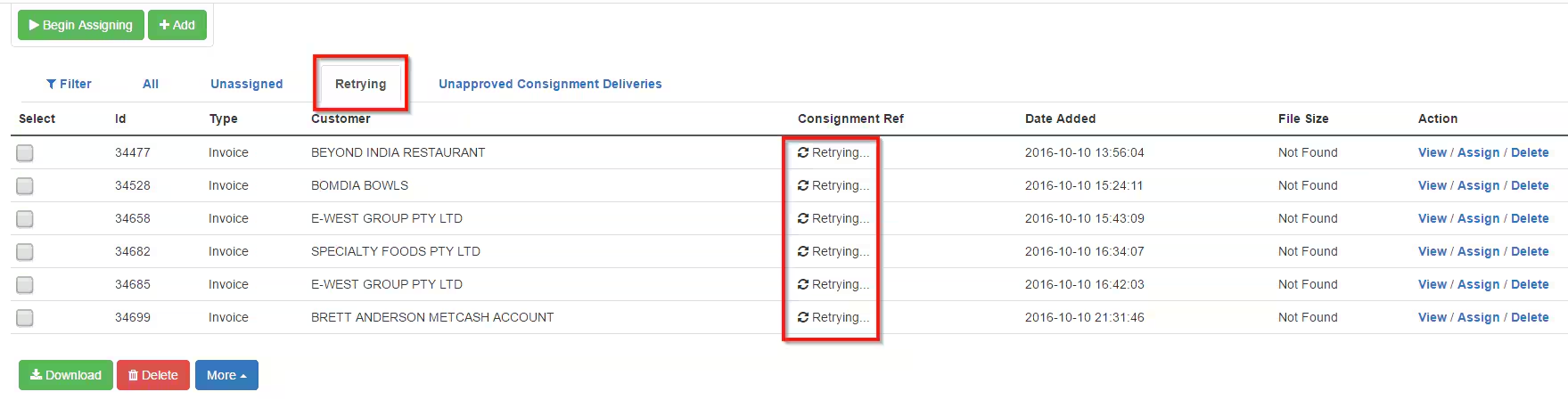
You can view documents that are in a retrying status by:
-
Navigating to the Documents page, More>Documents.
-
Select the Retrying tab.
Manually retrying documents
There are two ways to retry a Document in Retrying status manually. You can do so from either the Documents page or directly within the individual document.
To perform a Manual Retry from the Documents page:
-
Select which Document(s) you would like to retry by ticking the check box next to the relevant Documents.
-
Click More.
-
Click Retry.
To perform a Manual Retry while viewing an individual Document:
-
Click on the relevant Document.
-
Click on the Retry link in the Actions row.
-
Click Ok in the prompt that appears to confirm the Manual Retry.