
To begin using the Zebra TC21 device with the CartonCloud application you must first configure the device as per the below instructions.
- Download the CartonCloud Profile file onto your device:
The file can also be downloaded from this link: https://drive.google.com/open?id=1EBQn93o4Uu3N8dggjL9yxQt__VyIrV9y
- Select the menu button in the top right corner and select Settings > Import Profile.
- Navigate to the DataWedge application on the device (this comes pre-installed on the device).
- Navigate to the Downloads folder on your device by following the below sequence:
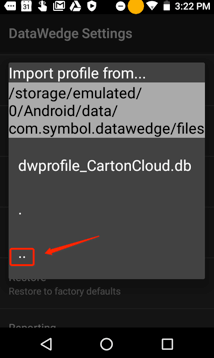
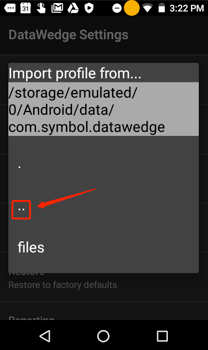
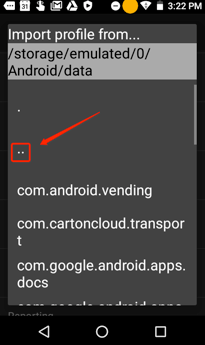
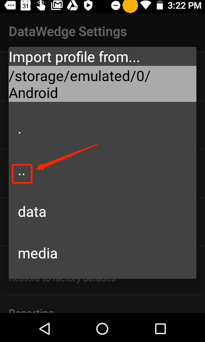
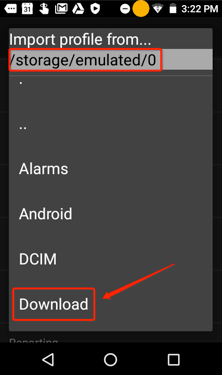
- Select file dwprofile_CartonCloud.db
- CartonCloud will now show as a profile in the list of profiles. Select the profile and select Associated apps.
- Check com.cartoncloud.transport.* is listed as the only association.
- If com.cartoncloud.transport.* is not shown on the list of associated applications: Choose New app/activity from the top-right menu and select com.cartoncloud.transport from the list of applications, and select *.